


{{ secondMenu.name }}






A static route is a special route that needs to be manually configured by the administrator.
When the network structure is relatively simple, the network can work normally only by configuring static routing. Configuring static routes and the settings carefully can improve the network performance and ensure bandwidth for essential applications.
The disadvantage of static routing is that when a network fails or the networking topology changes, the static routing will not change automatically and must be controlled by the administrator.
Static routing can implement access spanning three layers by devices. The static routing page is shown in the figure below.

Click Add to create a static route. You can choose to create a single static route or multiple static routes, as shown in the figure below.
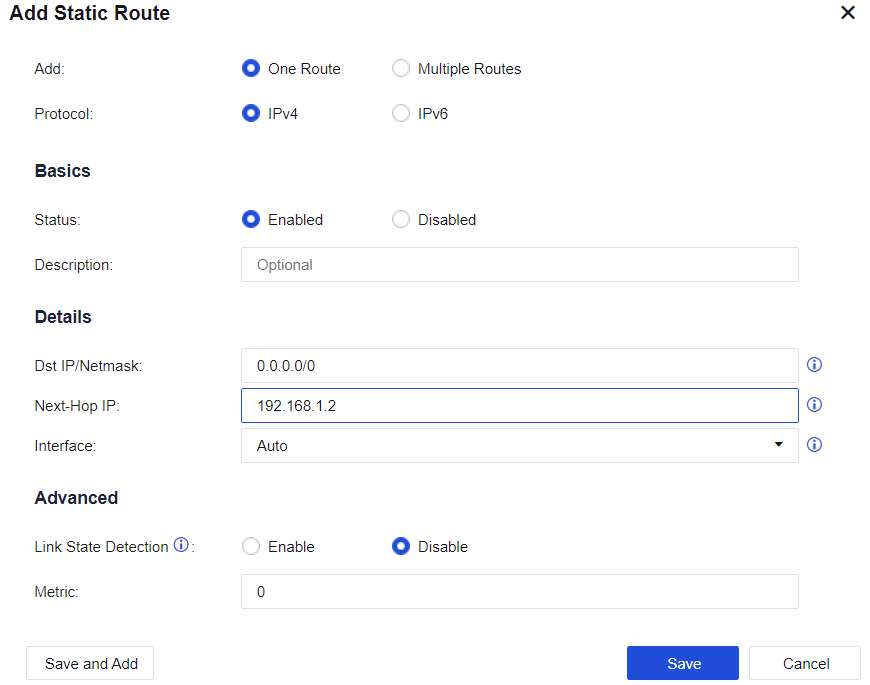
Add: Create One Route or Multiple Routes. If One Route is selected, only one static route can be created. If Multiple Routes are selected, multiple entries of route information are imported in a fixed format.
Protocol: Select IPv4 or IPv6.
Status: Enable or disable this static route.
Dst IP/Netmask: Refers to the destination network segment to be reached and subnet mask.
Next-Hop IP: Refers to the next-hop IP address used to reach the destination network segment. The next-hop IP address cannot be filled with the IP addresses of local network interfaces on the device.
Interface: Select an interface on the device for data forwarding.
Metric: When the destination address is the same, the one with the lower metric value is preferentially selected for forwarding. The lower the metric value, the higher the priority.
Correlation Interface Link: After being enabled, when the link of the selected interface fails (PING or DNS detection fails), the status of the static route will be set to invalid and the static route will be deleted from the corresponding route table. When the route is used as a floating static route, this function is recommended to be enabled.

Link State Detection must be enabled for the interface(s) selected for Correlation Interface Link.
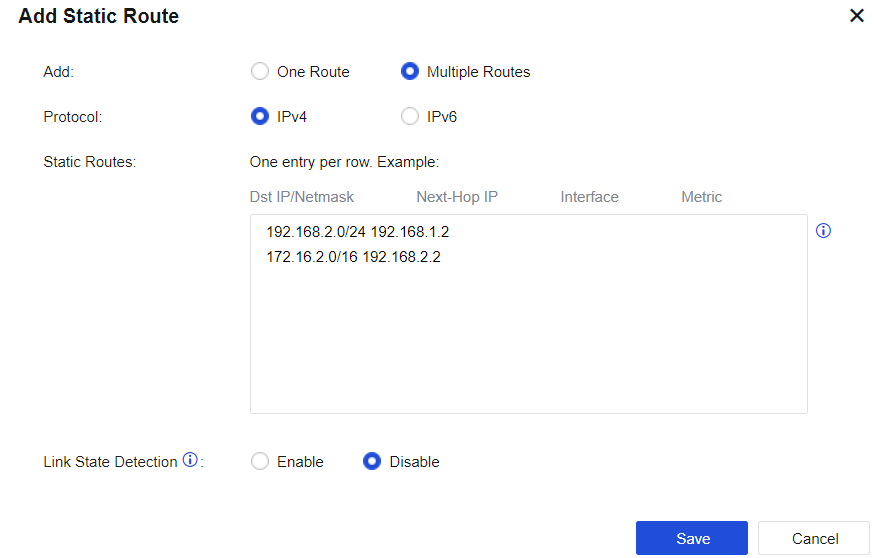
If Multiple Routes are selected, fill in multiple IP addresses according to the format, as shown in the following figure.


 {{ $t('index.defaultHeader.chromeBrowserTip') }}