


{{ secondMenu.name }}






The interfaces on the device panel correspond one to one (for example, eth0 corresponds to the management interface) Physical interfaces cannot be deleted or added. The number of physical interfaces depends on the hardware (a few platforms support expansion). This page shows details of each interface, including Name, description, WAN, interface Type, IP Assignment, Zone, IP Address, dialing status, MTU, Link Mode, PING, network interface status, Link State, etc., as shown in the following figure.
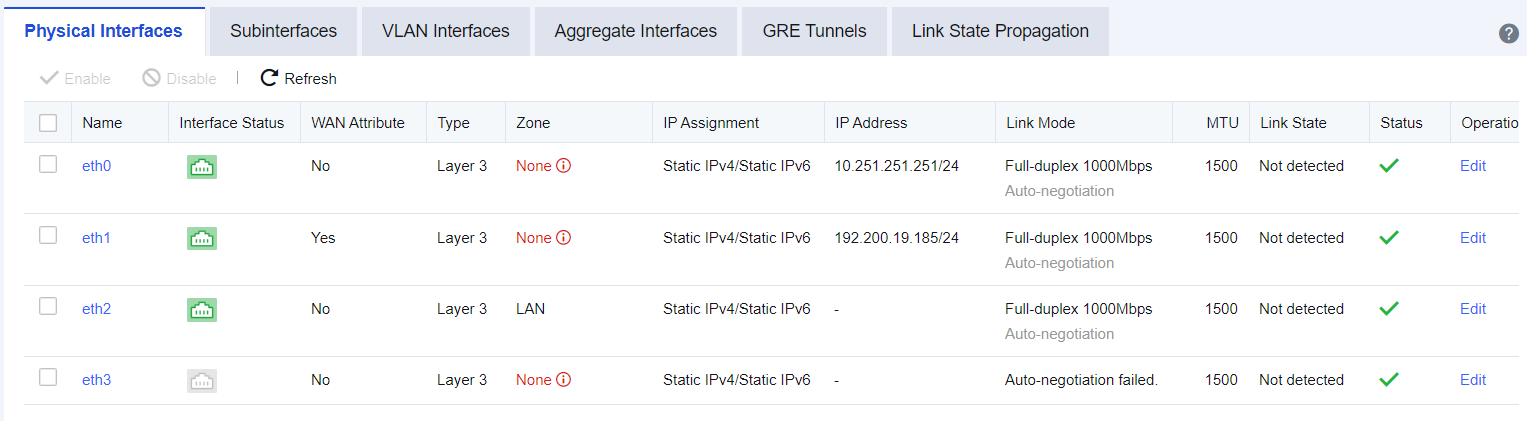
Name: Refers to the name of a network interface. The name of a physical interface cannot be modified.
Interface Status: Indicates the connection status of a network interface. If the connection status is in green, it indicates that the interface is in UP status; if in white, it indicates that the interface is in DOWN status.
WAN: Indicates whether a physical interface has WAN attribute(s). Enable this function when traffic control needs to be configured.
PING: Indicates whether it is allowed to enable PING on an interface. If allowed, you can ping the interface; otherwise, ping is blocked.
Interface Type: Indicates the type of interface. There are four types of interfaces: routing interface, transparent interface, virtual cable interface, and mirror interface.
Zone: Indicates the security zone to which the interface belongs.
IP Assignment: Indicates the type of the obtained IP address of an interface, including PPPoE, static IPv4, DHCP IPv4, static IPv6, and DHCP IPv6.
IP Address: Indicates the IP address configured for an interface.
MTU: Displays the MTU information of an interface. MTU can be configured. MTU range: 68 - 1500.
Link Mode: Indicates the working mode of the physical network card for a network interface, and configures the working mode of a physical network card.
Link State: Displays the link fault state of an interface. The device can detect the link-state through PING detection and DNS detection.
Status: Displays the enabled status of an interface.
Operation: Edit interface details.
Edit Physical Interface
Click the interface named eth1 to open the configuration page, as shown in the following figure.
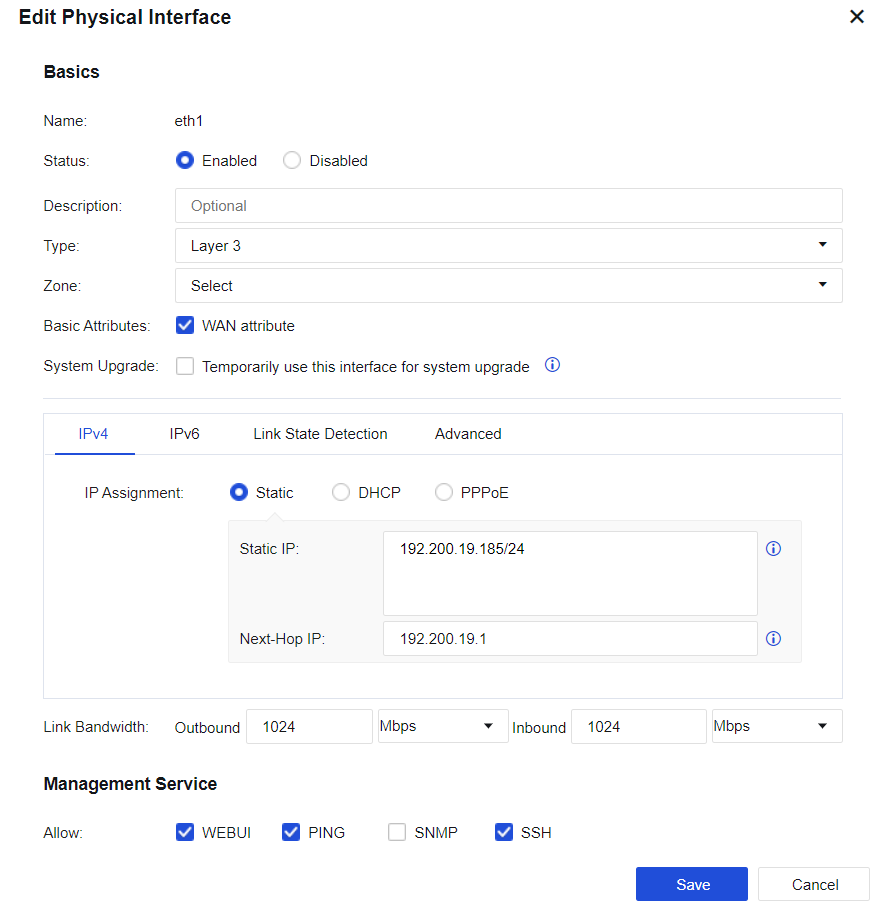
Status: To enable or disable the interface.
Type: Configure the interface mode. It determines the data forwarding function of a device. There are four types:
• Routing: If the interface is selected to serve as a routing interface, it indicates that the interface works in Layer 3 mode and an IP address needs to be configured. The interface has the function of routing and forwarding.
• Transparent: The transparent interface serves as an ordinary exchange interface neither requiring the IP address nor supporting routing and forwarding. It forwards data based on the MAC address table.
• Virtual Wire: The virtual wire interface is also an ordinary exchange interface neither requiring the IP address nor supporting routing and forwarding. It forwards data directly through the paired interface of the virtual cable.
• Mirroring: The mirror interface connects to a switch with the mirroring function to mirror the data flowing through the switch.
Basic Attributes: Set the basic attributes of the interface and decides whether it is a WAN interface.
System Upgrade: Client update is available after this function is enabled. The function will be closed automatically after 8 hours of activation.
Obtaining an IPv4 address:
Selecting Static IP means that the IPv4 address and next-hop IP address of the interface are specified by manual configuration. To configure routing on the interface, you need to configure a corresponding IP address.
If you're setting up a dual-device active-standby, please add -HA to the IP/netmask for the out-of-sync IP addresses.
You're required to fill the Next-Hop IP field if the WAN box is checked. The default route will not be generated automatically after Next-Hop IP has been filled up.
Selecting DHCP means that the IPv4 IP address and next-hop IP address are automatically obtained using DHCP.
Selecting PPPoE to obtain an IP address by dialing. As ISPs' IP addresses are changed frequently, it is required to add default route(s).
Obtaining an IPv6 address: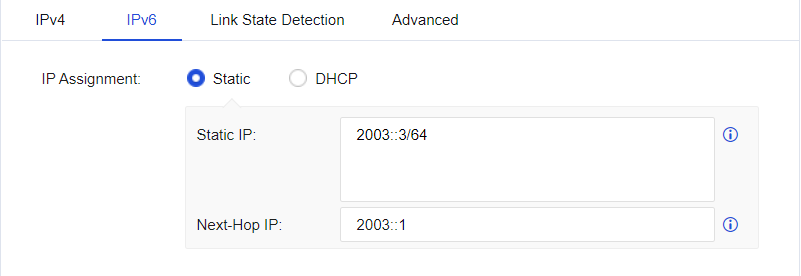
To use the IPv6, you have to enable the global IPv6 function under System > General Settings > Network so that the device can forward IPv6 messages.
Select Static IP means that the IPv6 address and next-hop IP address of the interface are specified by manual configuration.
Selecting DHCP means that the IPv6 IP address and next-hop IP address are automatically obtained using DHCP.
Link State Detection: Detect the availability of external lines. If there is more than one external line, the traffic can be automatically switched over to other normal lines when one line fails. Detection can be performed by using DNS lookup, PING, or ARP probe. See the figure below.
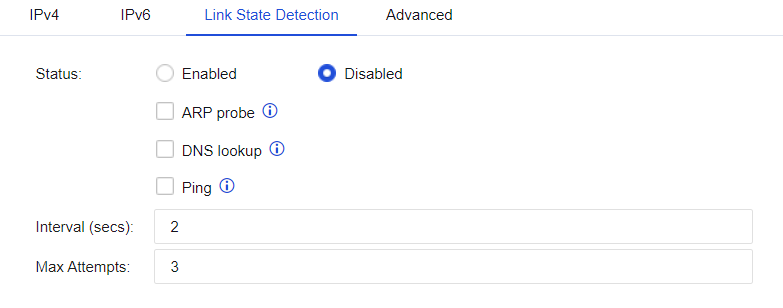
• ARP probe: Determines the link status by sending ARP to the designated network device. Each group consists of two destination IP addresses, separated by a comma. ARP packets are sent to all IP addresses in the group.
• DNS lookup: Determines the link status by resolving the domain name on the designated DNS server. Up to two groups of DNS servers can be configured. If any group of servers fails to resolve the domain name, it will be judged as a link failure.
• PING: Ping the designated server to determine the link status. You can configure a maximum of two groups of destination IP, and each group consists of two destination IP addresses, separated by a comma. When all the IPs in any group fail to PING, it is judged as a link failure.
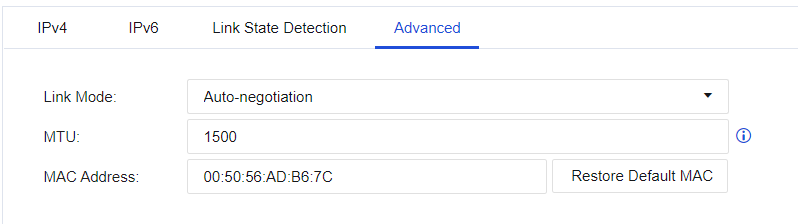
• Advanced: Set the Link Mode, MTU, and MAC Address of the interface. See the figure below.
• Link Bandwidth: Set the line bandwidth range of the interface, as shown in the following figure.

• Management Service: Set whether to allow the interface to access devices, such as HTTPS, PING, SSH, and SNMP.


1. Management interface ETH0 is a routing interface, and its interface mode cannot be changed.
2. Users can add management IP addresses to ETH0. However, the default management IP address 10.251.251.251/24 cannot be deleted. For NGAF8.0.23 or higher versions, implement changes under System > System Settings > General Settings > Network.
3. The IPv4 address of any interface must not lie in the 1.1.1.0/24 segment.
4. You cannot activate the preemption function in dual-device active-standby mode and link detection simultaneously.


 {{ $t('index.defaultHeader.chromeBrowserTip') }}