


{{ secondMenu.name }}






Endpoint App control is a function used to track and control applications from the endpoint application list to prevent employees from using those apps during office hours, improving productivity and reducing network security risks.
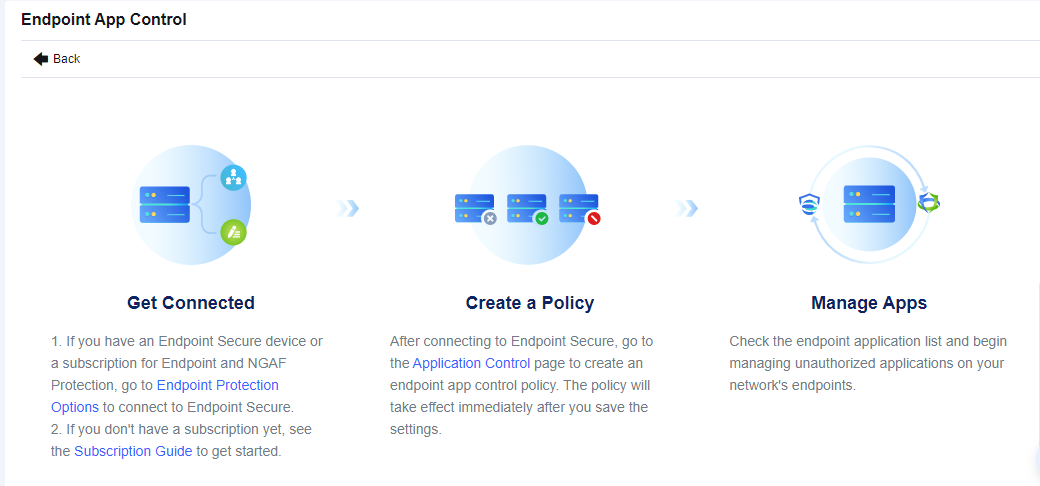
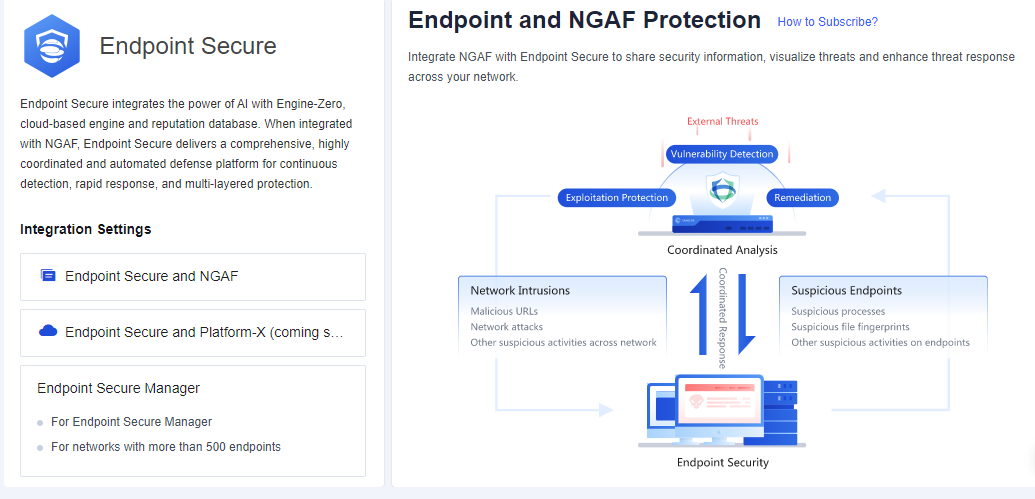
Step 1.Make sure that your NGAF device is connected to Endpoint Secure Manager. To connect NGAF to Endpoint Secure Manager, go to SOC > Next-Gen Security > Endpoint Protection > Endpoint Protection Options.
Step 2.After Endpoint Secure is connected, configure an endpoint app control policy. Go to Policies > Access Control > Application Control to configure the policy.
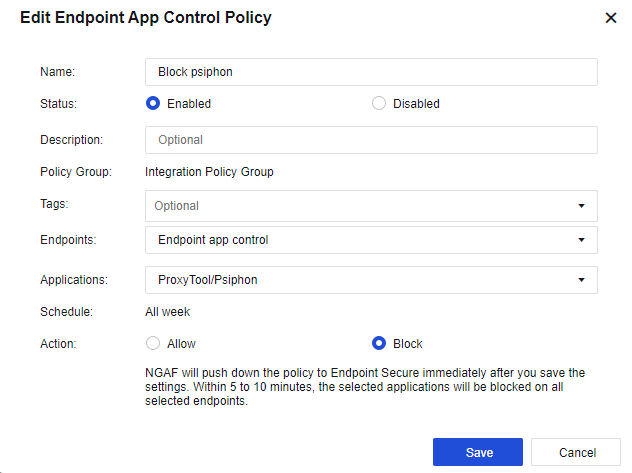
Name: Set the name of the endpoint app control policy.
Status: Set the policy as Enabled or Disabled.
Description: Set the description of the endpoint app control policy
Policy Group: By default, all endpoint app control policies will belong to the Integration Policy Group.
Tags: Select the policy tag. This parameter is optional and can be set for displaying a specified zone or filtering.
Endpoints: Select the endpoint’s IP to be controlled.
Applications: Select the applications that are needed to control.
Schedule: By default, the policy will run all week.
Action: Set the policy to Allow or Block.
Step 3.After 5 to 10 minutes, view the endpoint app control status for the endpoint on Endpoint App Control.
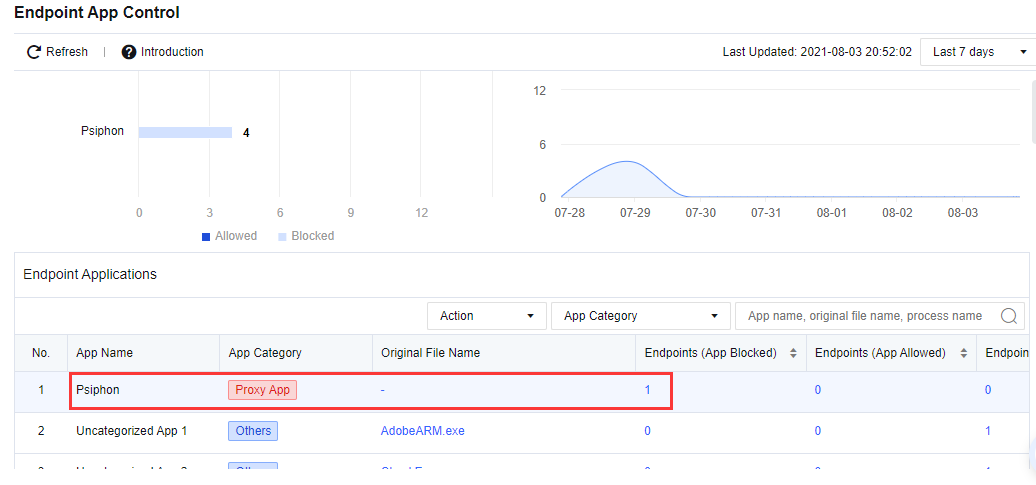
Testing Result
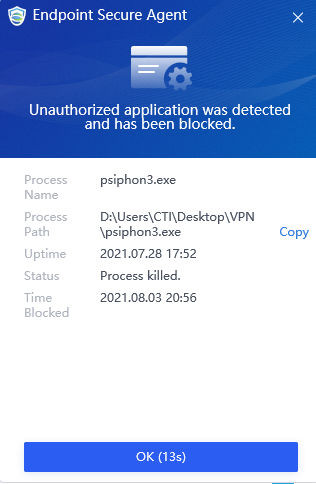
Step 1.Run the Psiphon application in the endpoint. ES agent will block the Psiphon application for running and prompt the alert.
Step 1.Make sure that your NGAF device is connected to Endpoint Secure Manager. To connect NGAF to Endpoint Secure Manager, go to SOC > Next-Gen Security > Endpoint Protection > Endpoint Protection Options.
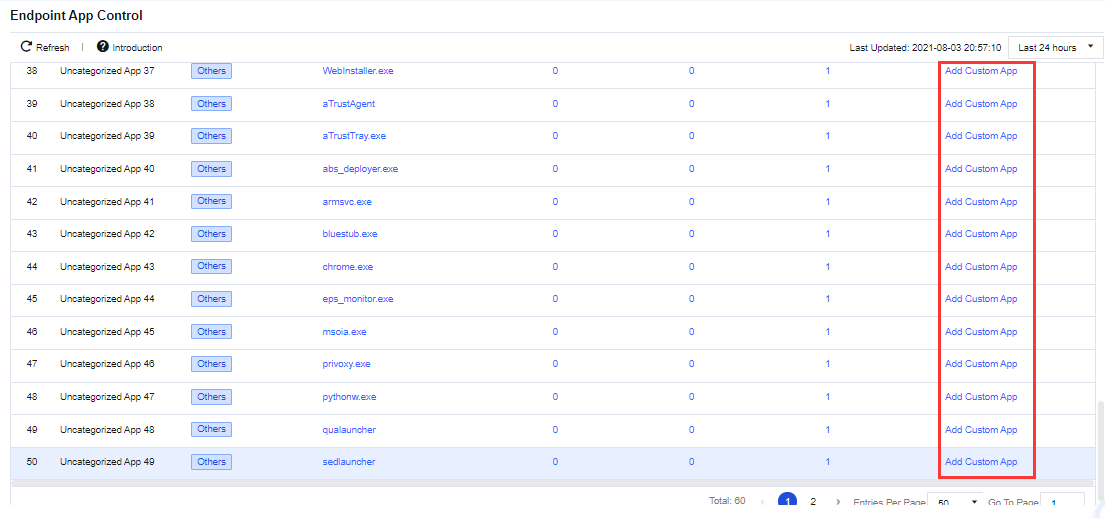
Step 2.Go to SOC > Specialized Protection > Endpoint App Control. Create the custom endpoint application according to the list. For example, select chrome.exe as a custom application.
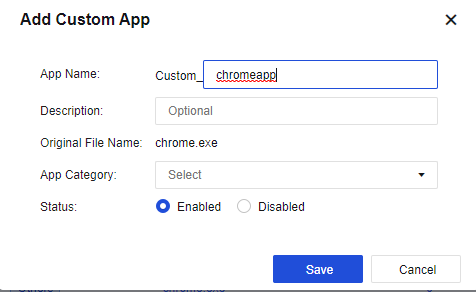
App Name: Set the application name.
Description: Set the description of the custom application.
Original File Name: File name collected by ES agent.
App Category: Set the application category.
Status: Set whether to Enabled or Disabled the custom endpoint application.
Step 3.After Endpoint Secure is connected, configure an endpoint app control policy. Go to Policies > Access Control > Application Control to configure the policy. Select the custom app that was created earlier.
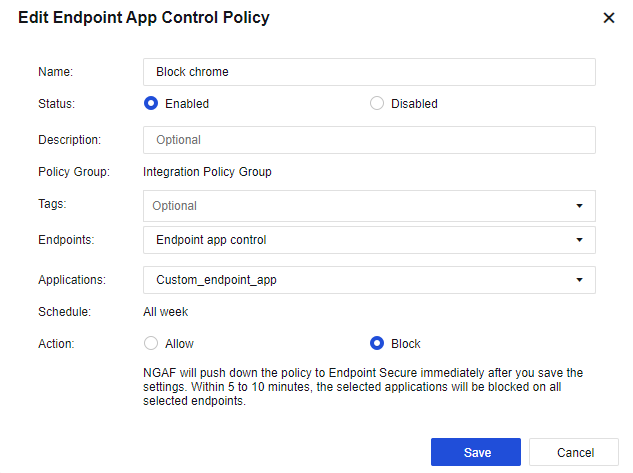
Name: Set the name of the endpoint app control policy.
Status: Set the policy as Enabled or Disabled.
Description: Set the description of the endpoint app control policy
Policy Group: By default, all endpoint app control policies will belong to the Integration Policy Group.
Tags: Select the policy tag. This parameter is optional and can be set for displaying a specified zone or filtering.
Endpoints: Select the endpoint’s IP to be controlled.
Applications: Select the applications that are needed to control.
Schedule: By default, the policy will run all week.
Action: Set the policy to Allow or Block.
Step 4.After 5 to 10 minutes, view the endpoint app control status for the endpoint on Endpoint App Control.
Testing Result
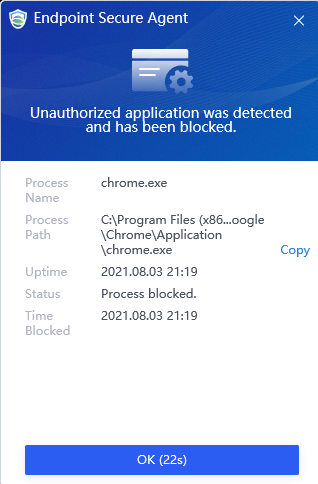
Step 1.In the endpoint, run the Chrome application. ES agent will block the Chrome application for running and prompt the alert.


 {{ $t('index.defaultHeader.chromeBrowserTip') }}