


{{ secondMenu.name }}






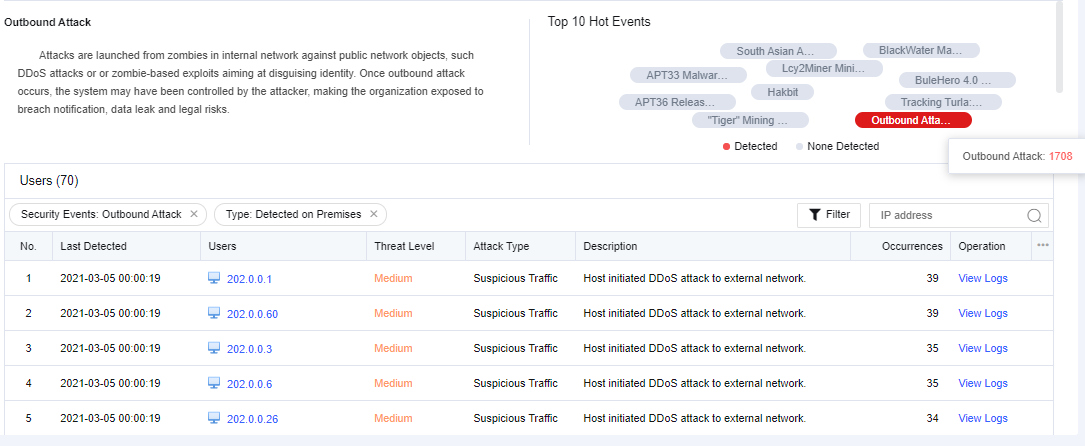
It displays user security from the dimension of the attack type. It can collect the user risks (whose traffic passes through NGAF) identified by NGAF based on hot events detected across the network. If hot events are matched, they will be marked in red, and if no risk type is detected, they will be marked in gray.
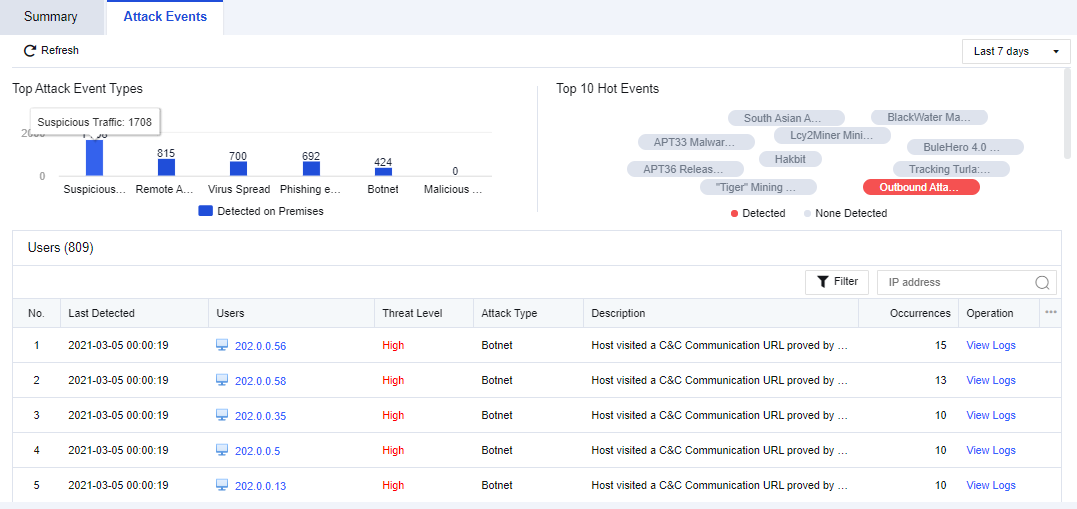
It mainly displays the distribution of Top Attack Event Types. See the figure below.
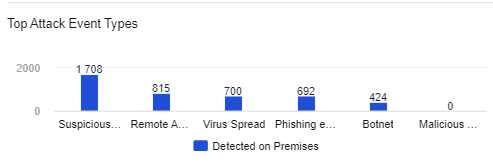
If you click the specific attack type of security event, the logs related to this attack type will be displayed in the table.
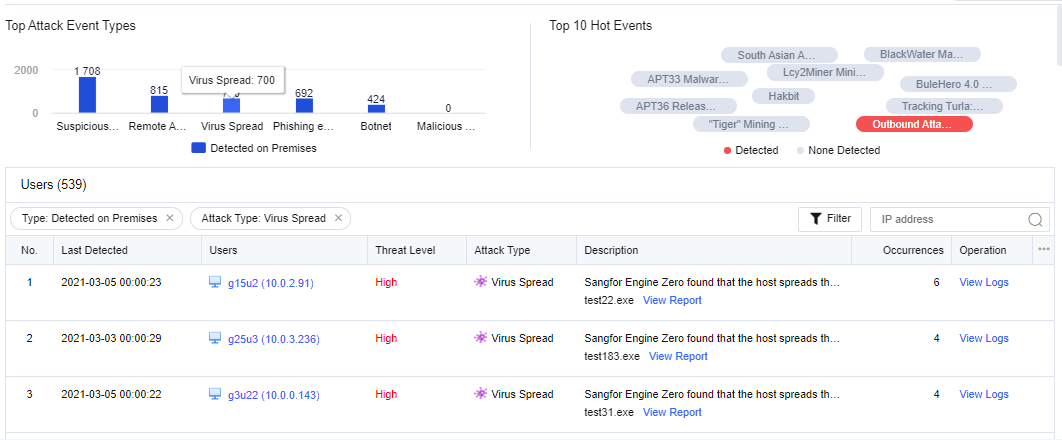
The top 10 real-time hot events across the network are ranked based on the current hot events. It will be analyzed in combination with the current attack logs of customers to find out whether hot events have attacked the customer's LAN users. The red one indicates that the business assets have suffered from such hot events, while the gray one indicates that the same has not suffered from the hot events. See the figure below.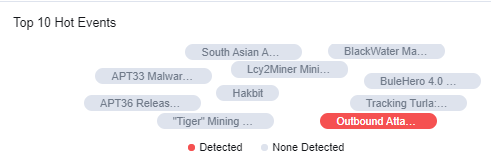
If you click a hot event, the logs of this event will be displayed in the table as shown below.
It displays the attack events in different periods, including today/the last 2 days/the last 7 days.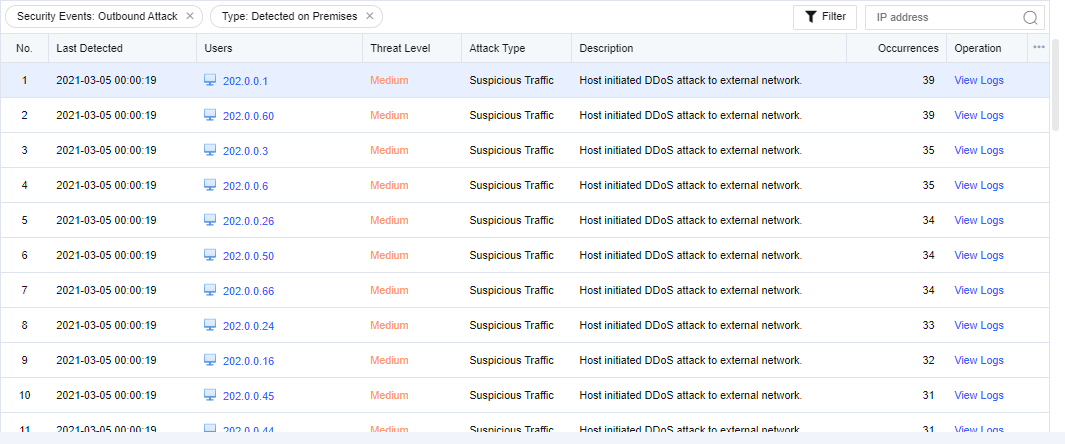
The displayed contents include No., last detected, users, threat level, attack type, description, occurrences, and operation.
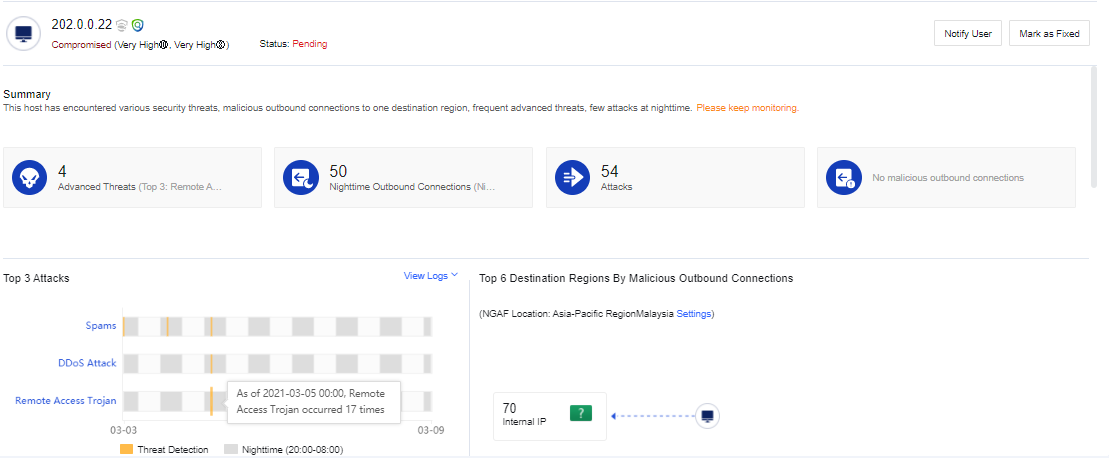
Click an affected user. You can view the details of the attack (attack time, attack type, attack description, etc.) on the user and add the attacker IP to the blacklist for the correlated block. See the figure below.
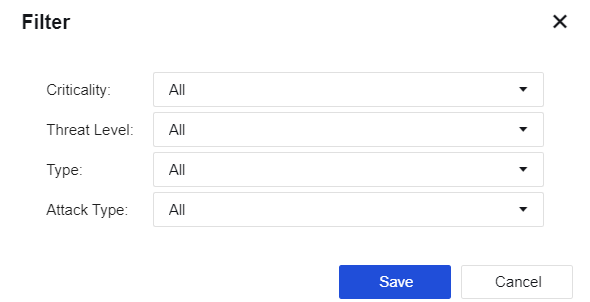
Click Filter. You can filter users based on the criticality, threat level, type, and attack type.


 {{ $t('index.defaultHeader.chromeBrowserTip') }}