


{{ secondMenu.name }}






If multi-link licensing is enabled for the device, multiple WAN interfaces are configured. In this case, you can add multiple VPN paths on the VPN Paths page. On the VPN Paths page, click Add. The Add VPN path dialog box appears, as shown in the following figure.
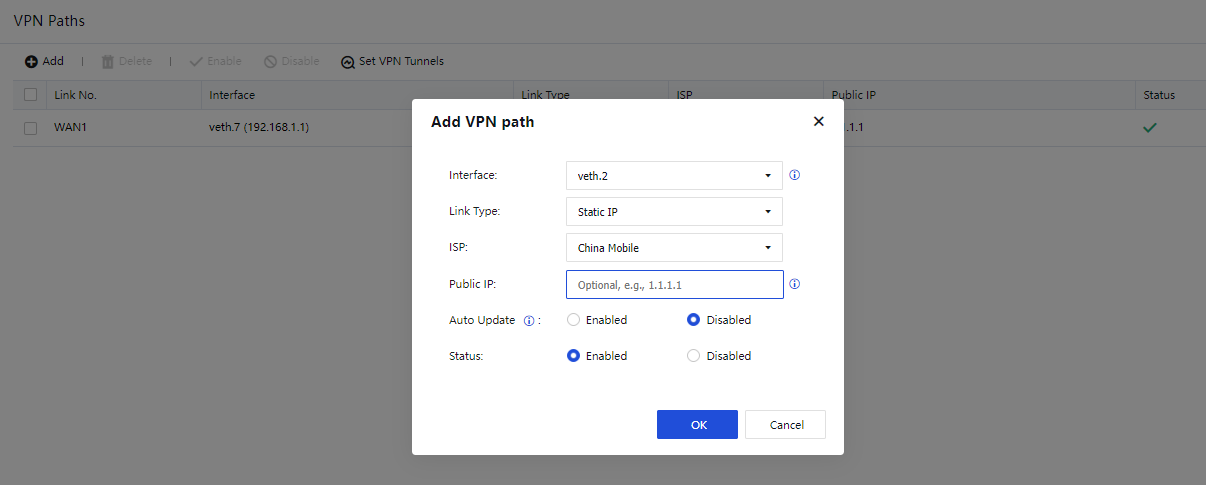
The parameters are described as follows:
Interface: Select a WAN interface.
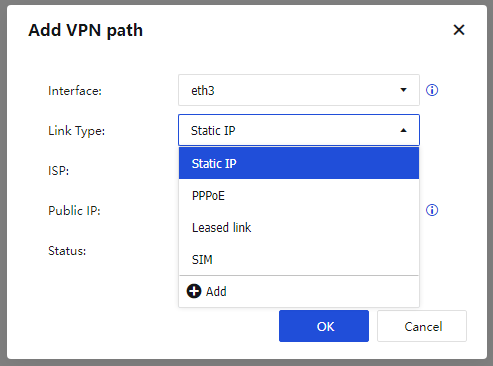
Link Type: Select a preset link type or click Add to create one, as shown in the following figure.
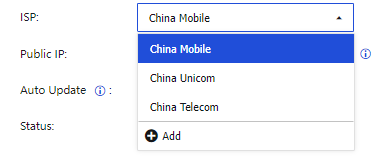
ISP: Select a preset ISP or click Add to create one, as shown in the following figure.
Public IP: Enter a public IP address.
Auto Update: Specify whether to enable auto updates for the public IP address. In a dial-up scenario, you can enable this feature to automatically obtain the public IP address of the outbound interface. If you want to manually set the public IP address, select Disabled so that the public IP address is not automatically updated.
Click OK. The VPN path appears in the VPN path list.
You can select local and peer links to establish Sangfor VPN connections. Unselected links cannot be used for establishing Sangfor VPN connections. This avoids Sangfor VPN connections across ISPs or link types. For example, link 1 for the HQ device and link 1 for the branch device are private links of China Telecom, and link 2 for the HQ device and link 2 for the branch device are internet links of China Telecom. In this case, only two Sangfor VPN connections are allowed between the HQ and branch devices: a Sangfor VPN connection between their private links, and a Sangfor VPN connection between their internet links.
Click Set VPN Tunnels on the VPN Paths page. The Set VPN Tunnels dialog box appears, as shown in the following figure.
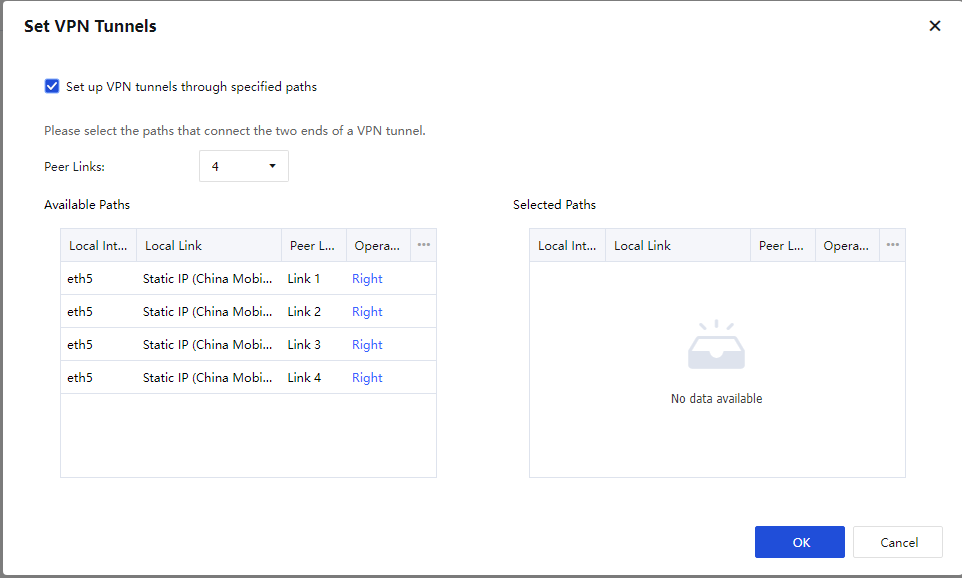
If you check Set up VPN tunnels through specified paths, you must set the number of peer links and select local and peer links.
For example, set Peer Links to 4. In the Available Paths section, you can click Right in the Operation column to move the VPN paths to the Selected Paths section. The VPN paths in the Selected Paths section can be used for establishing Sangfor VPN connections. For example, the GE3 Private link (China Telecom) Link 2 and GE4 Internet static IP (China Telecom) Link 4 are moved to the Selected Paths section, as shown in the following figure.
Click OK.


 {{ $t('index.defaultHeader.chromeBrowserTip') }}