


{{ secondMenu.name }}






To connect multiple network nodes to form a mesh network, the VPN gateway allows you to manage and configure the connections between network nodes. You can perform related operations on the VPN Connection page, as shown in the following figure.


This feature is required only when a branch device needs to access other Sangfor devices. If the local device is a VPN HQ device, you do not need to enable this feature.
You can add a connection from the local device to a VPN HQ device. On the VPN Connection page, click Add, as shown in the following figure.
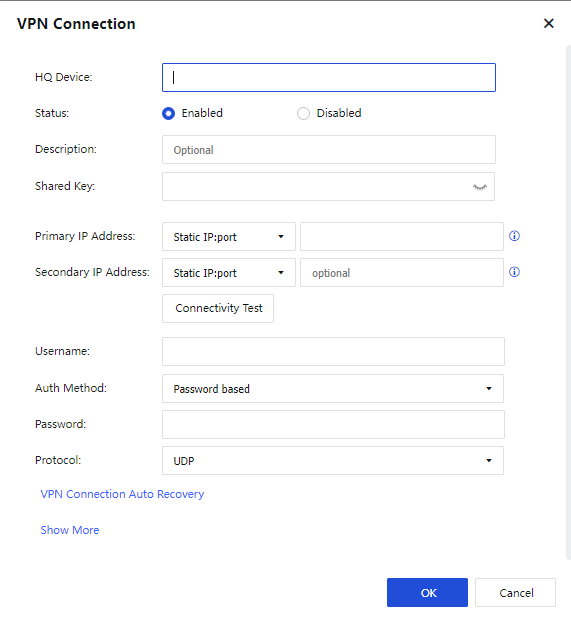
The parameters are described as follows:
HQ Device and Description: Used to identify and describe the connection. You can set them as required.
Shared Key, Username, and Password: Set these parameters based on the VPN user information provided by the HQ device.
Primary IP Address and Secondary IP Address: Indicate the IP addresses and ports of the HQ devices to be accessed. You can click Connectivity Test to check whether the IP addresses are accessible.

If the IP address is a domain name, the success of the connectivity test indicates that the webpage exists; otherwise, the webpage does not exist. If the IP address is a static IP address, the success of the connectivity test indicates that the format of the IP address is valid (IP address:Port number). The success of the connectivity test does not guarantee the success of the VPN connection.
Protocol: Indicate the protocol for encapsulating VPN packets. Options include UDP, UDP with pseudo TCP header, and UDP with pseudo ESP header. UDP is selected by default. TCP has been removed from the current version.
In UDP with pseudo TCP header mode, the TCP header is added to UDP packets so that the packets look like TCP packets and support NAT traversal. However, no three-way handshake is performed in TCP NAT traversal, and the internet service providers (ISPs) can still block the packets. In UDP with pseudo ESP header mode, the ESP header is added to UDP packets so that the packets look like ESP packets and support NAT traversal. However, the NAT traversal can be identified by ISPs and fails.
VPN Connection Auto Recovery: In this section, you can enable periodic VPN port switching and auto protocol switching to alleviate the VPN problems caused by port and protocol blocking by ISPs, as shown in the following figure.
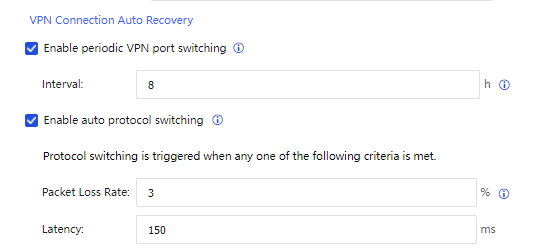
Enable periodic VPN port switching: If you enable this feature, the VPN will establish a VPN connection by using the new port within the specified interval. In this case, the old and new VPN connections coexist. The old VPN connection is destructed after your business is handed over to the new VPN connection.
Enable auto protocol switching: If you enable this feature, three redundancy connections will be created based on UDP, FAKE_TCP, and FAKE_ESP when you establish a VPN connection for a Sangfor VPN tunnel. When the primary connection fails or degrades beyond the preset criteria, it will be switched to one of the other two connections with the best quality.
Click Show More to set permissions for the VPN peer device, specify the local services accessible to the VPN peer device, as shown in the following figure.
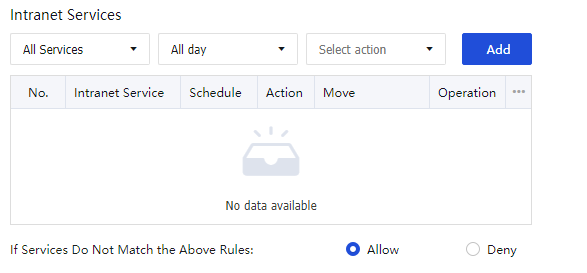
Click Add to add the intranet services. Then click OK to activate the connection and save the settings.


 {{ $t('index.defaultHeader.chromeBrowserTip') }}