


{{ secondMenu.name }}






The Secondary Authentication method in Network Secure is a Hardware ID-based authentication or TOTP authentication.
According to a certain algorithm, the hardware ID is a unique serial number generated using the extracted features of hardware components in a computer. The uniqueness of computer components makes the generated hardware ID unique. Click the Settings button in the Hardware ID section to enter the Hardware ID Based Authentication page, as shown in the figure below:
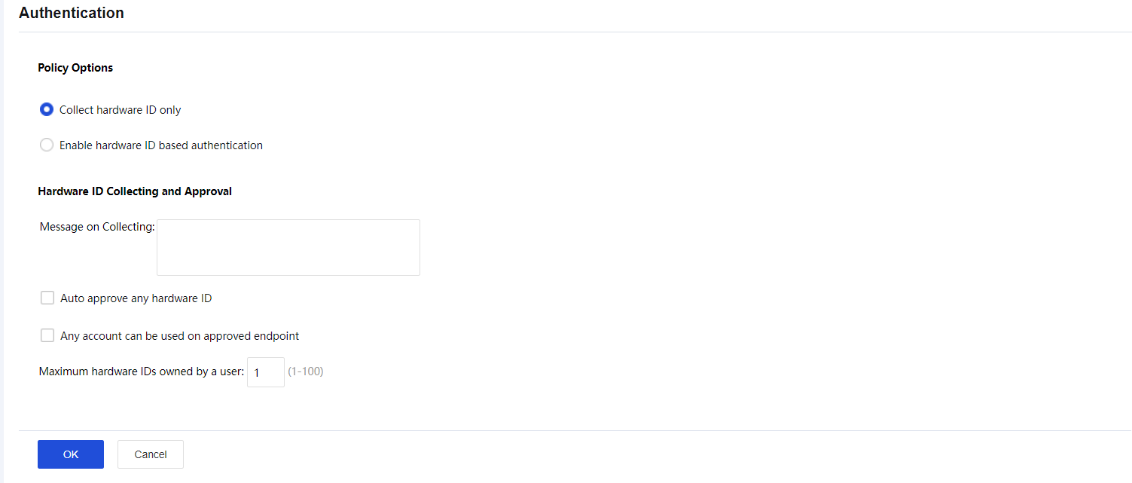
The Hardware ID Based Authentication page includes the following contents:
Collect hardware ID only: If this option is selected, the hardware IDs of endpoint computers will be collected, but the hardware ID-based authentication will not be enabled.
Enable hardware ID based authentication: If this option is selected, the hardware IDs of endpoint computers will be collected, and the hardware ID-based authentication will be enabled.
Message on Collecting: End-users will see the prompt message when they go through the hardware ID-based authentication.
Auto approve any hardware ID: This indicates that any hardware IDs submitted by the end-users will be approved, and the administrator does not need to approve them manually.
Any account can be used on approved endpoint: Indicate that hardware IDs submitted by any user from a certain endpoint(s) will be approved automatically if the administrator has ever approved the hardware ID of the endpoint(s).
Click OK to save the settings when the configuration is completed.
TOTP, an abbreviation for Time-based One-Time Password, indicates a one-time password based on a timestamp algorithm. Based on the comparison between the client's dynamic password and the clock of the dynamic token authentication server, a new password is usually generated every 30 or 60 seconds.
The client and server are required to maintain the correct clock very precisely to keep the one-time password generated to be consistent on both sides. Network Secure SSL VPN can combine with dynamic tokens based on TOTP protocol to achieve two-factor authentication for account security. The commonly used TOTP dynamic token clients are Google Authenticator, Microsoft Authenticator, M token, etc. This configuration guide uses Google Authenticator as an example.
TOTP Configuration Steps:
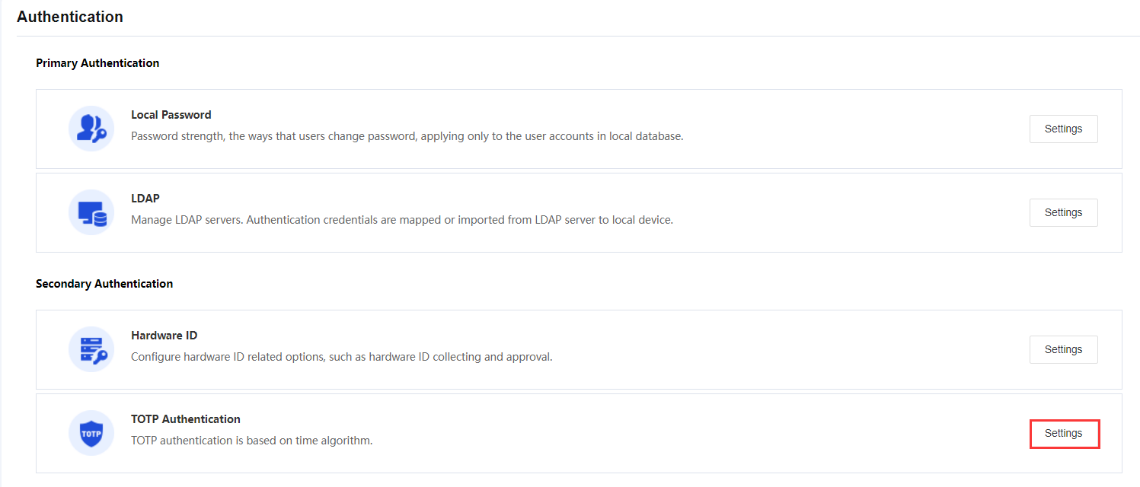
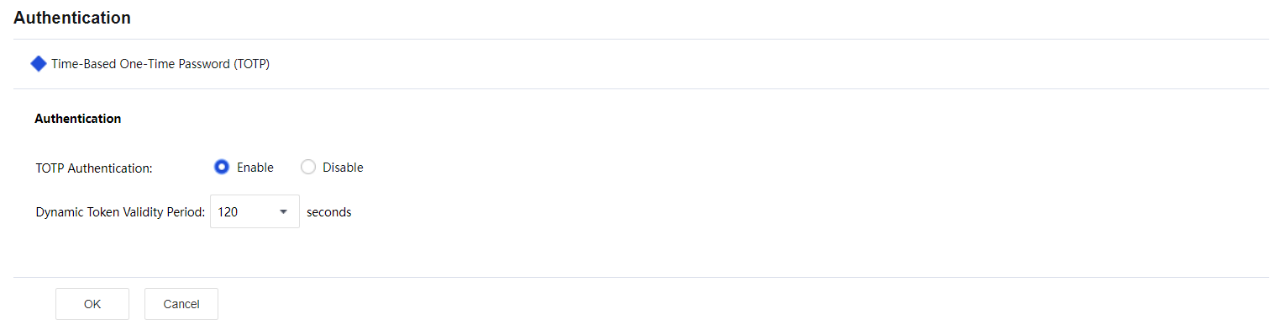
Step 1.Go to Network > SSLVPN > Authentication > TOTP Authentication and click the Settings button. Select Enable to enable the TOTP Authentication.
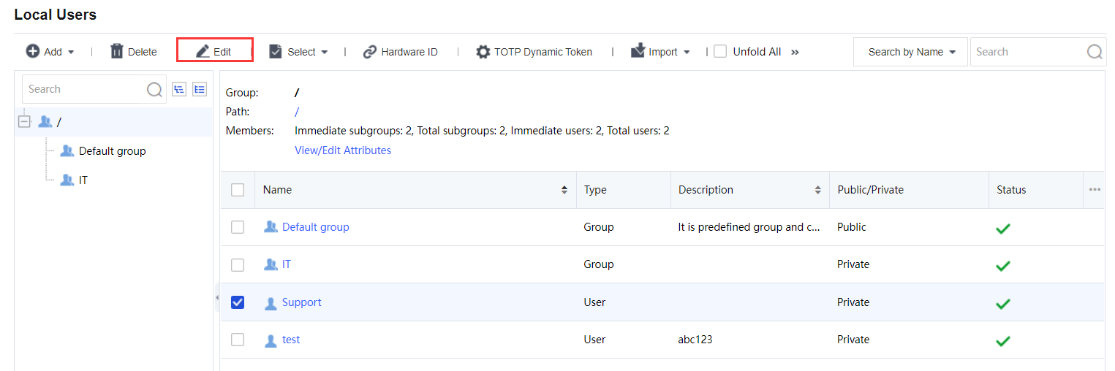
Step 2.To enable TOTP authentication on specific users, navigate to Network > SSL VPN > Local Users, select the user and click Edit. Next, select Dynamic Token Authentication > TOTP authentication.
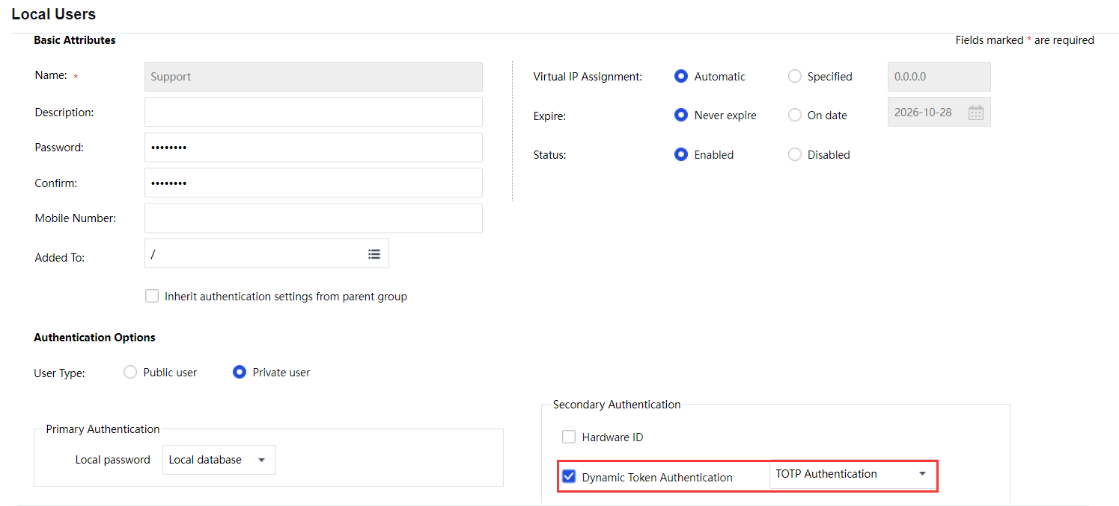
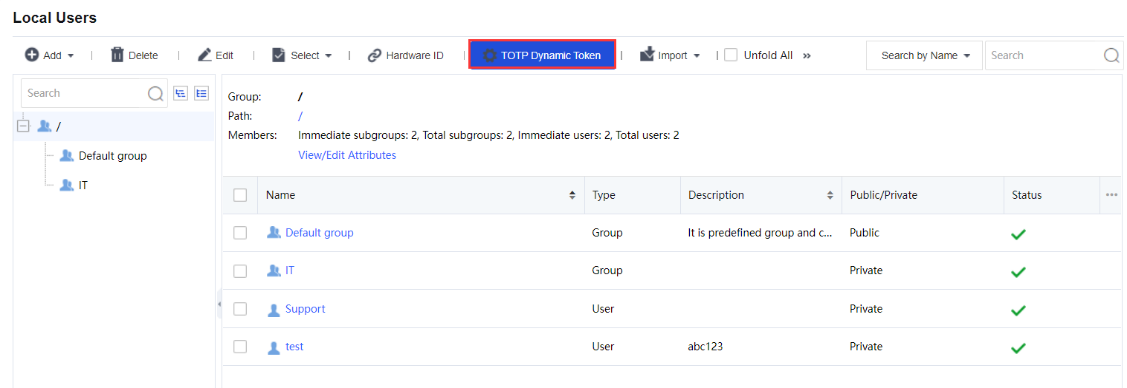
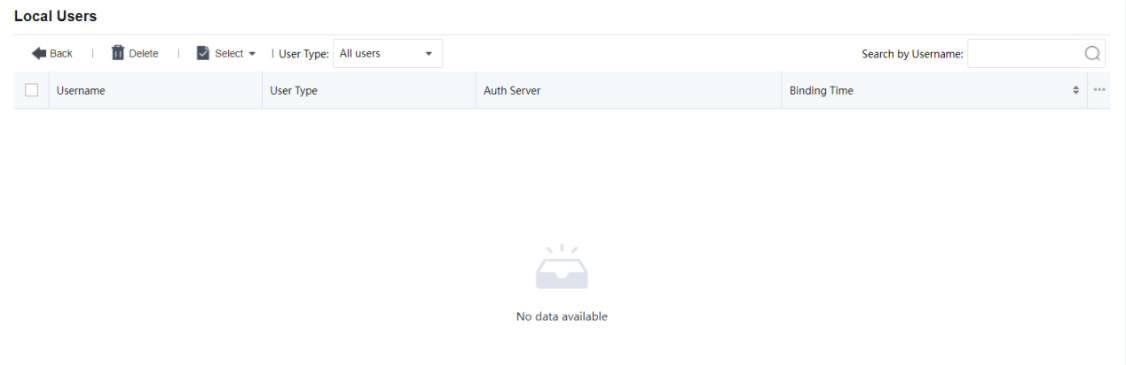
Step 3.On the Network > SSL VPN > Local Users > TOTP Dynamic Token page, check the TOTP authentication database to view which user is bound with TOTP authentication. You can see the User Type and Binding Time. Administrators can delete the user from the TOTP authentication database manually if the user loses their TOTP software.
Verification on the Binding Relationship:
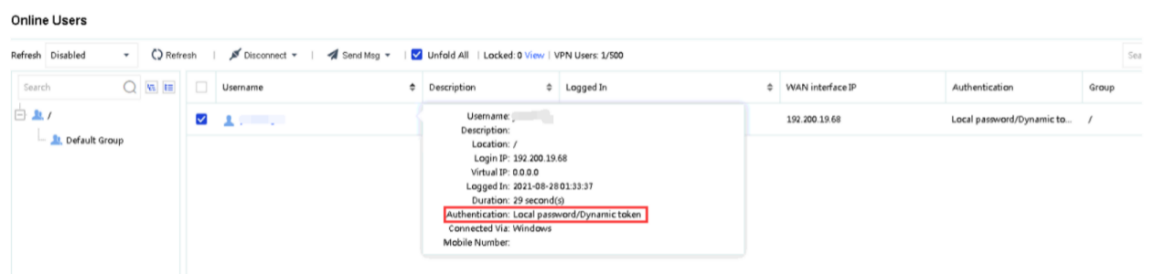
Administrators can check on the user authentication method in the online user list on the Network > SSL VPN > Online Users page, and the binding status on the Network > SSL VPN > Local Users > TOTP Dynamic Token page.



 {{ $t('index.defaultHeader.chromeBrowserTip') }}