


{{ secondMenu.name }}






Step 1.Add basic configuration. On the OSPF tab, click Add. The Add Basics box appears, as shown in the following figure.
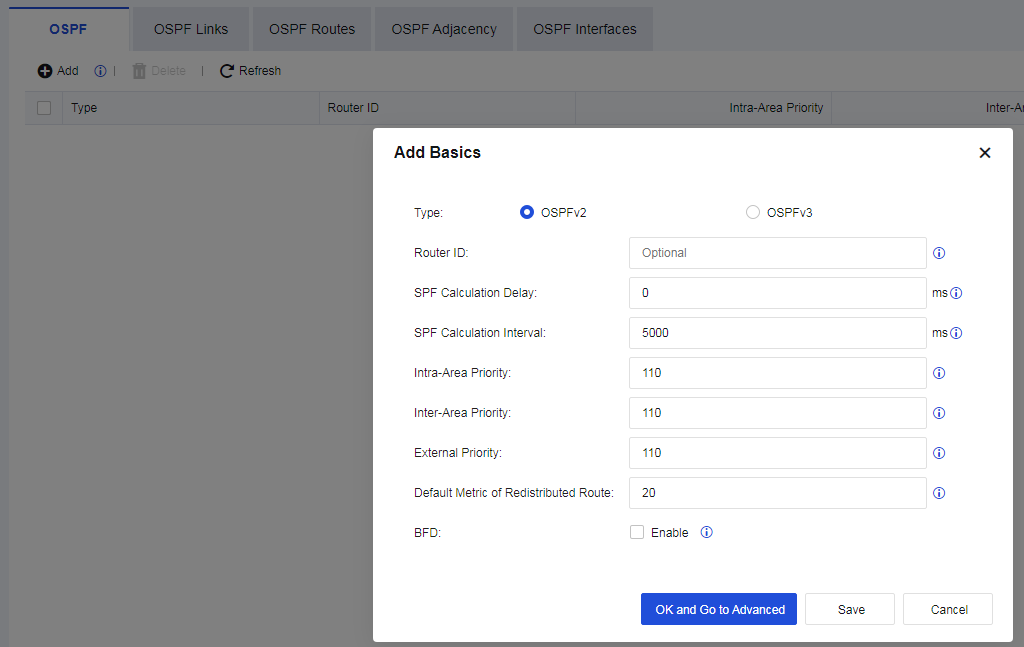
Type: Specify the protocol type, which can be OSPFv2 or OSPFv3.
Router ID: Identify a router in OSPF routing. DR and BDR election is performed based on the numerical value of the router ID.
SPF Calculation Delay: Specify the delay from when OSPF receives changes to when OSPF starts an SPF calculation.
SPF Calculation Interval: Specify the interval between two consecutive SPF calculations.
Intra-Area Priority: Specify the administrative distance for intra-area routes. The value must be an integer from 1 to 255; the default is 110.
Inter-Area Priority: Specify the administrative distance for inter-area routes. The value must be an integer from 1 to 255; the default is 110.
External Priority: Specify the administrative distance for external routes. The value must be an integer from 1 to 255; the default is 110.
Default Metric of Redistributed Route: Specify the default metric of redistributed routes. The default is 20.
BFD: Specify whether to enable global bidirectional forwarding detection (BFD), which can speed up route convergence by eliminating waiting for the neighbor to time out.
Step 2.Click OK and Go to Advanced to set Areas. On the Areas page, click Add.
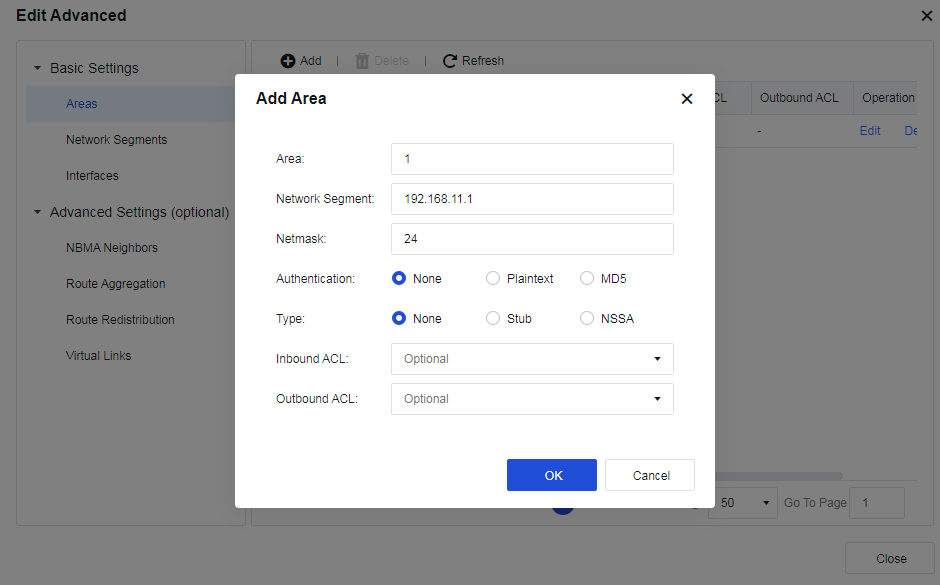
Authentication: You can select None, Plaintext, or MD5.
Type: You can select None, Stub, or NSSA. In stub areas, ABRs are prevented from injecting Type-5 LSAs. This limitation significantly reduces routing table sizes and the volume of routing information exchanged within these areas. Not-So-Stubby Area (NSSA) is a variation of stub areas. In NSSAs, Type-5 LSA injection is prohibited, but Type-7 LSA injection is permitted. When Type-7 LSAs reach the ABR in an NSSA, the ABR converts them to Type-5 LSAs and distributes them to other areas.
Inbound ACL and Outbound ACL: You can select network segments for inbound/outbound access control after setting network segments in Network > Routes > Access Lists.
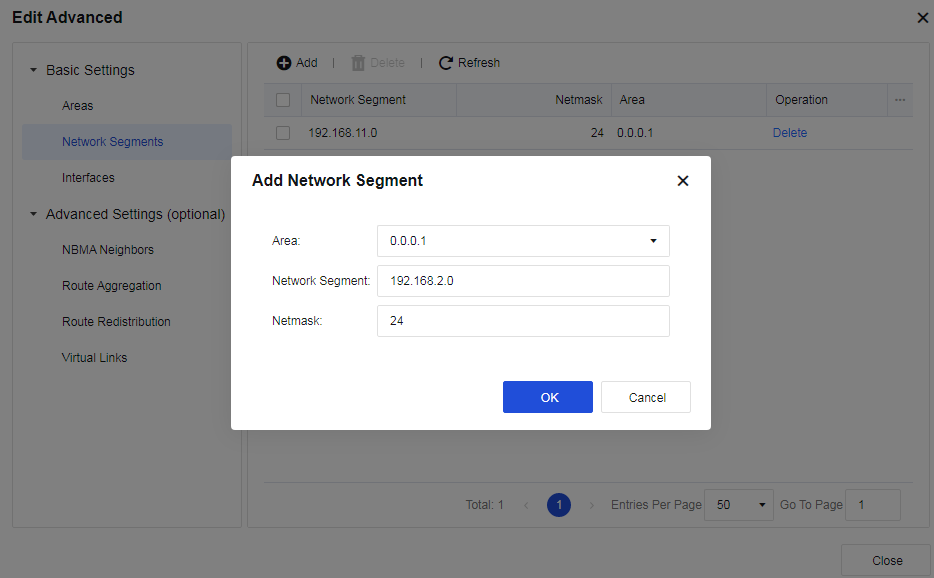
Step 3.Set network segments. On the Network Segments page, click Add, select an Area, and enter the Network Segment to be advertised and its Netmask, as shown in the following figure.
Step 4.View interface information after setting network segments. On the Interfaces page, the interface information corresponding to the network segment to be advertised is displayed. You can edit the interface information, as shown in the following figure.
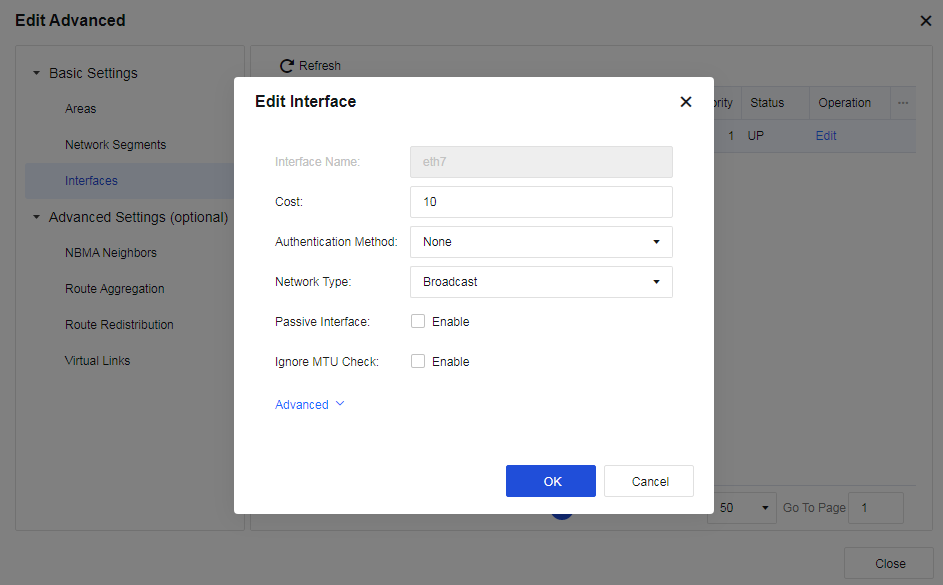
Cost: Specify the link cost of the current interface.
Authentication: Select an authentication method for the interface. The default option is None.
Network Type: Select Broadcast, NBMA, Point-to-MultiPoint (P2MP), or Point-to-Point (P2P).
Passive Interface: When enabled, the interface only receives updates without sending messages.
Ignore MTU Check: Interfaces with inconsistent MTUs can also work as neighbors when enabled.
You can click Advanced to set DR Priority, Transmit Delay, Neighbor Timeout, Hello Packet Interval, and Retransmit Interval, as shown in the following figure.
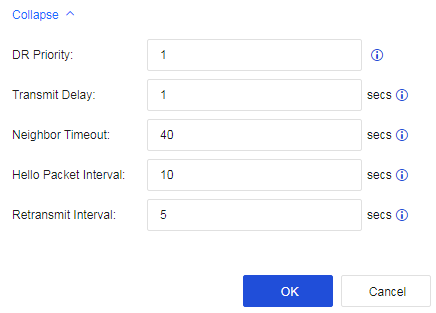
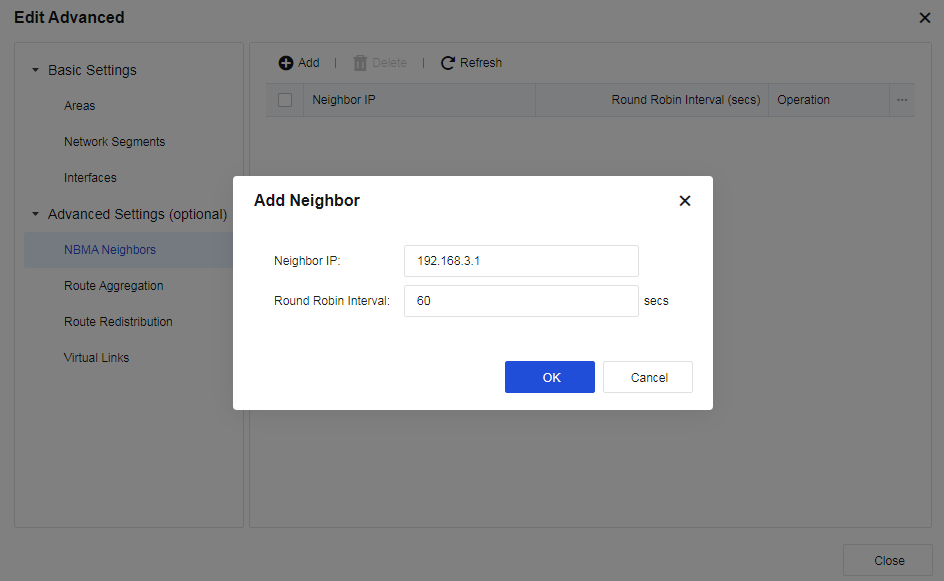
Step 5.Configure Advanced Settings (optional). Configure an NBMA Neighbors. NBMA networks are non-broadcast multi-access networks such as ATM and frame relay networks. When you set an NBMA network for an interface, broadcasting Hello packets cannot discover adjacent routers. Instead, you must manually configure the link-local addresses of adjacent routers for probing and establishing neighbors. Subsequent packets are exchanged via unicast. Click Add, as shown in the following figure.
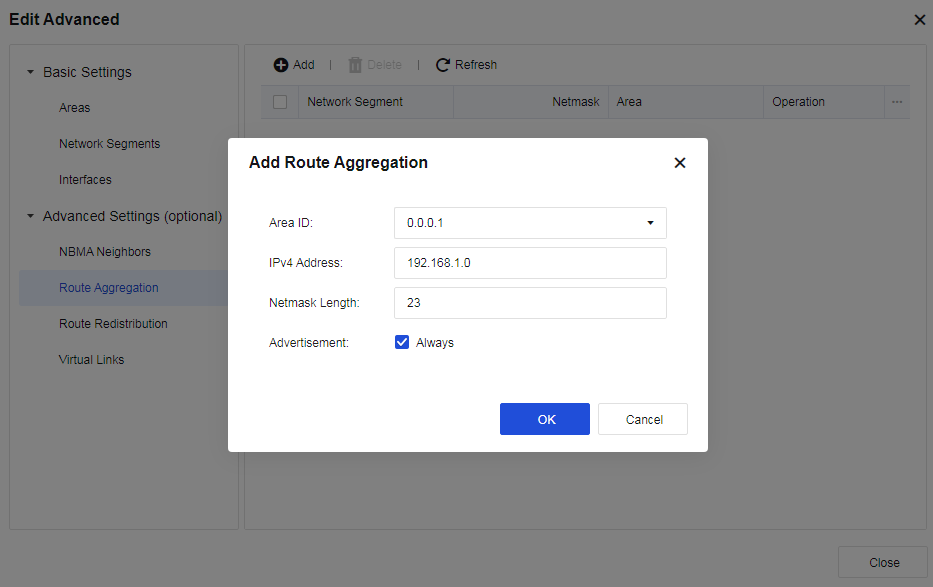
Step 6.Configure Route Aggregation. Route aggregation refers to combining routes with the same prefix through the ABR to advertise only one route to other areas. You can add multiple network segments in one area for OSPF to aggregate them. Click Add, as shown in the following figure.
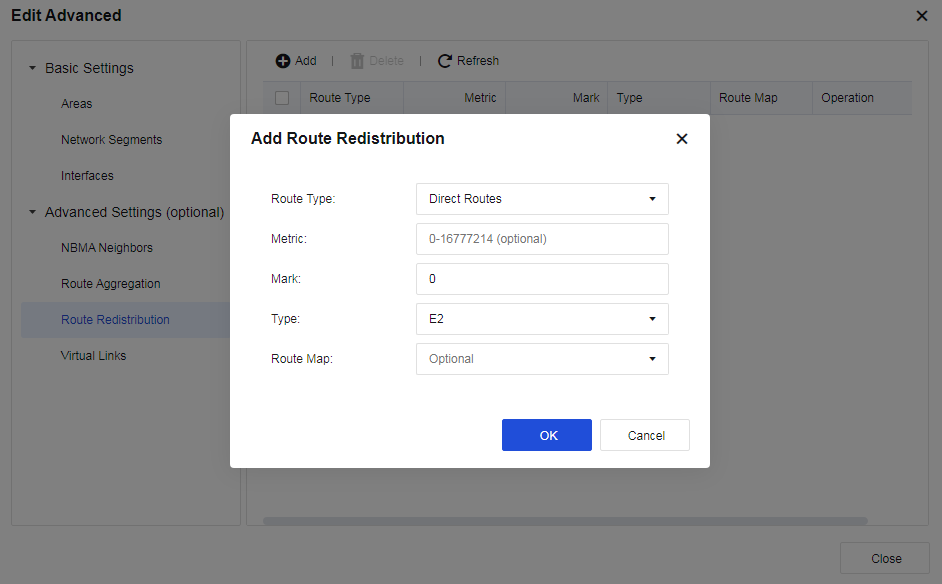
Step 7.Configure Route Redistribution. OSPF protocol allows you to introduce and advertise routes from other OSPF processes and routing protocols (Direct Routes, Static Routes, Default Routes, BGP, RIP, and VPN). You can set Metric and Type for the introduced external route. Click Add, as shown in the following figure.
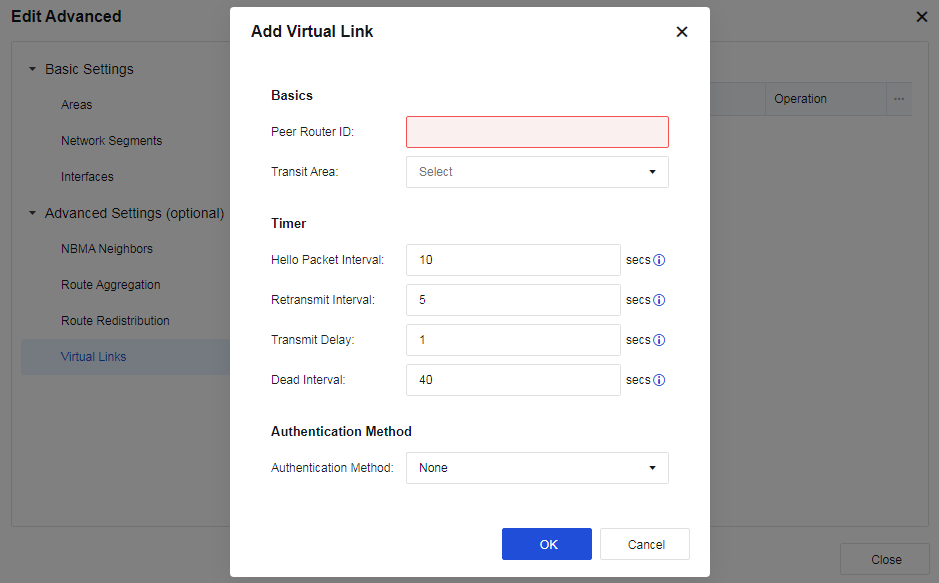
Step 8.Configure Virtual Links. Virtual links are used to connect discontinuous backbone areas to ensure their logical continuity. You can configure a virtual link and set the timer parameters. Click Add, as shown in the following figure.


 {{ $t('index.defaultHeader.chromeBrowserTip') }}