


{{ secondMenu.name }}






To customize the app signature rules. You can customize apps not covered by the built-in app signature database.
The custom app signature rules can be defined by data direction, IP address, protocol, and port. You can perform operations on custom applications, such as add, delete, enable, disable, import, and export as the administrator.
Navigate to Objects > Content Identification Database > Application Signatures, click the Custom App Signatures tab.
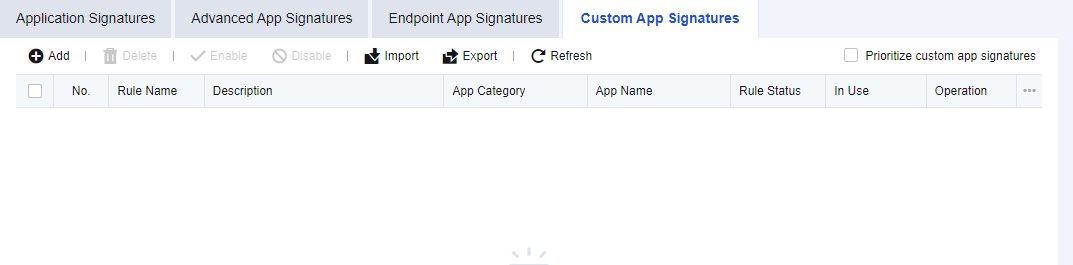
Example: You must provide traffic assurance for company mail. However, when selecting the app category, you cannot select the company mail alone. In this case, you can customize a company mail app.
Step 1.On the Custom App Signatures tab, click Add. The Add App Signature dialog box appears. Set related parameters by following the steps.
Step 2.Enable the rule and set the Basic Attributes of the app, including the Rule Name, Description, Category, and App Name. You can select the existing category or customize a category.
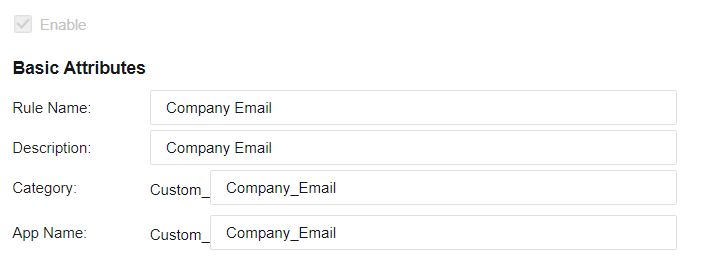
Step 3.Set the features of matching packets.
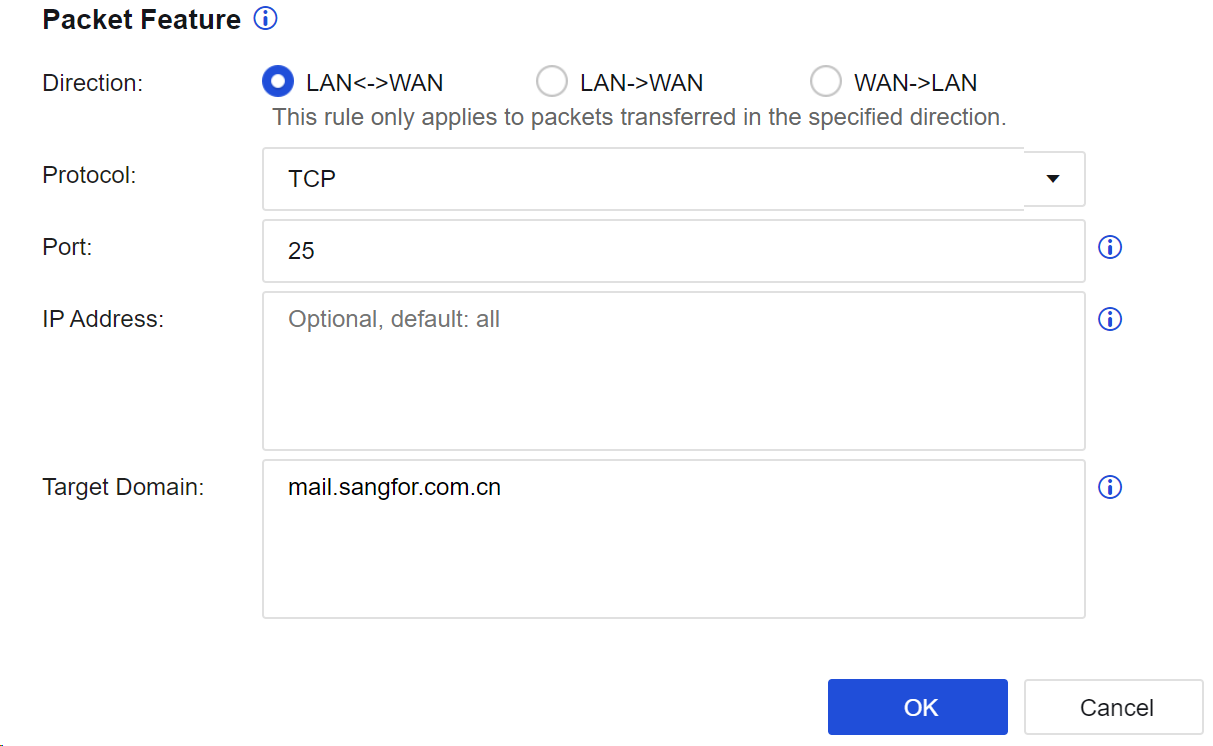
Direction: Specify the direction of data passing through the device. The rule only applies to packets transferred in the specified direction.
Protocol: Specify the type of protocol used for sending data. In this example, the TCP is used for mail sending.
Port: Specify the destination port accessed by the data. In this example, the mail is sent through the TCP25 port.
IP Address: Specify the source IP, destination IP, or destination IP after proxy identification.
Target Domain: Specify the target domain name address that packets access. In this example, enter the domain name email address of the company, such as "mail.sangfor.com".
Step 4.Click OK to complete the settings of this rule.

Step 5.Prioritize a custom app signature rule. Because the built-in app signature database also provides a mail identification rule. If the built-in rule is prioritized, the data may first match this mail identification rule instead of the custom app signature rule ("Company Email"). Therefore, you should prioritize the custom app signature rule. To do this, select Prioritize custom app signatures on the Custom App Signatures tab.
Step 6.Choose Bandwidth Channel and set the guaranteed channel of this app, ensuring that the bandwidth required for the mail is sent from the company email address.

When setting the custom app signature rule, it is recommended to add identification information, including destination port, IP address, and domain name. If identification conditions are too broad, they may conflict with the built-in application identification rules and lead to confusion. As a result, some control and audit rules may fail.


 {{ $t('index.defaultHeader.chromeBrowserTip') }}