


{{ secondMenu.name }}






Network Secure devices have the function of resisting penetration attacks. When a device suffers a malicious attack, you can view the System Security Logs and perform analysis. System security logs record detailed information about attacks suffered by Network Secure devices. The System Security Logs page is shown below.
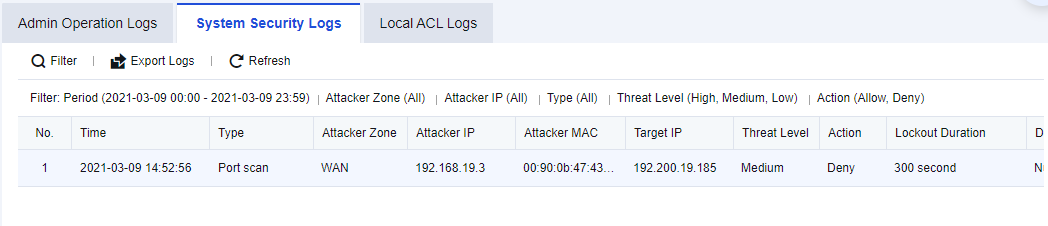
An enterprise needs to perform local device security protection to check whether the devices are attacked periodically. Therefore, administrators need to check all the system security logs to determine whether there are abnormalities in devices.
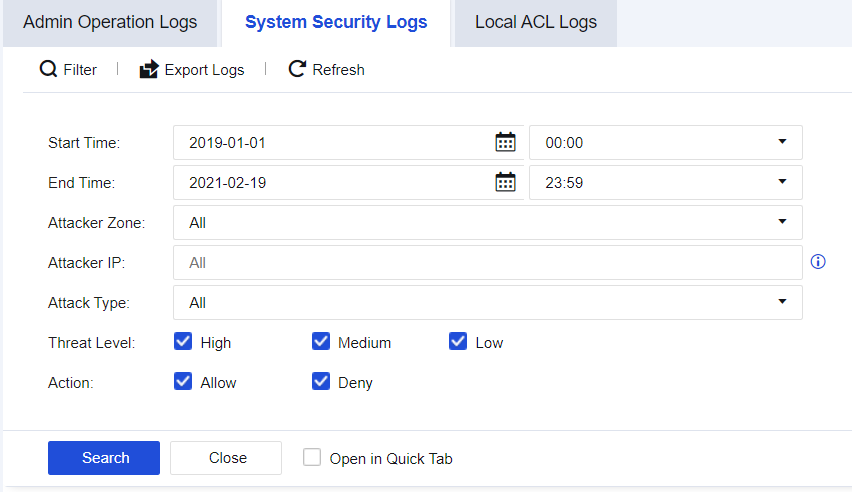
Step 1.Click Filter to perform log filtering according to needs, as shown in the figure below.
Step 2.View details of specific attacks, as shown in the figure below.
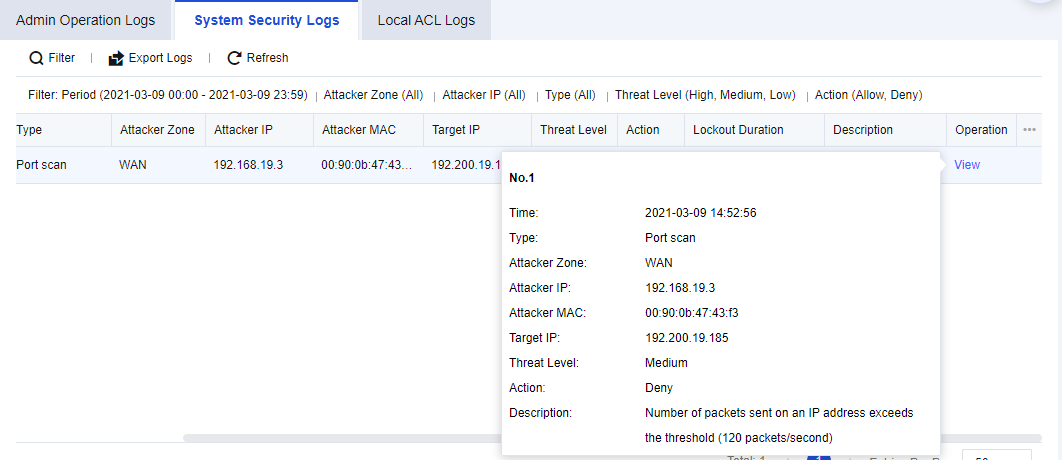
Step 3.The attack types that can be queried include port scanning, ICMP flood attack, UDP flood attack, SYN flood attack, DNS flood attack, and IP messages in the blacklist.

How to enable System Security logging:
1. Navigate to Policies > Network Security > Anti-DoS/DDoS, select This Device Protection, and check Enable.
2. Select the scan and attack types and check Log events and other functions.


 {{ $t('index.defaultHeader.chromeBrowserTip') }}