


{{ secondMenu.name }}






To query the module and cause of denying packets transmitted through the Network Secure device. When failing to access the Internet, you can use this tool to find the cause quickly. You can also use it to test some rules for effectiveness.
There are four troubleshooting methods on the System > Troubleshooting > Troubleshooting page, including Precise Traffic Analysis, Global Passthrough, Analysis, L2 Packet Passthrough, and Analysis of Traffic to Network Secure.
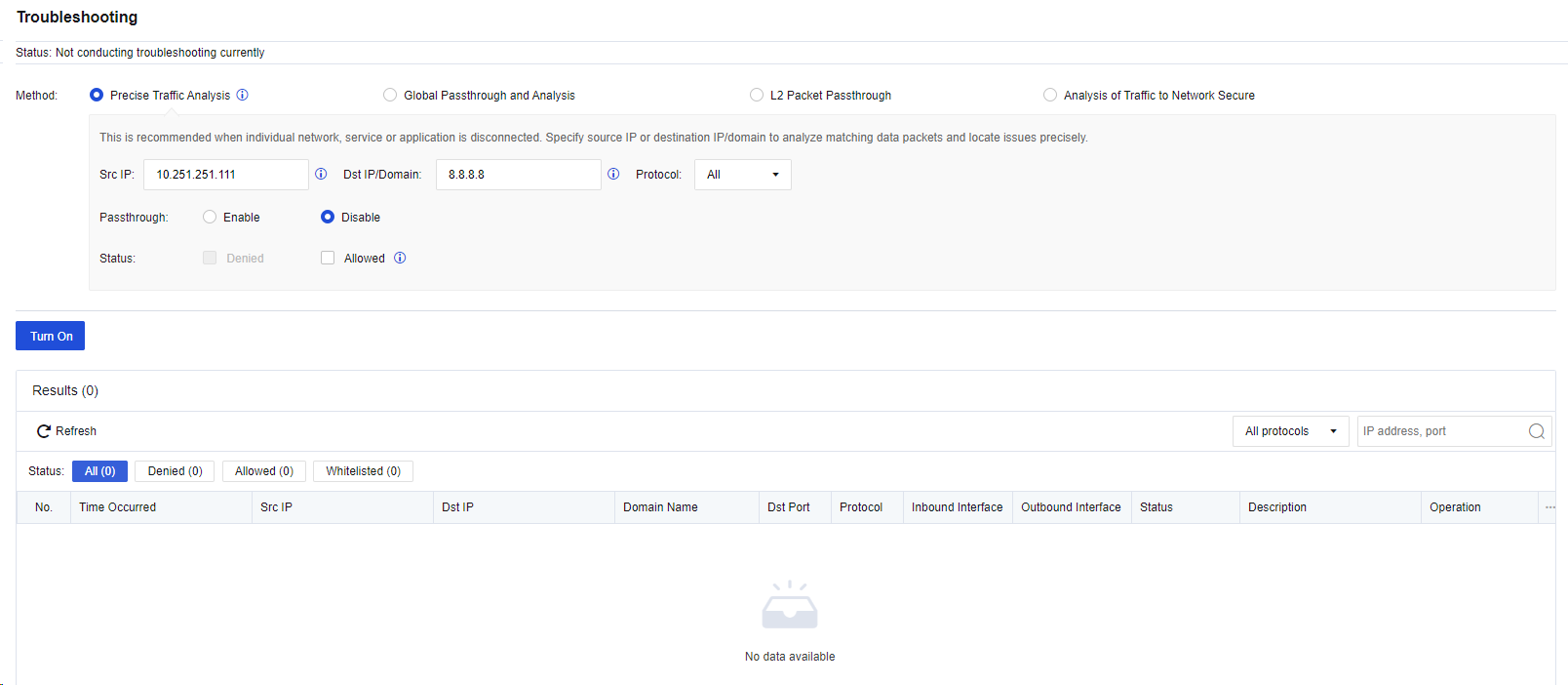
Precise Traffic Analysis: We recommend that you select this method when some users cannot access the Internet or some services/applications cannot be used. You must enter the source IP address or destination IP address/domain name for directional analysis to rapidly locate fault causes. This method is recommended for troubleshooting.
Global Passthrough and Analysis: We recommend selecting this method if large-area networks that cannot be directionally analyzed are interrupted, such as the network environment for device installation. Proceed with caution.
L2 Packet Passthrough: We recommend that you select this method if the fault causes still cannot be located by using the preceding two methods. Proceed with caution.
Analysis of Traffic to Network Secure:It is recommended to use this function when the access to the NSF is abnormal.
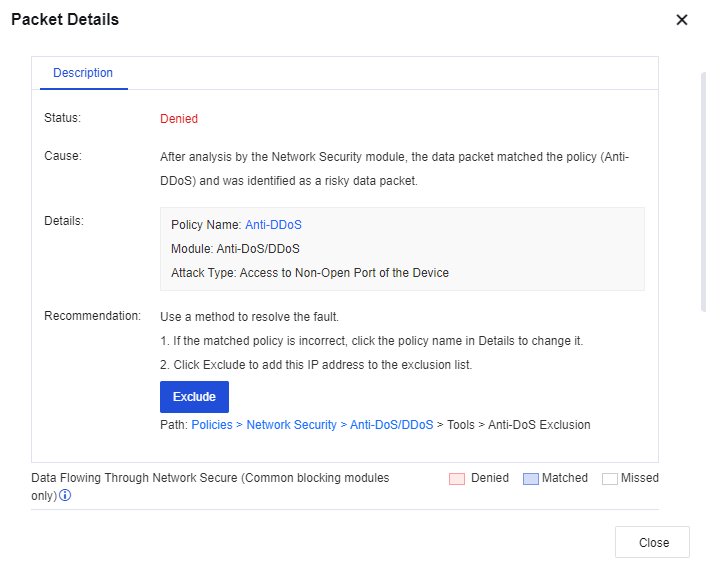
If you select one of the four methods, specific policy matching records for the Network Secure device will be displayed in an analysis result list. You can click View Details to view the packet analysis details, to find out which module of the device intercepts the user data, as shown in the following figure.
To globally block or release an IP address, go to SOC > Blacklist/Whitelist, and select Whitelist or Blacklist to add the IP address to be allowed or blocked.


 {{ $t('index.defaultHeader.chromeBrowserTip') }}