


{{ secondMenu.name }}






To manage login usernames and admin roles in the web console. By default, the account and password of the admin account are admin and "admin". Navigate to System > Administrator. On the Administrator page, you can add, edit, delete, enable, and disable the admin account.
You can also specify the logged-in users who can manage the device through the console.
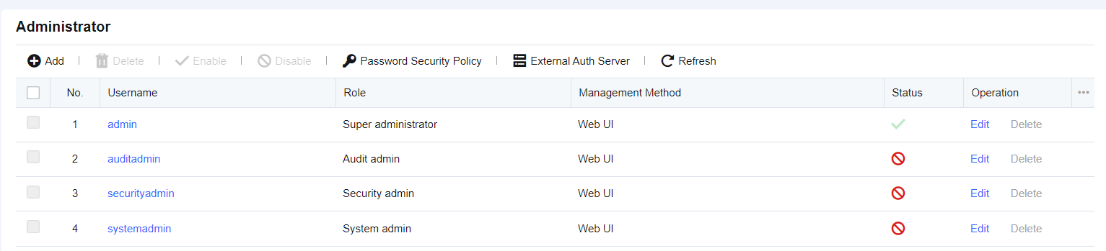
By default, four admin roles are available, including Ordinary Admin, Security Admin, Audit Admin, and System Admin.
Click Add. Then, the Add Administrator dialog box appears. See the figure below.
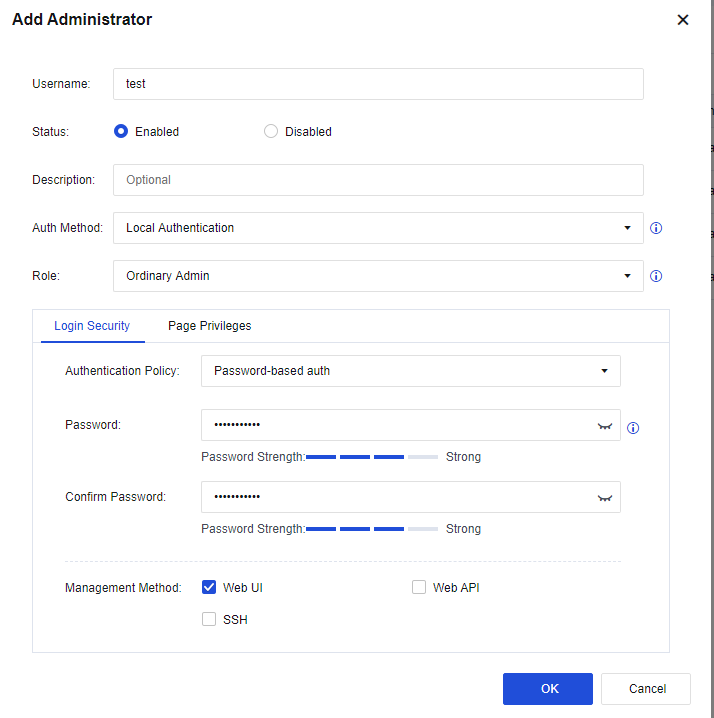
Username: Specify the name of the admin account.
Status: Specify whether the admin account is enabled or disabled.
Description: Specify the description of the account.
Auth Method: Support Local Authentication, Remote Authentication, and Remote/Local Authentication. Remote Authentication is not selected for created accounts. When Remote/Local Authentication is selected, local authentication is used when the external authentication server cannot be accessed.
Role: Specify the role of the admin account. You can select one of the five roles from the drop-down list, in which the system administrator, audit administrator, and security administrator are three separate accounts.
• Ordinary admin: Indicates an ordinary admin account that is granted permissions to manage all modules.
• System admin: Responsible for the management and maintenance of daily running environments of software. This account is granted permission to configure basic network environments and other management permissions irrelevant to security policies.
• Security admin: Has the permissions to view and modify modules related to security policies.
• Audit admin: Only has the permission to view the built-in data center.
• Remote authentication user: You can select a user account on the external server as an admin account.
Login Security: Specify the authentication policy and management method of the admin account.
Authentication Policy: Specify the authentication policy of the admin account. Currently only Password-based auth are available.
Management Method: Specify the method for managing the device by the admin account. You can select one of the following four management methods:
Web UI: This allows you to log in to the management device using the admin account via web UI or webpage.
Web API: Allows the third-party platform to log in to the management device by performing web API operations.
SSH: Allow you to log in and manage devices via SSH.
Page Privileges: Specify whether the account has permission to view or edit modules in the console or data center.
Click Password Security Policy to set the security policy by which the console manages the admin password. You can set whether the password must be changed for the next-time login and the maximum number of days during which the password is available. Note: Only the admin account is granted this permission.

Only the admin account is granted this permission.
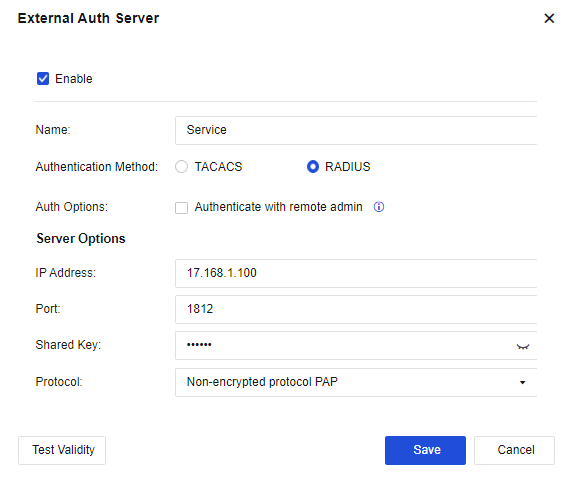
Click External Auth Server to authenticate the admin account of the external server. You can select TACACS or RADIUS for the Authentication Method parameter. See the figure below.


 {{ $t('index.defaultHeader.chromeBrowserTip') }}