


{{ secondMenu.name }}






Authentication covers settings related to primary and secondary authentication methods. Navigate to SSLVPN > Authentication, and the Authentication page appears, as shown in the figure below:
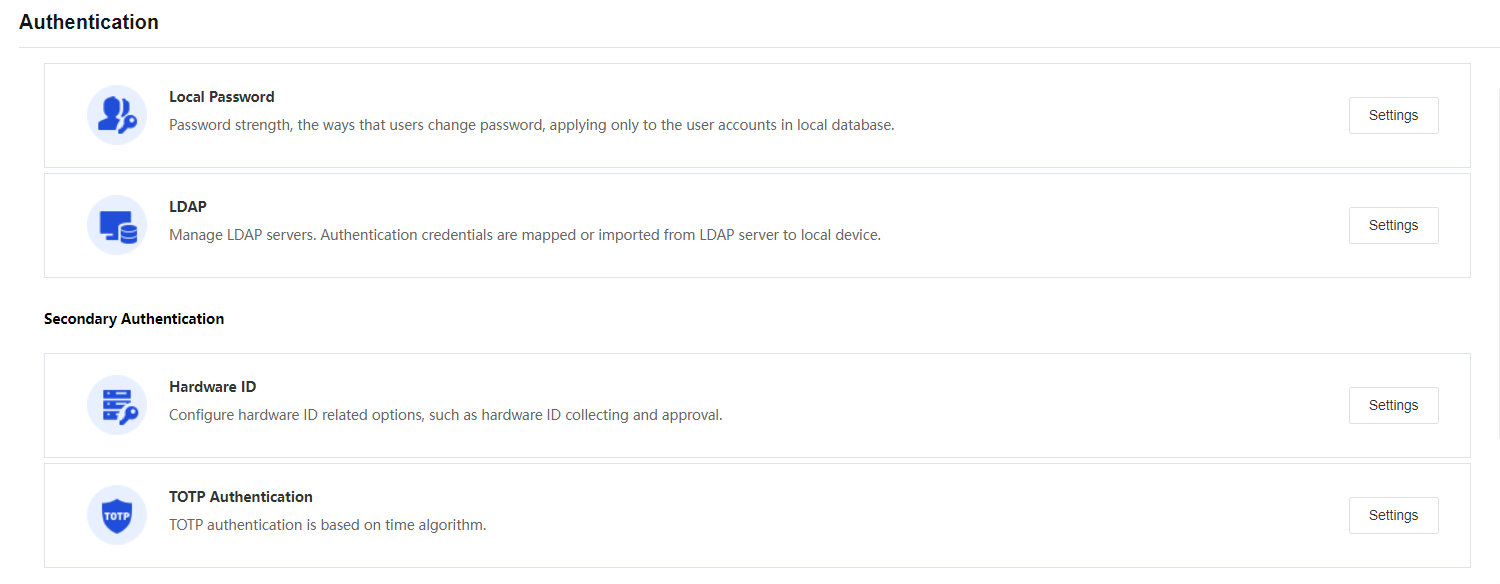

5.9.9.1.1 Local Password
The Local Password authentication method in NGAF is local password-based authentication. The settings related to local password-based authentication include password security options and username options. Click the Settings button following Local Password, and the Local Password-Based Authentication page appears, as shown in the figure below:
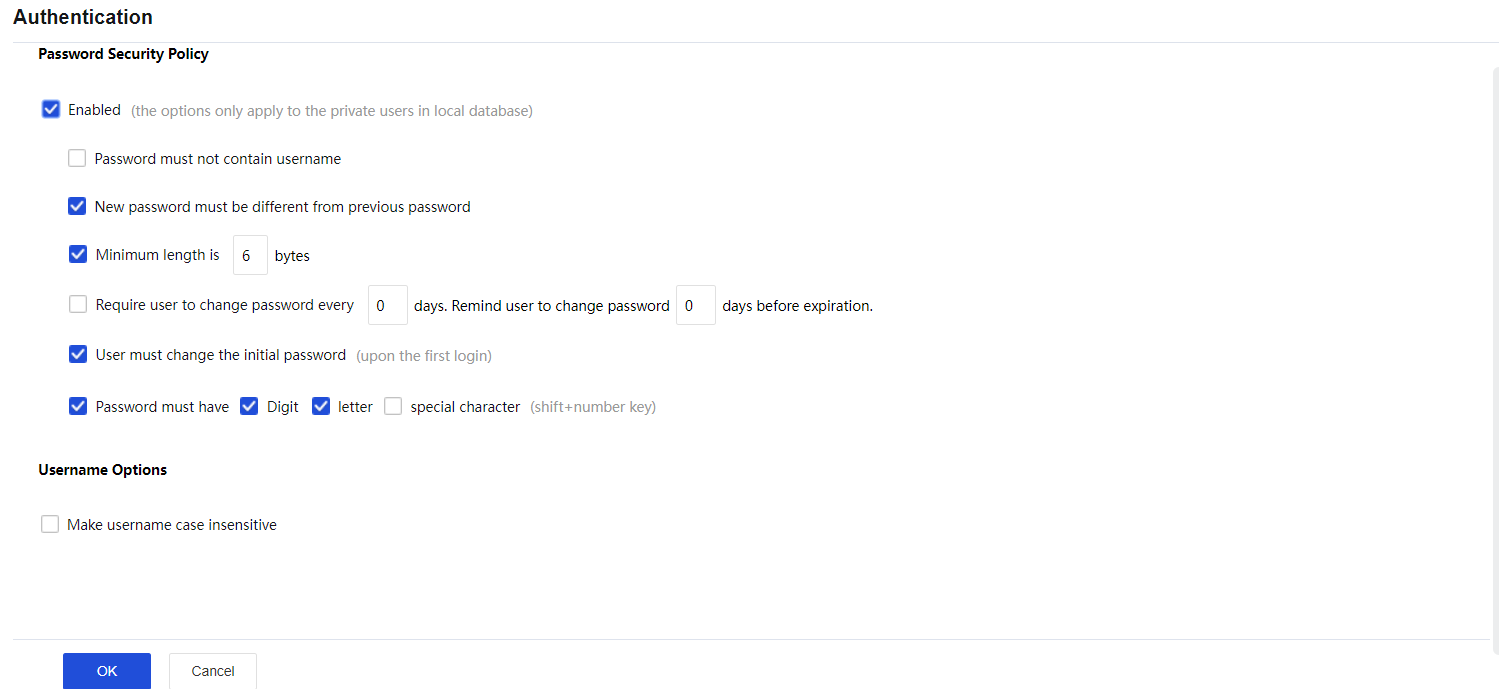
The following are some contents included on the Local Password-Based Authentication page:
Password Security Policy: Configures the password strength, the ways that users change passwords.
Username Options: If the option Ignore case of username is selected, the case of username would be ignored when users enter credentials to log in to SSL VPN.
5.9.9.1.2 LDAP
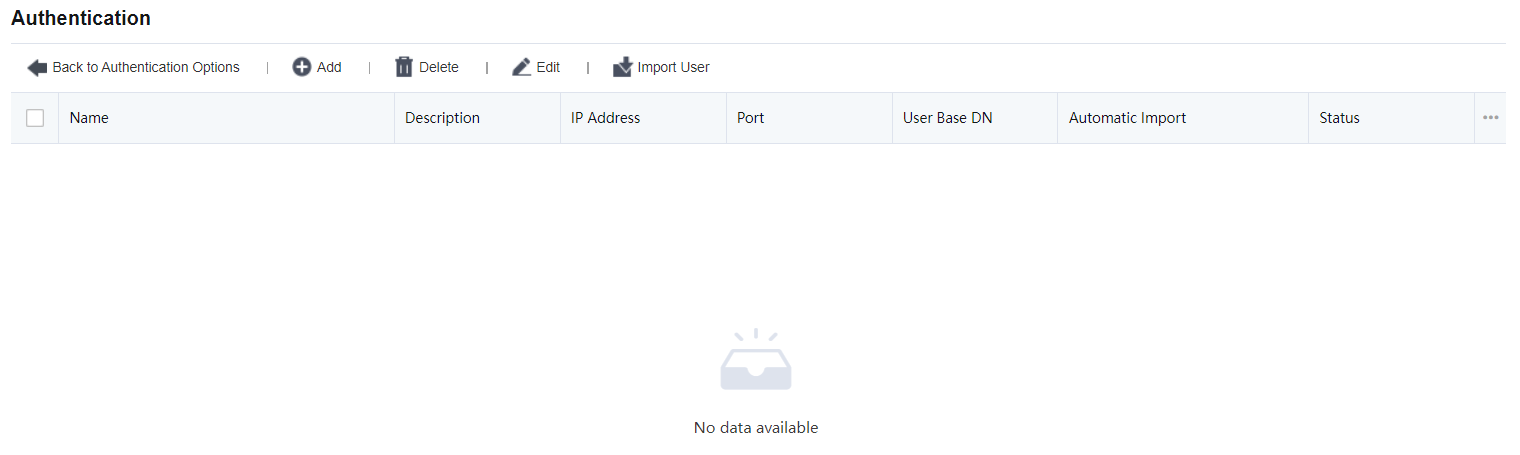
Choose LDAP on the primary authentication page. Click Add to add an LDAP Server. See figure below:
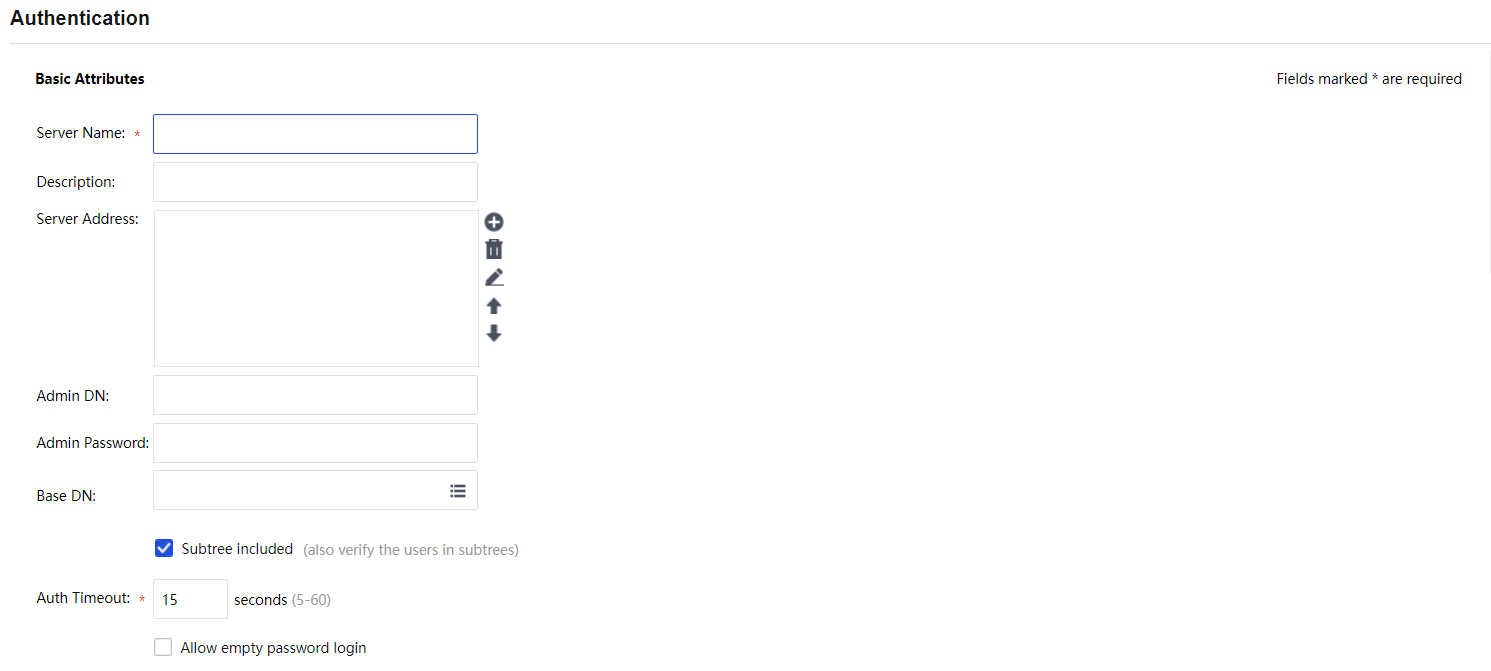
In the Basic Attributes area, set a server name, description, server IP address, authentication port, admin DN, and admin password of a domain user, BaseDN (path of the server where the user resides), timeout interval, and status.

In the Advanced Options area, select the type of the server, user attribute, and user filter. The following five types are supported: MS Active Directory, LDAP server, and MS Active Directory VPN.

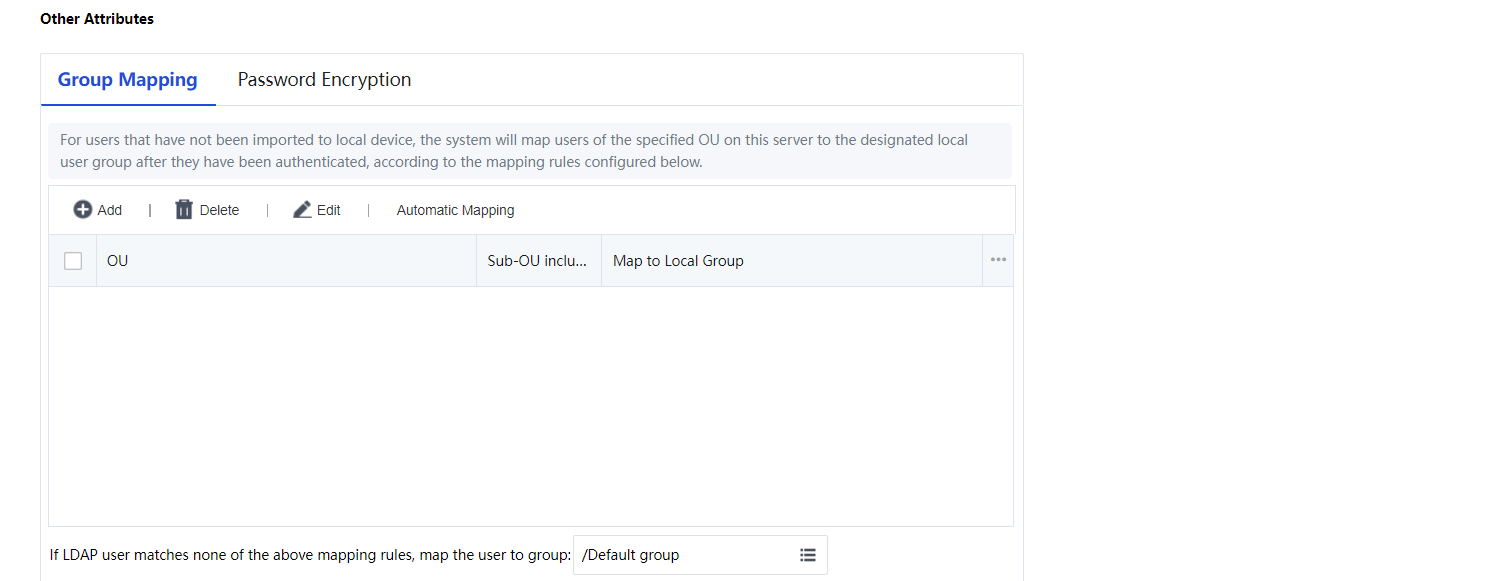
Other Attributes allow setting group mapping and password encryption. See the figure below:
The Secondary Authentication method in NGAF is Hardware ID-based authentication or TOTP authentication.
5.9.9.2.1 Hardware ID
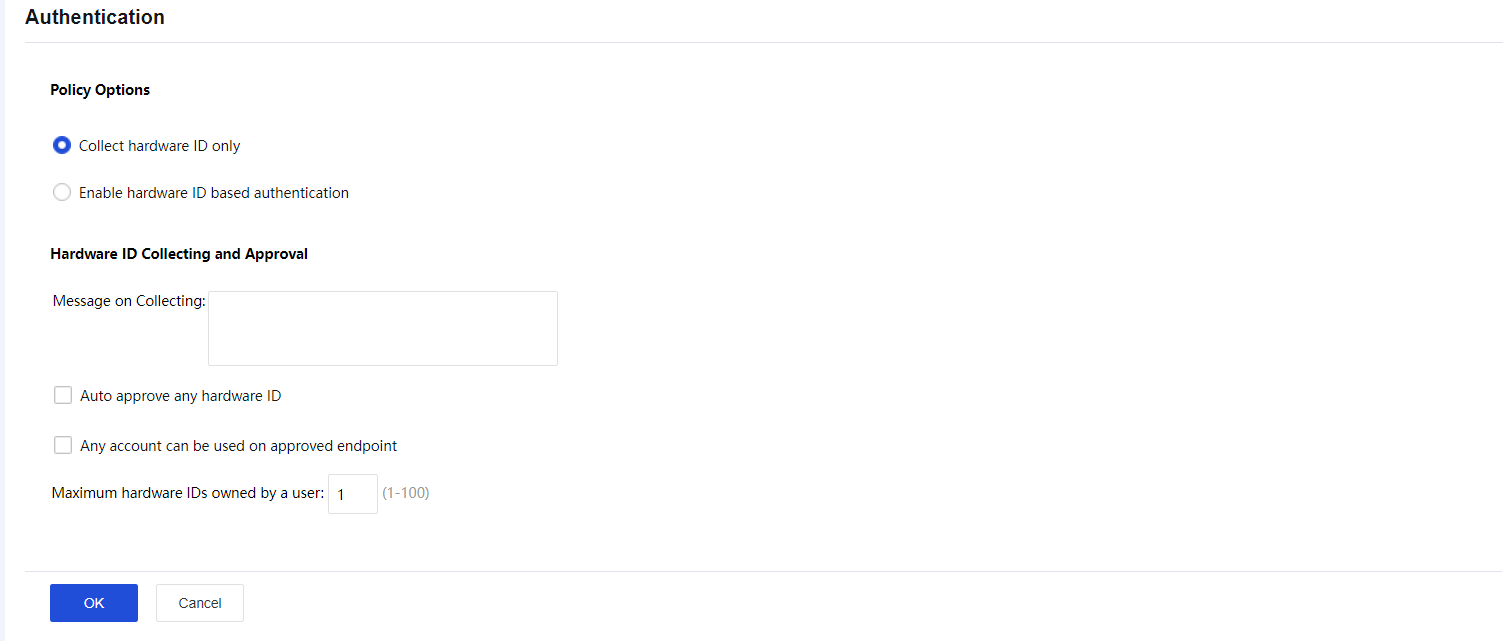
According to a certain algorithm, the hardware ID is a unique serial number generated using the extracted features of hardware components in a computer. The uniqueness of computer components makes the generated hardware ID unique. Click the Settings button following Hardware ID, and the Hardware ID Based Authentication page appears, as shown in the figure below:
The following are the contents included on Hardware ID Based Authentication page:
Collect hardware ID only: If this option is selected, hardware IDs of endpoint computers will be collected, but hardware ID-based authentication will not be enabled.
Enable hardware ID based authentication: If this option is selected, the hardware ID of endpoint computers will be collected and hardware ID-based authentication enabled.
Message on Collecting: This will turn out to be a prompt seen by end-users when they go through hardware ID-based authentication.
Auto approve any hardware ID: This indicates that any hardware ID submitted by the end-user will be approved, and the administrator needs not to approve them manually.
Any account can be used on approved endpoint: Indicates that hardware IDs submitted by any user from a certain endpoint(s) will be approved automatically if the administrator has ever approved the hardware ID of the endpoint(s).
Save: Click this button to save the settings when the configuration is completed.
5.9.9.2.2 TOTP Authentication
TOTP, an abbreviation for Time-based One-Time Password, indicates a one-time password based on a timestamp algorithm. Based on the comparison between the client's dynamic password and the clock of the dynamic token authentication server, a new password is usually generated every 30 or 60 seconds.
The client and server are required to maintain the correct clock very precisely to keep the one-time password generated to be consistent on both sides. NGAF SSLVPN can combine with dynamic tokens based on TOTP protocol to achieve two-factor authentication for account security. The commonly used TOTP dynamic tokens client are Google Authenticator, Microsoft Authenticator, M token, etc. This configuration guide uses Google Authenticator as an example.
TOTP Configuration Steps:
Step 1.Go to Network > SSLVPN > Authentication > TOTP Authentication, enable the TOTP authentication.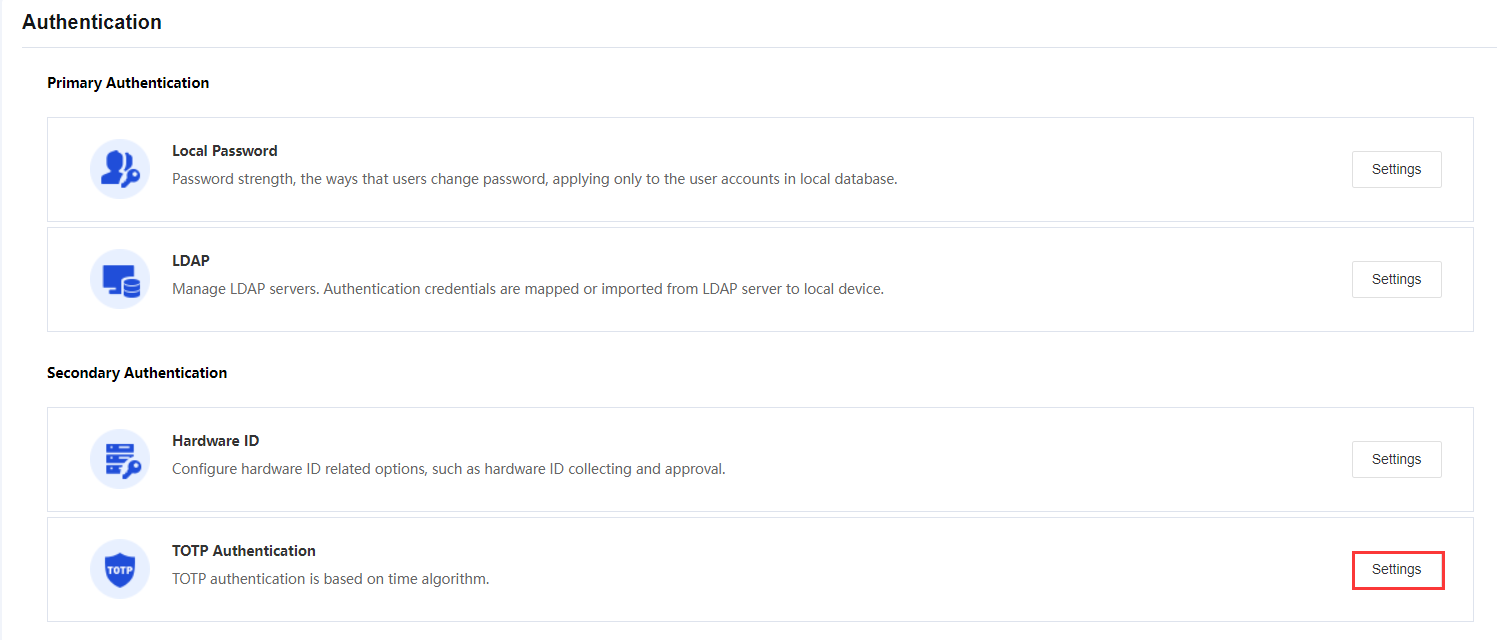
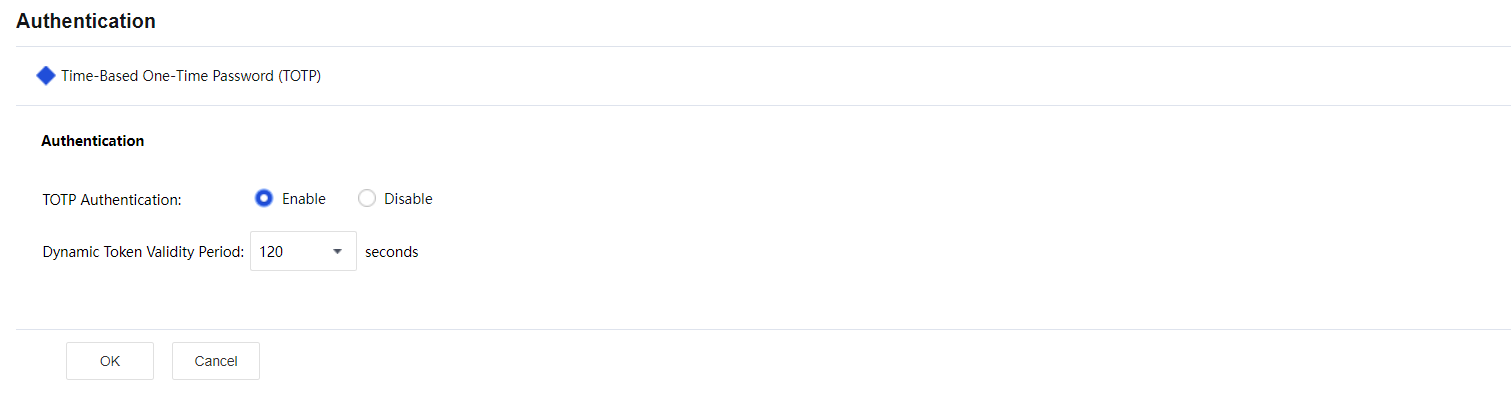
Step 2.Enable TOTP authentication on specific users. Select the user and click on Edit under Network > SSLVPN > Local User. Next, select Dynamic Token Authentication > TOTP authentication.
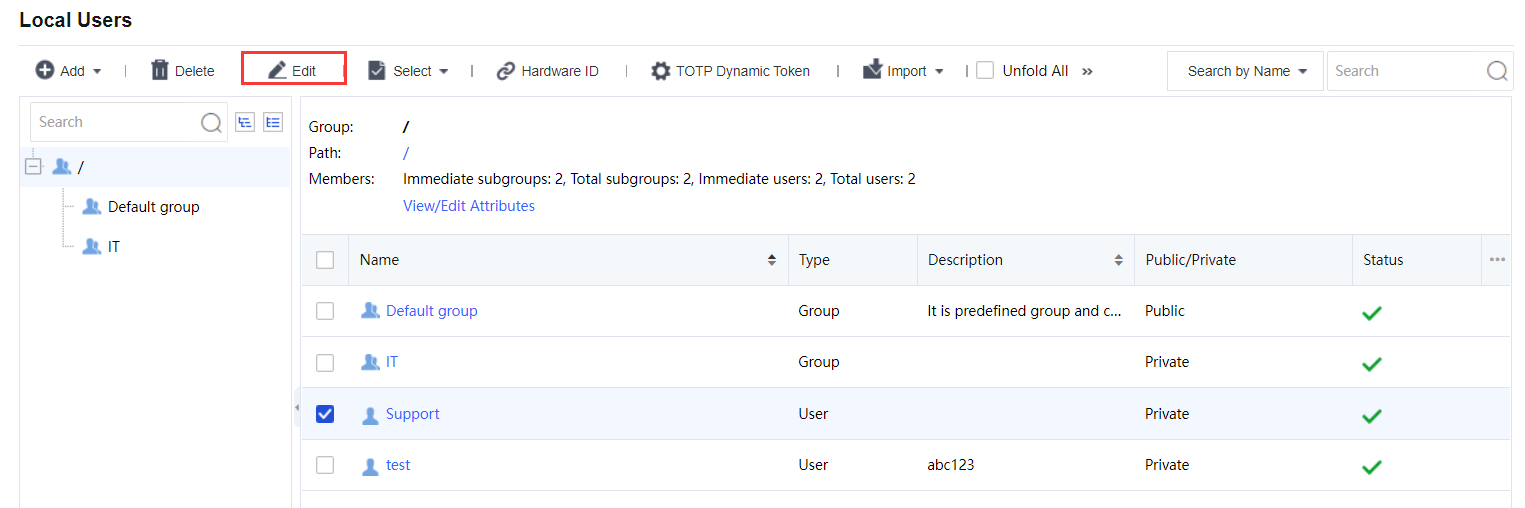
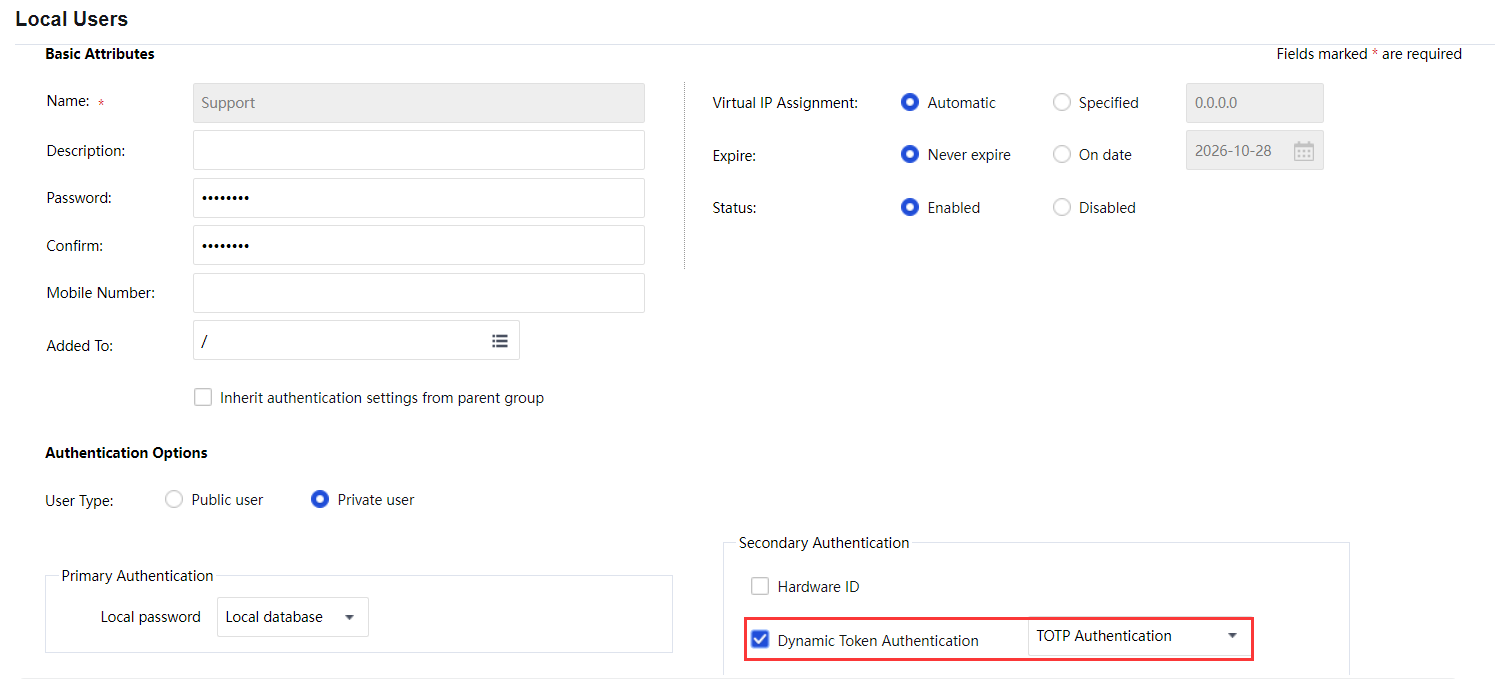
Step 3.Check the TOTP authentication database to view which user is bound with TOTP authentication in SSL VPN > Local Users > TOTP Dynamic Token. You can see the User Type and Binding Time. Administrators can delete the user from the TOTP authentication database manually if the user loses their TOTP software.
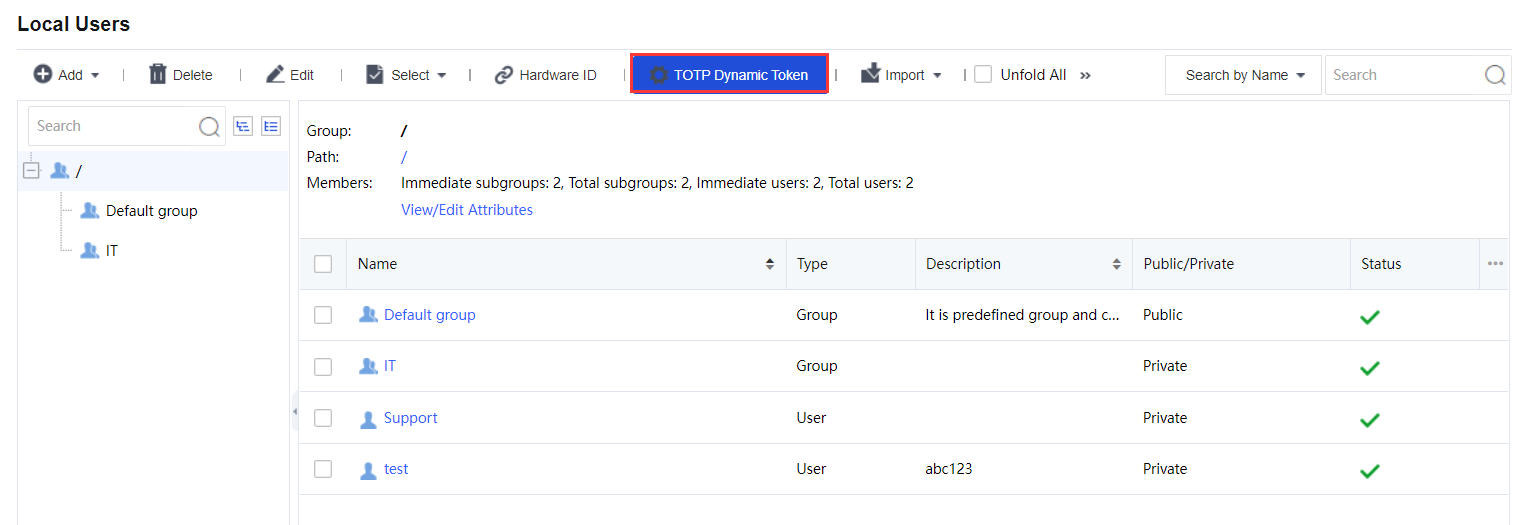
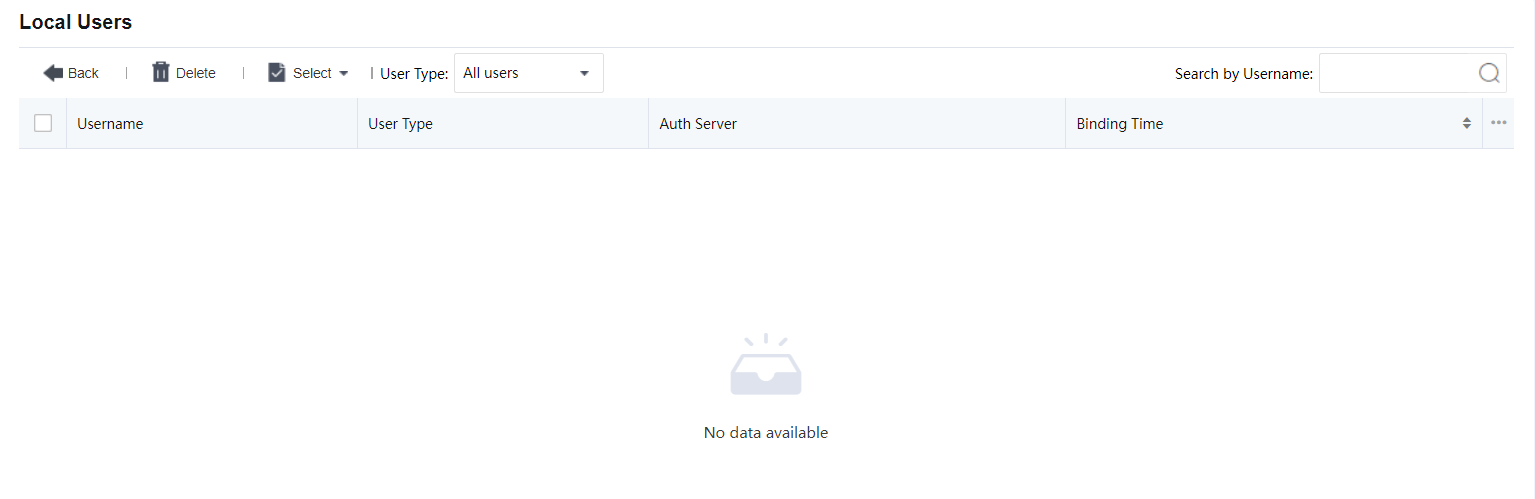
Verification on the Binding Relationship:
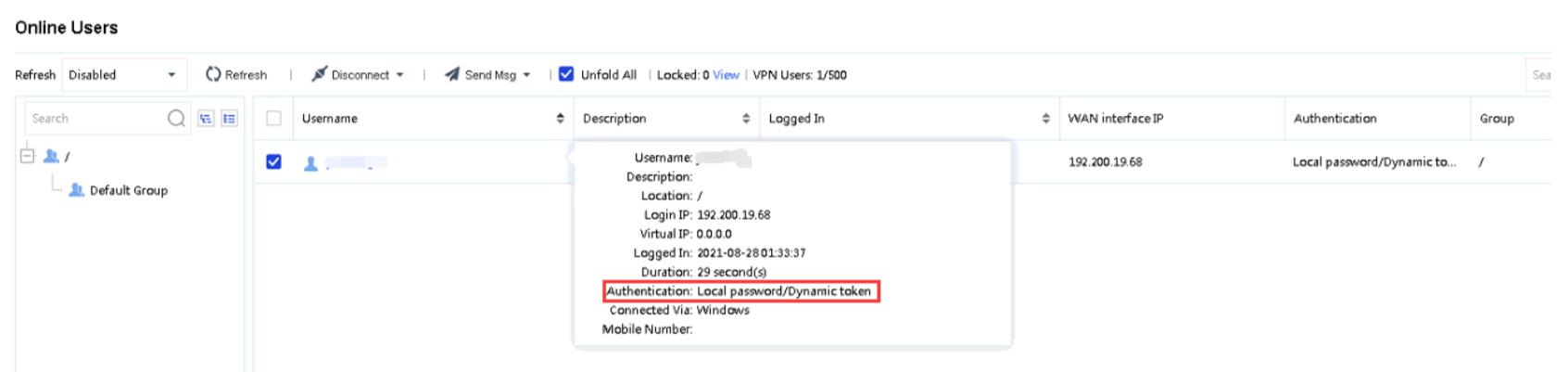
Administrators can check on the user authentication method on the online user list in Network > SSL VPN > Online users, and also the binding status at Network > SSL VPN> Local users > TOTP Dynamic Token.

5.9.9.3.1 External Authentication
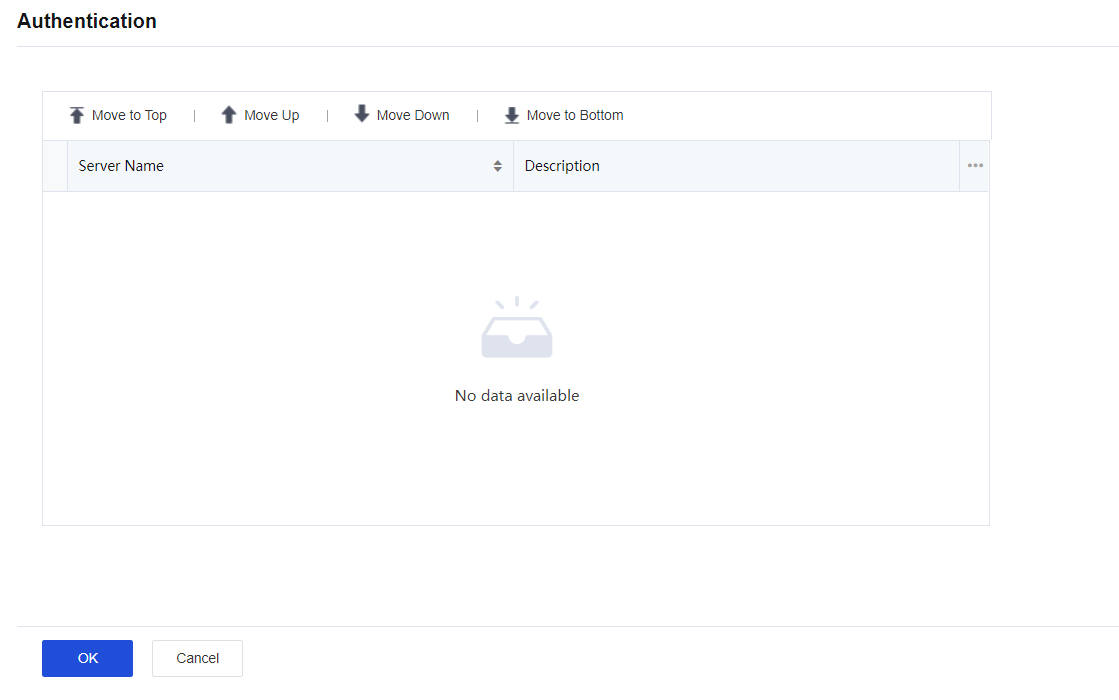
It is used to sort the external authentication servers. See the figure below:
5.9.9.3.2 Password Security Options
Password security options are settings related to login when the user submits username and password to access the SSL VPN, including two parts, Logon Security Options and Brute-force Login Prevention. Click the Settings button following Password Security Options, and the Password Security Options page appears, as shown in the figure below:
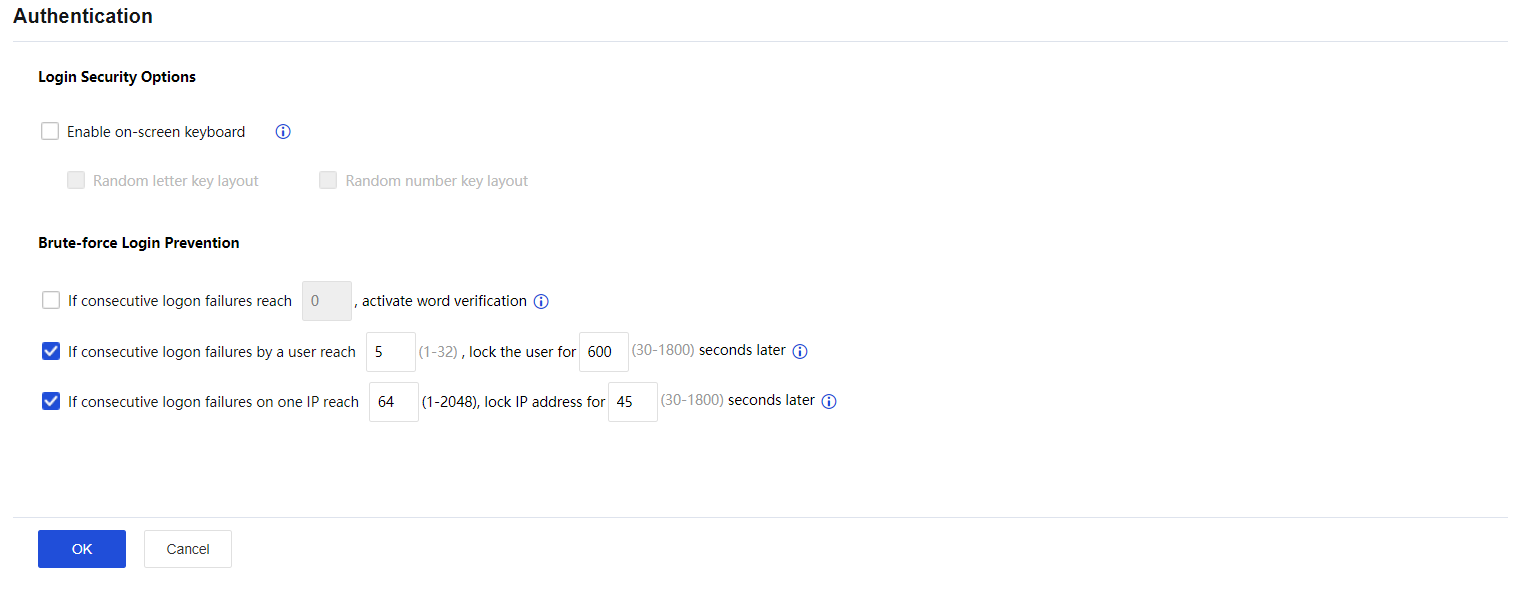
The following are the contents included on the Password Security Options page:
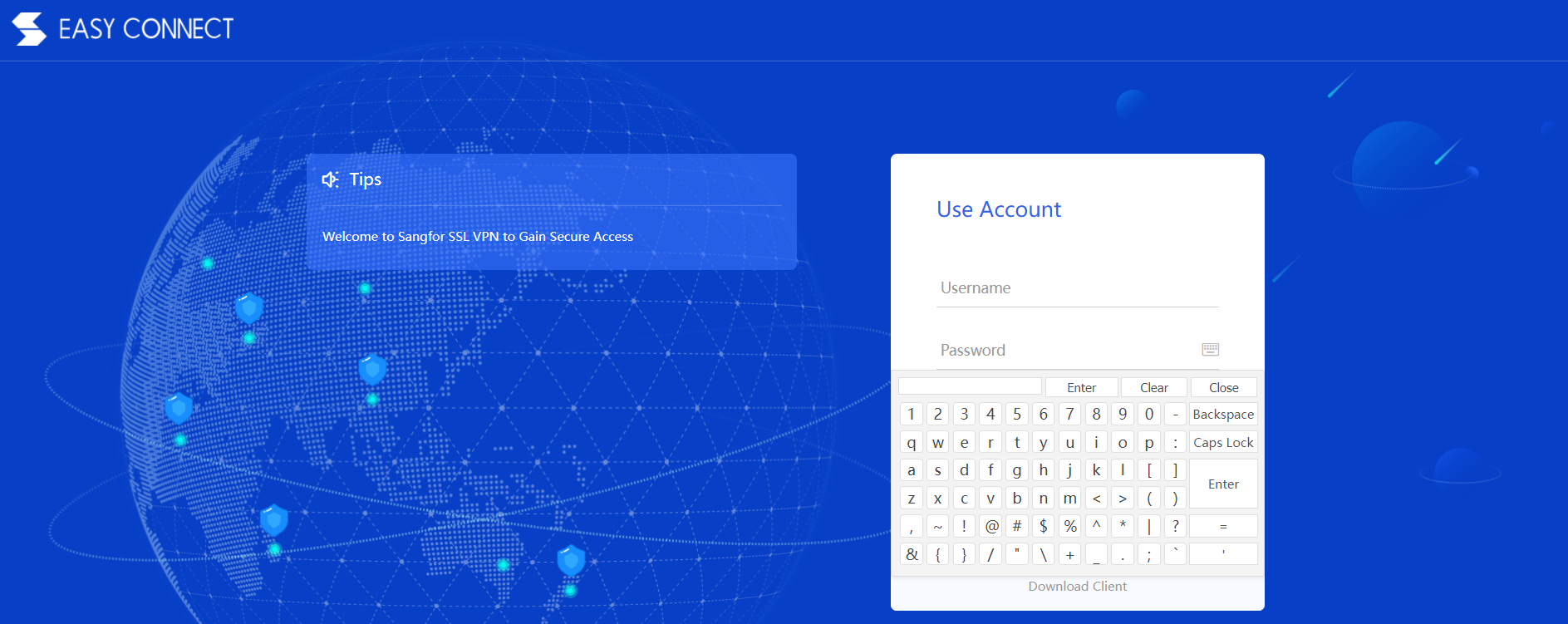
Enable on-screen keyboard: On-screen keyboard is a virtual keyboard available on the login page to the SSL VPN and can prevent input disclosure, adding security to SSL VPN access. The other two options, Random letter key layout and Random number key layout, can have the letter keys and number keys on the virtual keyboard change positions randomly every time user uses this keyboard. Thus, when the user logs in to the SSL VPN and wants to call the on-screen keyboard, they needs only to click the keyboard icon next to the Password field on the login page, as shown in the figure below:
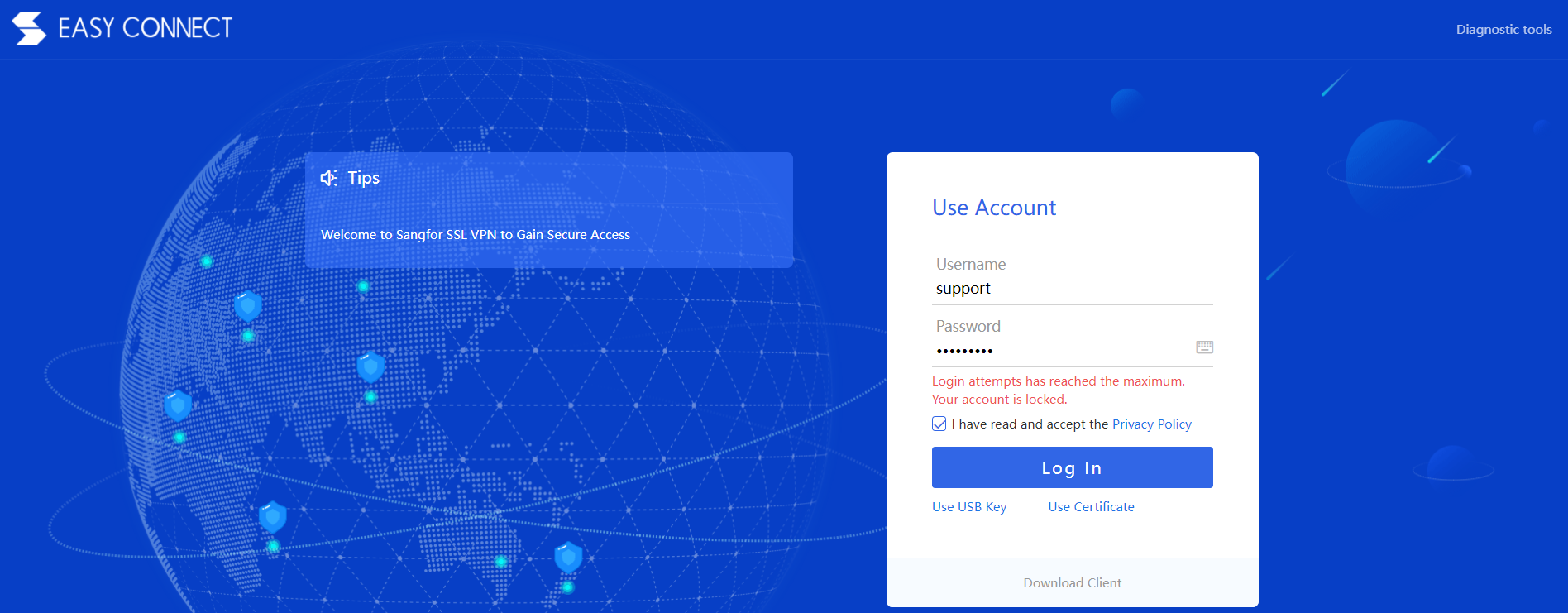
Brute-force Login Prevention: This security feature enables the system to take actions to stop brute-force login attempts. If the user fails to log in many times, the login IP address or the user account would be locked up, or word verification is enabled for some time. The prompt given is as shown below:


 {{ $t('index.defaultHeader.chromeBrowserTip') }}