


{{ secondMenu.name }}






The resources mentioned in this section are the resources that can be accessed by specified users over SSL VPN. The only resource type available for SSLVPN in NGAF is the TCP application. Navigate to SSL VPN > Resources and Resources page appears, as shown below:
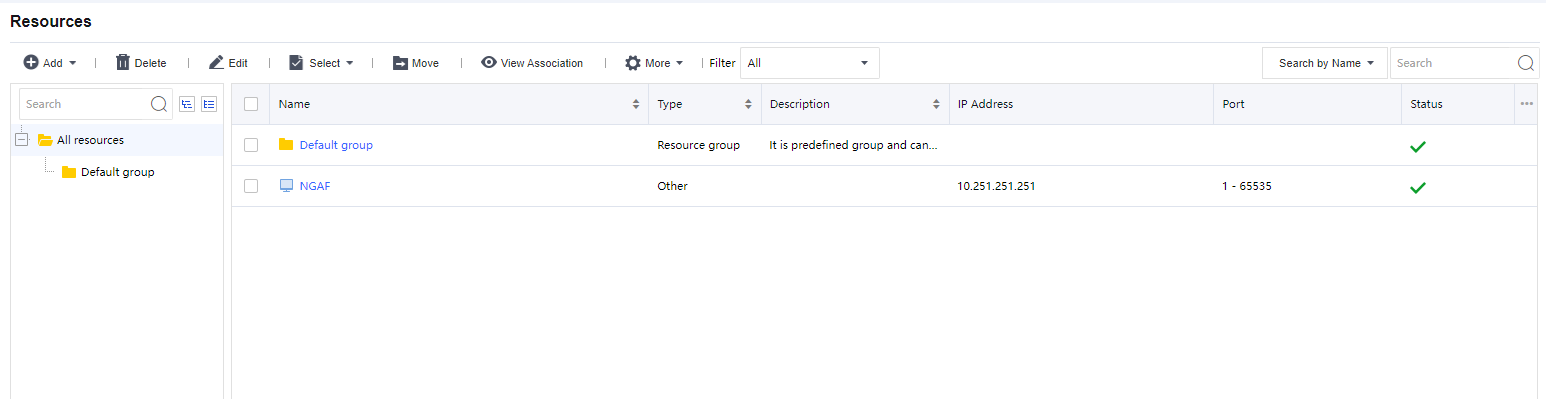
A resource group could contain several resources entries. Similar trouser management, resources could be grouped according to categories and associated user or group, etc. The majority of administrators welcome this kind of management because it makes resources more distinguishable. Navigate to SSLVPN > Resources > Resource and click on the resource group, and their sources included in the group are displayed on the right pane. The resource group tree is as shown in the figure on the right. A Default group is a group protected by the system and cannot be deleted, but its attributes could be modified.
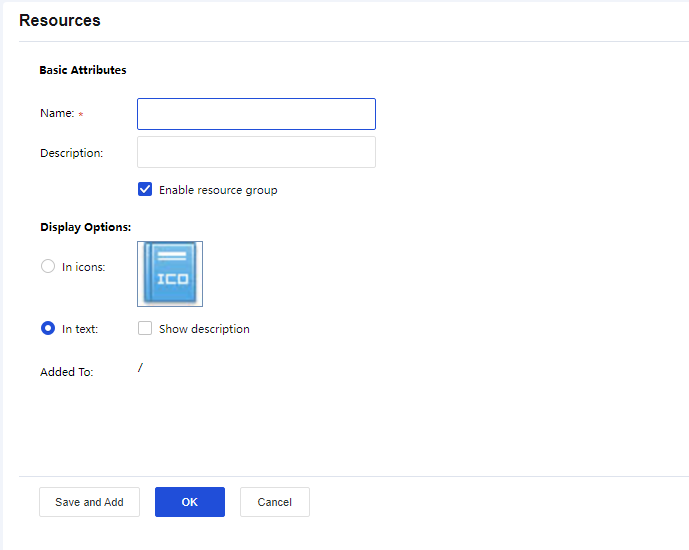
Name, Description: Indicates the name and description of the resource group. This name will be seen on the Resource page after the user successfully logs in to the SSL VPN.
Display Option: Indicates the way resources are displayed on the Resource page, in icon, or text. If In Icons is selected, define the icon size, 48*48, 64*64, or 128*128, so that the resources will be displayed in the icon as wanted. If In Text is selected, you may select Show description of the resource.
Added To: Indicates the resource group to which this group is added. By default, the resource group is added to the root group (/).
TCP application is a resource that allows end-users to use C/S-based or TCP-based applications on their local computer to access corporate resources and servers over SSL VPN.
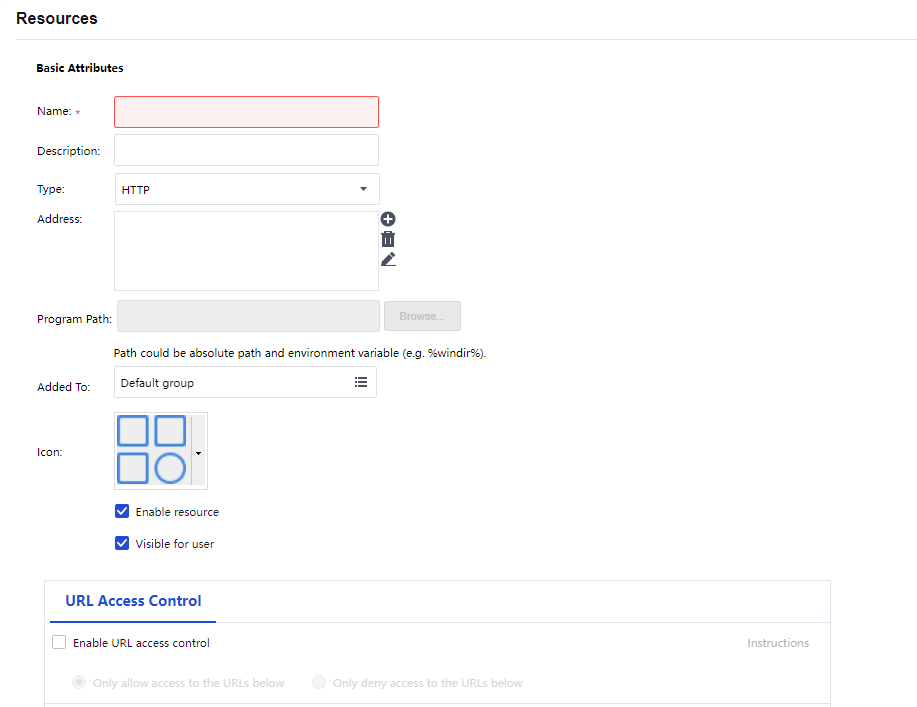
Name, Description: Indicates the name and description of the TCP resource. This name may be seen on the Resource page after the user logs in to the SSL VPN.
Type: Indicates the type of the TCP application. Some common types are built in the Sangfor device. This selection determines the port number entered in the Port field automatically. If the TCP application is not any of the built-in types, select Other and configure the port manually.
Address: Indicates the address of the TCP resource. To add one address entry (IP address, domain name, or IP range), click the Add Address tab. To add multiple entries of addresses, click the Add Multiple Addresses tab, as shown in the figures below:
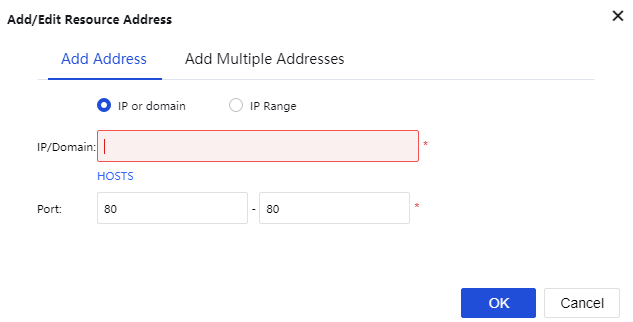
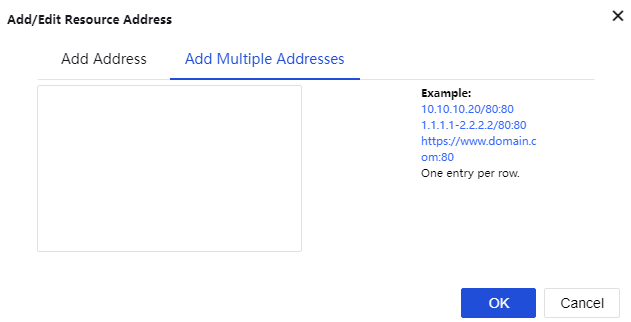
Port indicates the port used by this TCP application to provide services. For built-in types of TCP applications, this port is predefined. For Other types of TCP applications, enter the corresponding port number.
Program Path: Indicates the path of the client software program that may be used by the C/S (client/server) application.
Added To: Indicates the resource group to which this resource is added. By default, the selected resource group is the Default group (to configure resource group, refer to the Adding/Editing Resource Group section).
Enable resource: To set the availability of this resource.
Visible for user: To have connecting users see this resource on the Resource page, select this option. Invisibility here only means that the resource is not seen on the Resource page. It is still accessible to the user.
URL Access Control: URL Access Control for HTTP resources:
Enable the URL Access Control function.
Choose the action for the access control, either allow or deny.
Add URL.
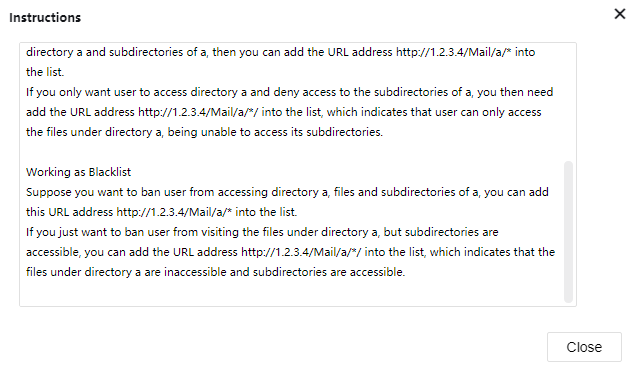
Click the Instruction will display the URL access control instructions as the figure below:

The driver and plug-in for the TCP application will be installed automatically to the PC when the user login SSL VPN for the first time. After that, users must log on to Windows with an administrator account. If Windows firewall or Anti-Virus software is running, these applications must be disabled or turned off first to avoid plugin installation problems.
TCP application does not support file sharing type.
L3VPN is used to define, configure and manage Intranet SSL VPN resources using multiple IP protocols and can access using TCP/UDP/ICMP protocols at the same time.
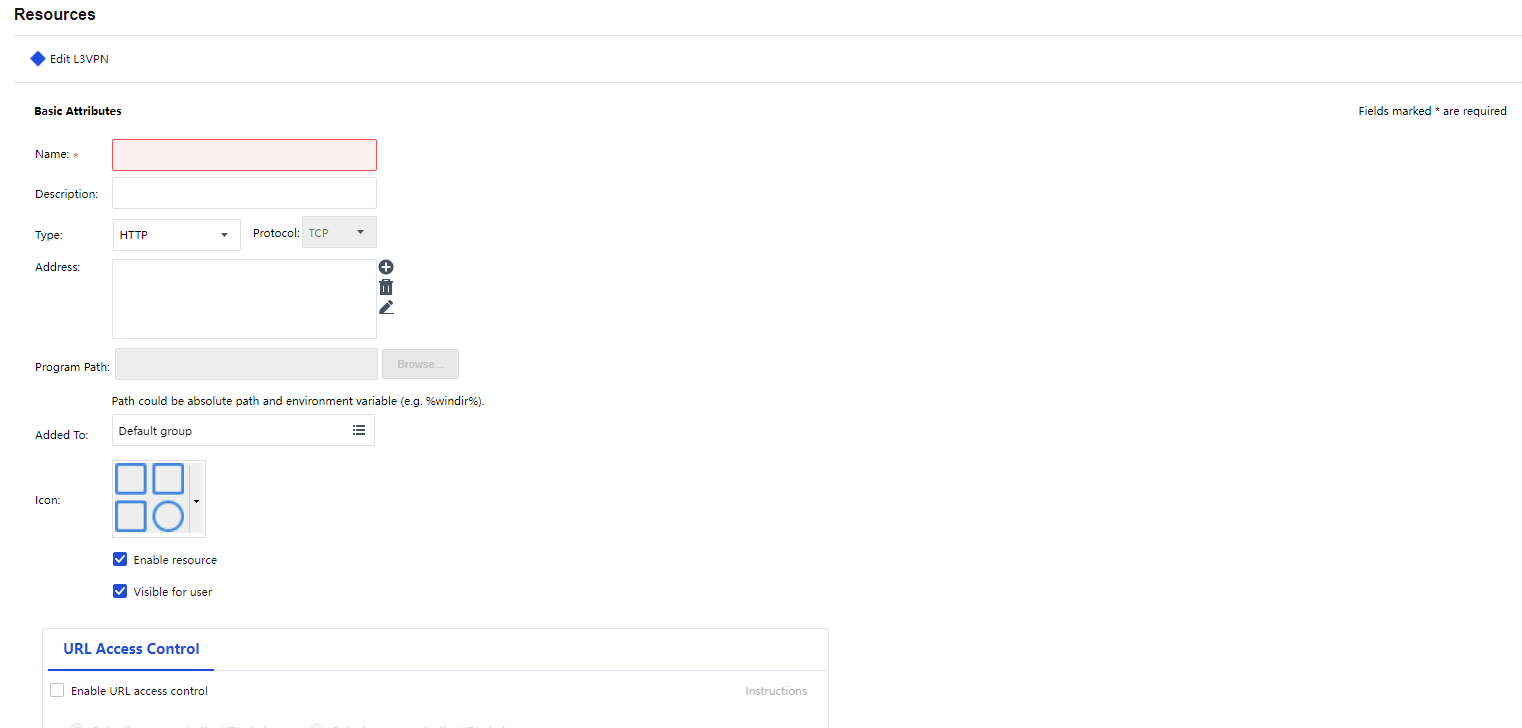
Name, Description: Indicates the name and description of the TCP resource. This name may be seen on the Resource page after the user logs in to the SSL VPN.
Type: Indicates the type of the TCP application. Some common types are built in the Sangfor device. This selection determines the port number entered in the Port field automatically. If the TCP application is not any of the built-in types, select Other and configure the port manually.
Address: Indicates the address of the TCP resource. To add one address entry (IP address, domain name, or IP range), click the Add Address tab. To add multiple entries of addresses, click the Add Multiple Addresses tab, as shown in the figures below: 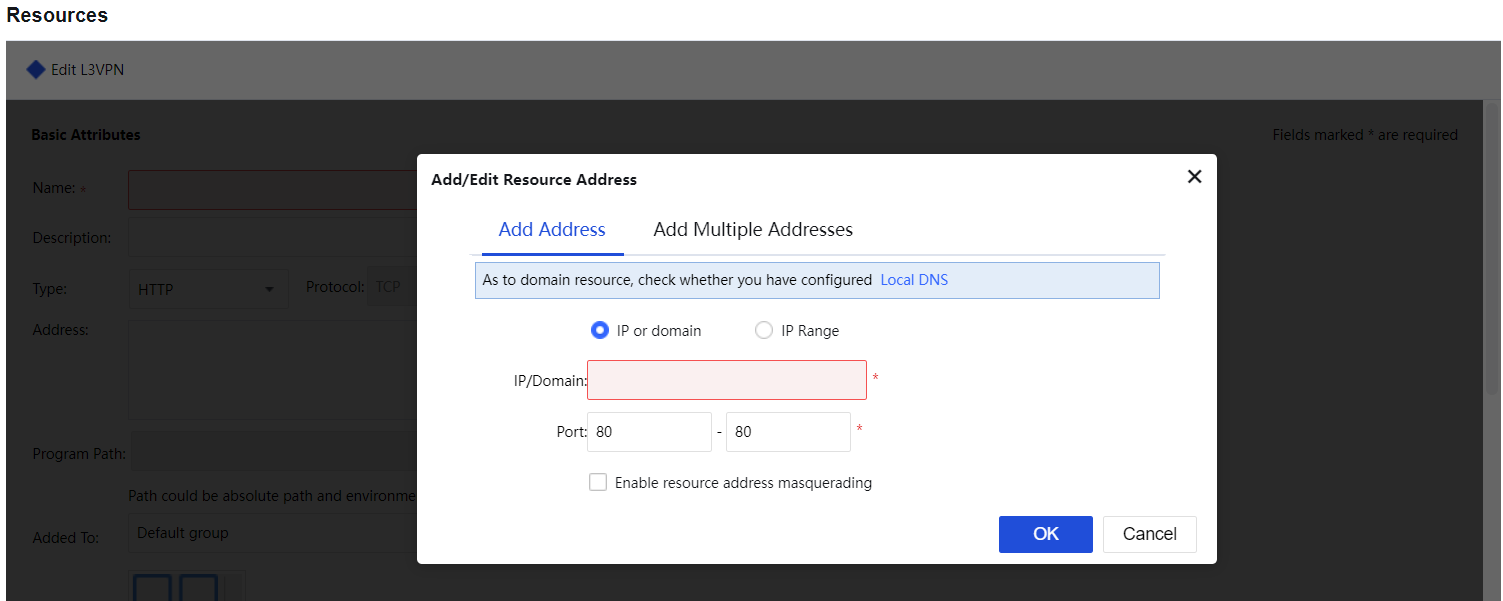
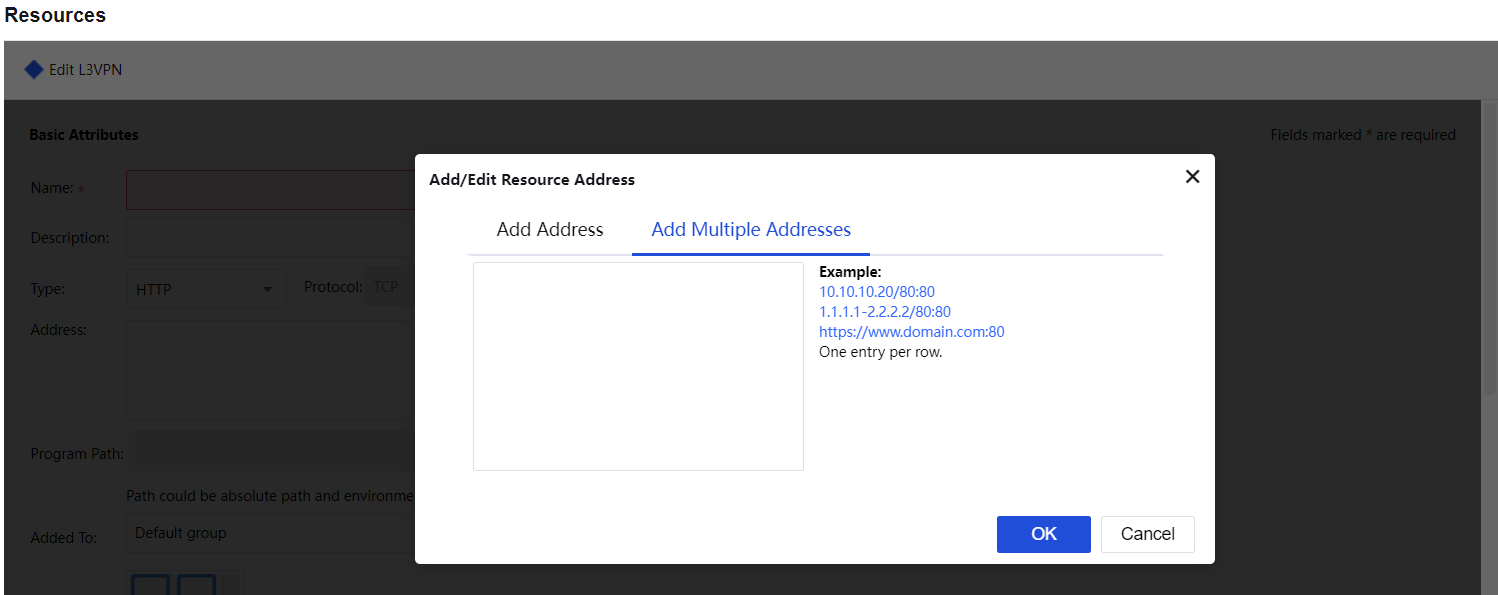
Port indicates the port used by this TCP application to provide services. For built-in types of TCP applications, this port is predefined. For Other types of TCP applications, enter the corresponding port number.
Program Path: Indicates the path of the client software program that may be used by the C/S (client/server) application.
Added To: Indicates the resource group to which this resource is added. By default, the selected resource group is the Default group (to configure resource group, refer to the Adding/Editing Resource Group section).
Enable resource: To set the availability of this resource.
Visible for user: To have connecting users see this resource on the Resource page, select this option. Invisibility here only means that the resource is not seen on the Resource page. It is still accessible to the user.
URL Access Control: URL Access Control for HTTP resources:
Enable the URL Access Control function.
Choose the action for the access control, either allow or deny. Add URL.
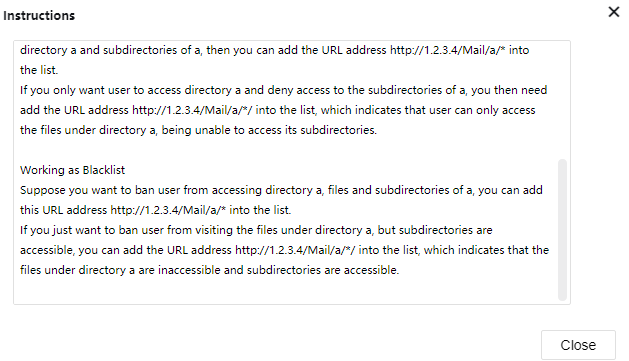
Click the Instruction will display the URL access control instructions as the figure below:
Other functions include Export resource, Import resource, and Resource Sorting.
5.9.4.4.1 Export Resource
The export resource will export resources from resource usage into a file as shown in the figure below: 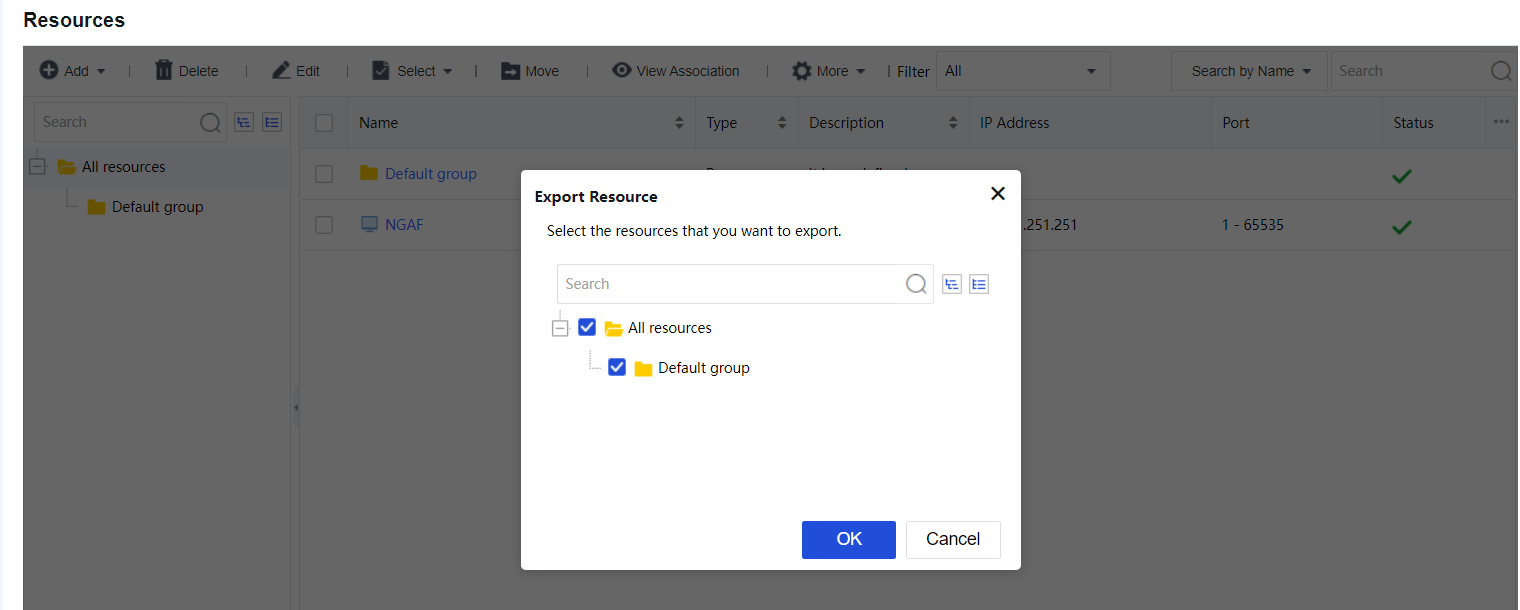
Click Export to save the selected resources into the rclist.csv file.
5.9.4.4.2 Import Resource
Import resource from an edited CSV file into resource usage.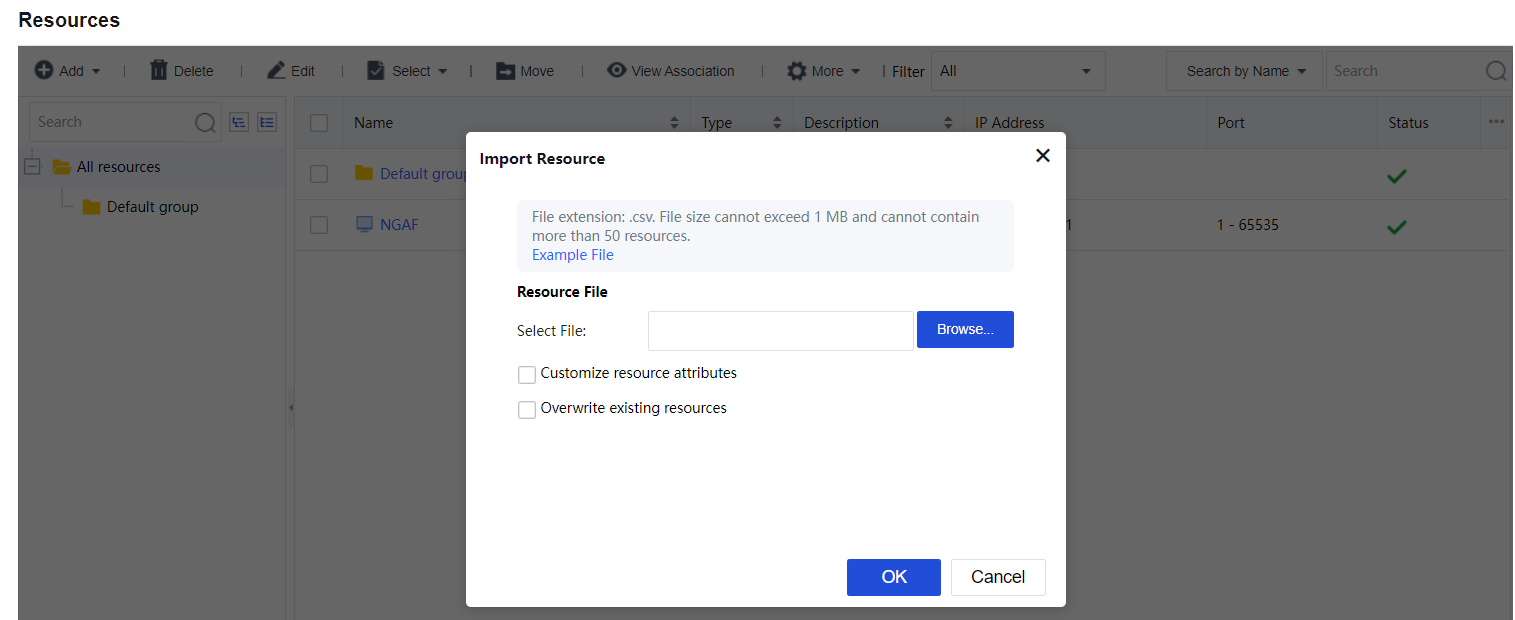
Click Example File to download the .csv file template for resource import
Select Customize resource attributes to import resources to the existing resource group and able to add a description for the resources.
Select Overwrite existing resources to replace existing resources if importing resources have the same name.
5.9.4.4.3 Sort Resource
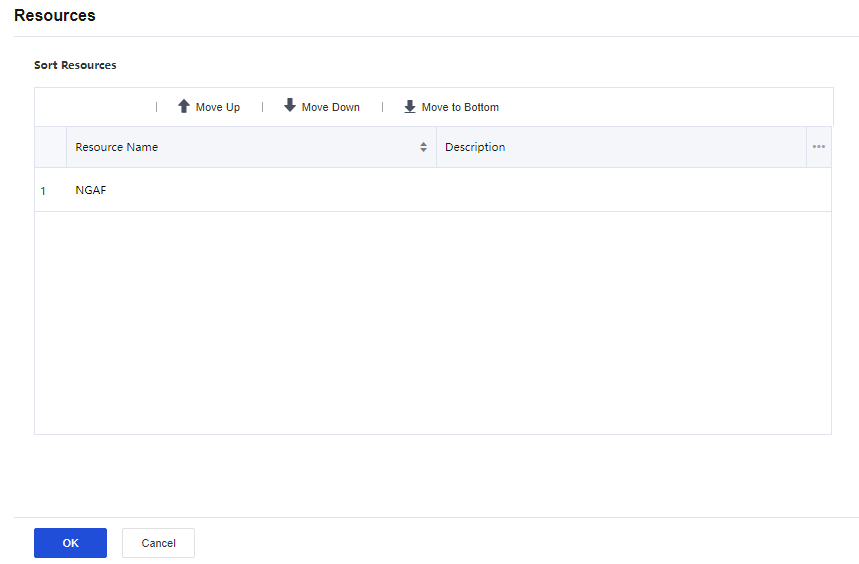
Select resource group and click on the Sort resource will allow you to sort resources inside the resource group, see figure below:
5.9.4.4.4 Sort Resource Group
Resource Sorting can rearrange the sequence for all resources by Move to Top, Move Up, Move Down and Move to Bottom, as shown in the figure below:

Other than the operation mentioned above, a function such as Delete, Edit, Select, and Move can be applied to the resources:

The Select option is used to select resources/resource groups on the current page or all pages, choose the desired resources, and use the Move option to move the resources to another resource group.

The Filter can be used to select resources based on resource group or type. Available options are All, Resource group, TCP App, and L3VPN App.



 {{ $t('index.defaultHeader.chromeBrowserTip') }}