


{{ secondMenu.name }}






The Cloud-Based Protection module consists of the following features: Threat Intelligence Gateway, Neural-X Subscription, and Phishing Email Protection.
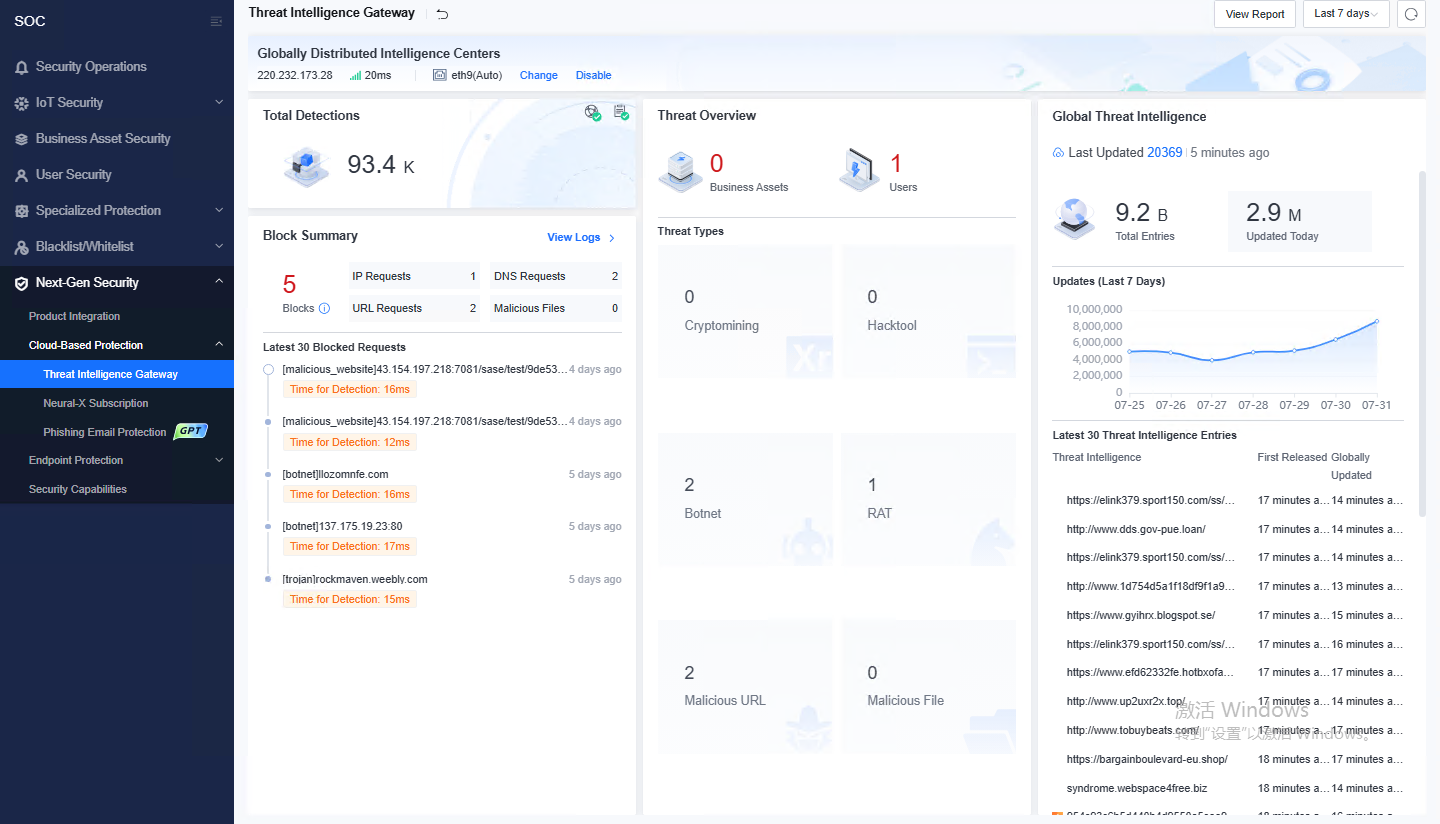
Threat Intelligence Gateway leverages Sangfor's active detection engine along with extensive threat intelligence in the existing network to detect and block threat traffic in real time. This ensures that all traffic is detected and identified by Threat Intelligence Gateway before Network Secure forwards the traffic. Therefore, malicious traffic can be blocked before it is forwarded, and asset security is protected.
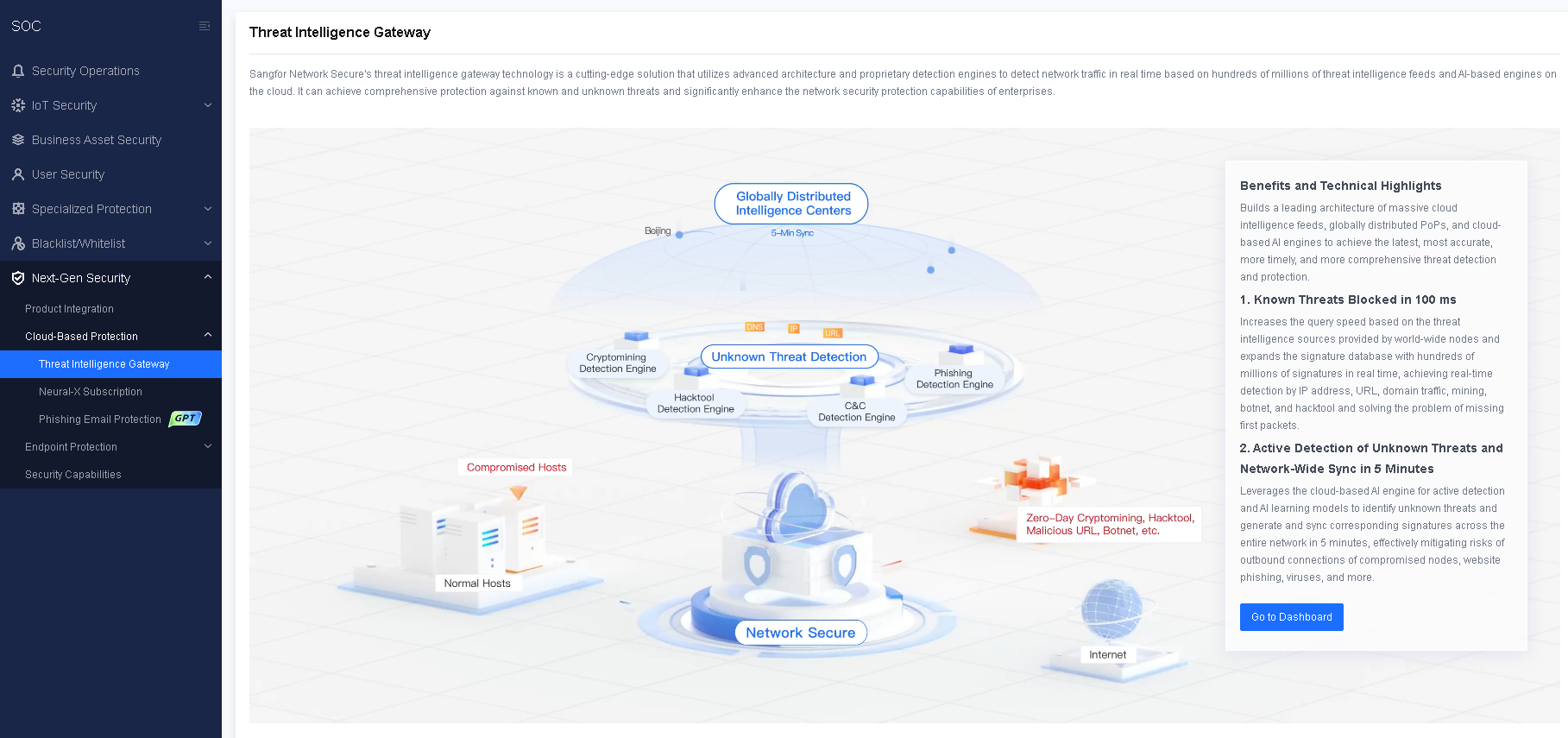
Step 29.Integrate Network Secure with cloud products. For more information, see the "Product Integration" section.
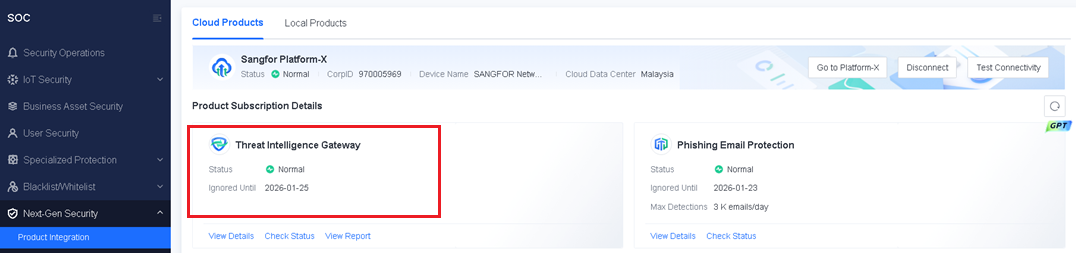
Step 30.After Network Secure is integrated with the cloud products, you further need to properly configure botnet detection and content security policies to ensure that Threat Intelligence Gateway can take effect. After the botnet detection policy is enabled, Threat Intelligence Gateway will send the domain names that cannot be identified locally to the extensive threat intelligence library in the cloud for security detection. After the content security policy is enabled, Threat Intelligence Gateway will send the file features that cannot be identified locally to the extensive threat intelligence library in the cloud for security detection.
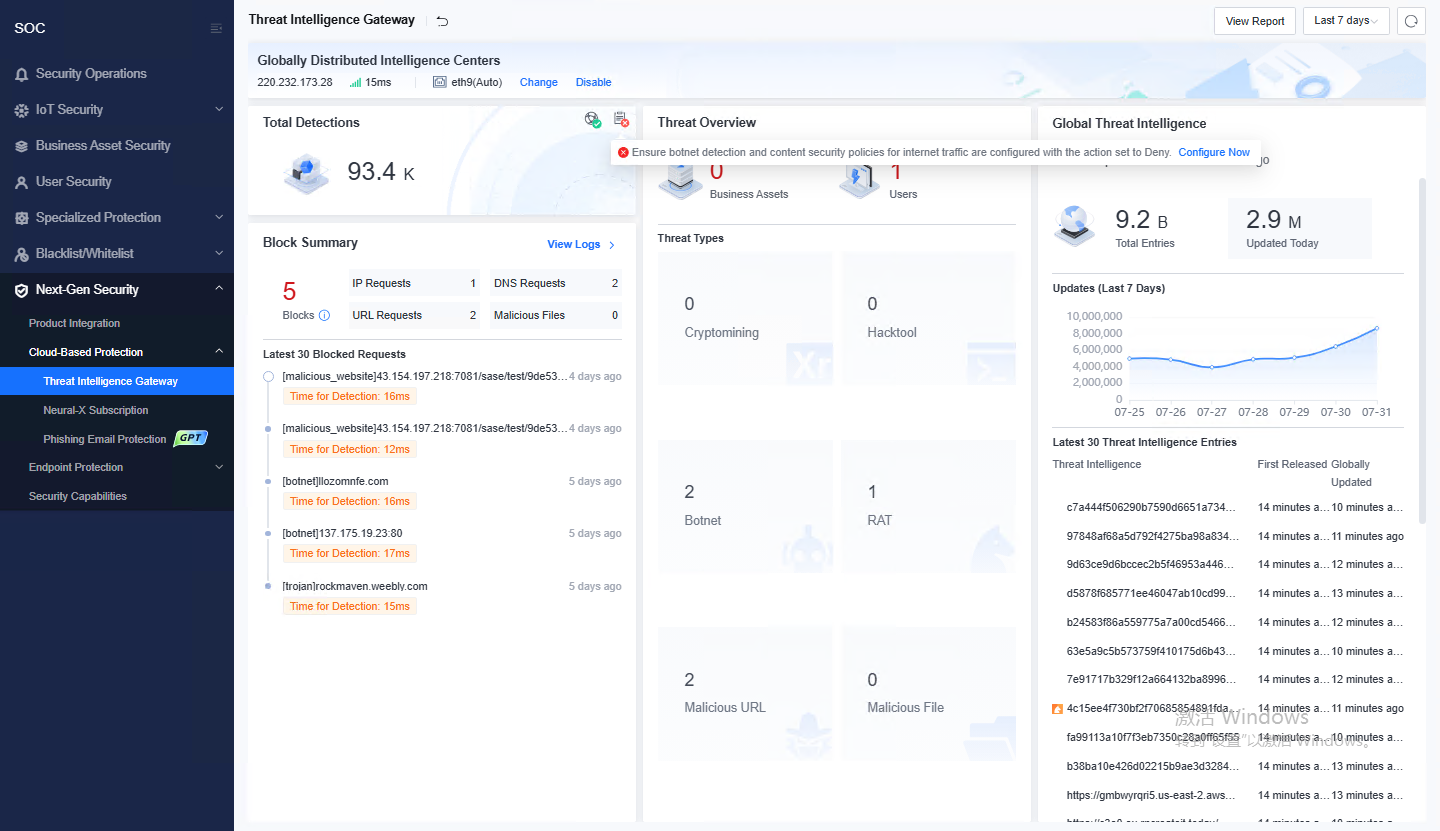
If a required security policy is not configured, a message will appear on the Threat Intelligence Gateway page, as shown in the following figure. You can click Configure Now in the message to go to the Policies page to configure the required security policy.
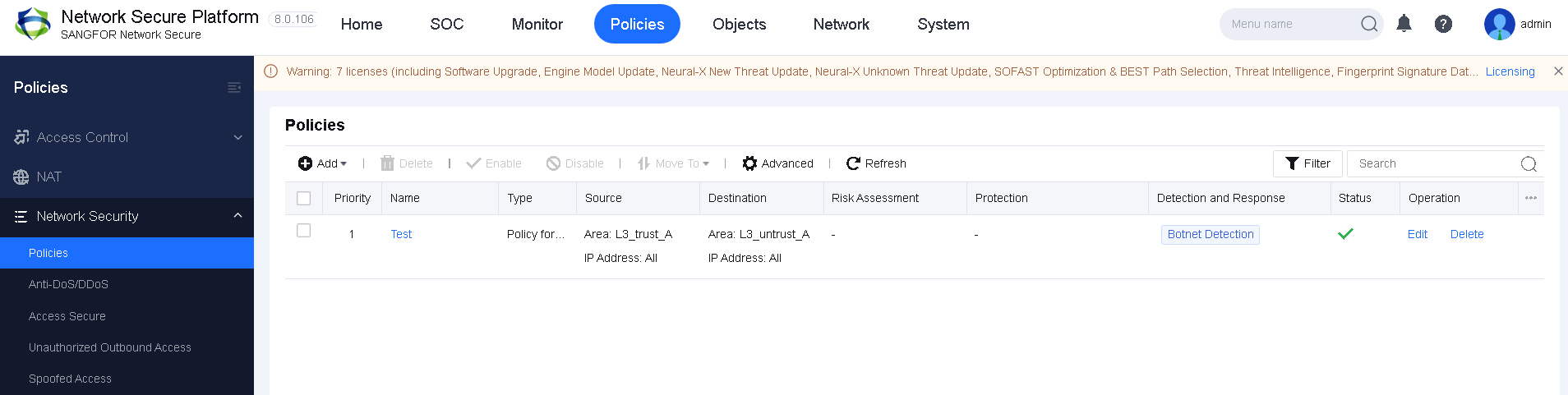
The following figure shows a security policy for which botnet detection is enabled. The Source and Destination columns display the source and destination areas and IP addresses. The Detection and Response column displays Botnet Detection. When you move the pointer over Botnet Detection, you can view that the action is Deny.
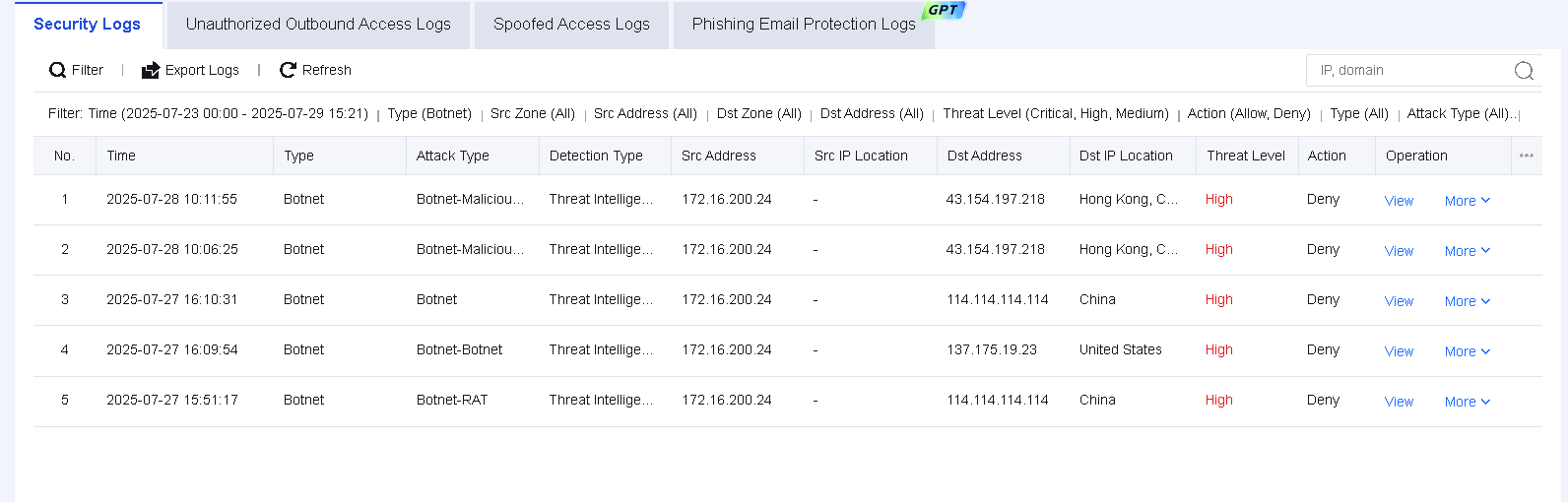
After Network Secure detects threat intelligence, the Block Summary section of the Threat Intelligence Gateway page will summarize the detection results, such as the block counts and the latest 30 blocked requests. You can click View Logs in the upper-right corner of the Block Summary section to go to the Security Logs tab to view the detailed threat logs. On the Security Logs tab, Threat Intelligence Gateway in the Detection Type column indicates that the threat log is detected by Threat Intelligence Gateway.
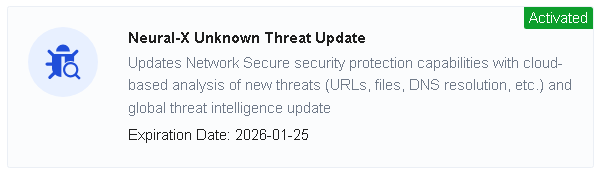
Sangfor Neural-X Unknown Threat Update is a comprehensive detection and protection service built on multiple engines, including cloud-based sandbox, behavior analytics, and threat intelligence. It provides powerful cloud security capabilities to detect and protect against unknown threats, including advanced variants and emerging threats that traditional rule-based signatures cannot defend against.
To integrate Network Secure with Neural-X Unknown Threat Update, ensure your device has Internet access and has activated the Neural-X Unknown Threat Update license.
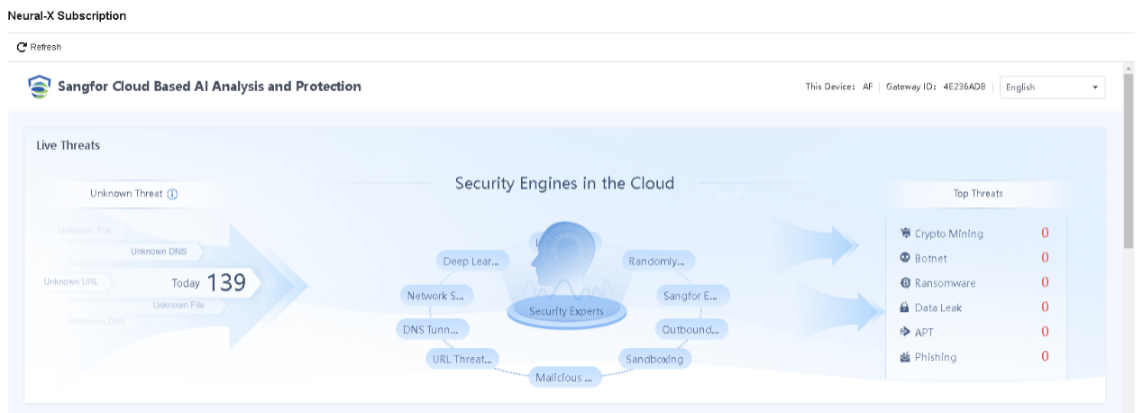
Sangfor Neural-X Subscription offers enhanced capabilities to detect emerging, unknown, and advanced threats through continuous autonomous learning. It maintains deep integration with Network Secure to improve device security capabilities and ensure user network security.
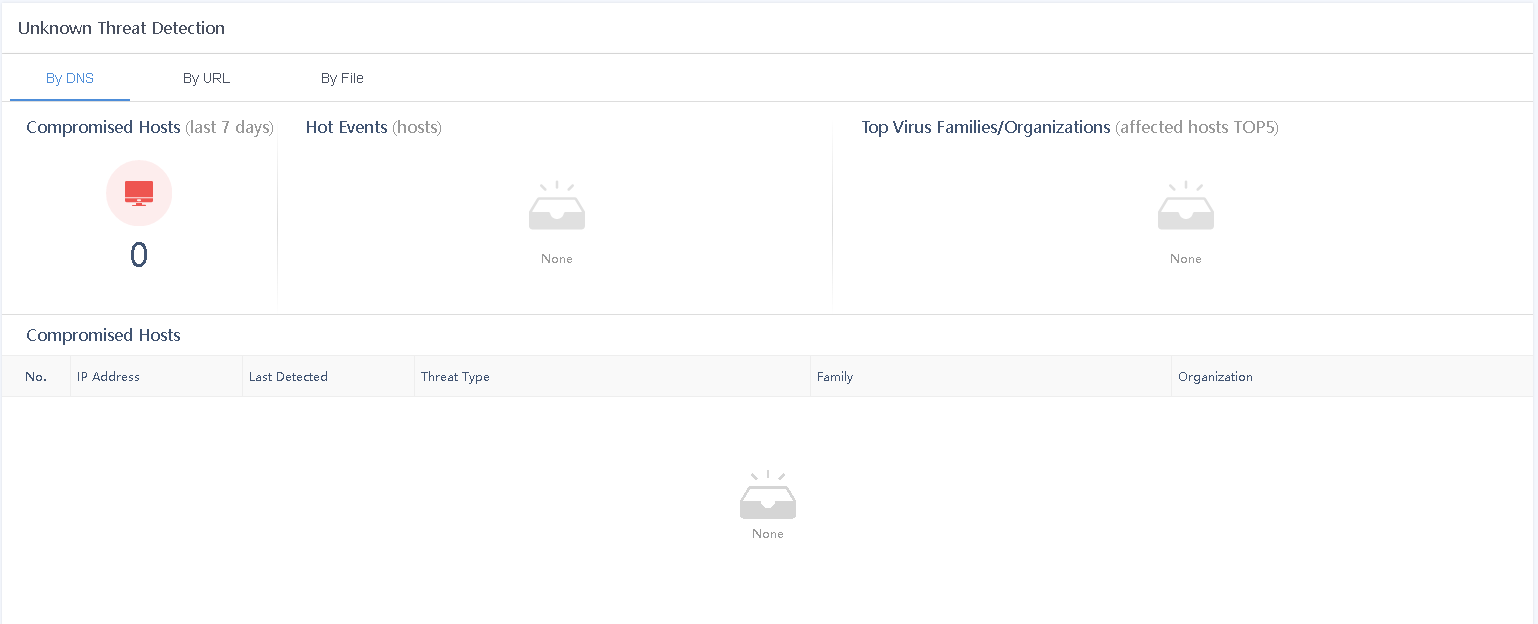
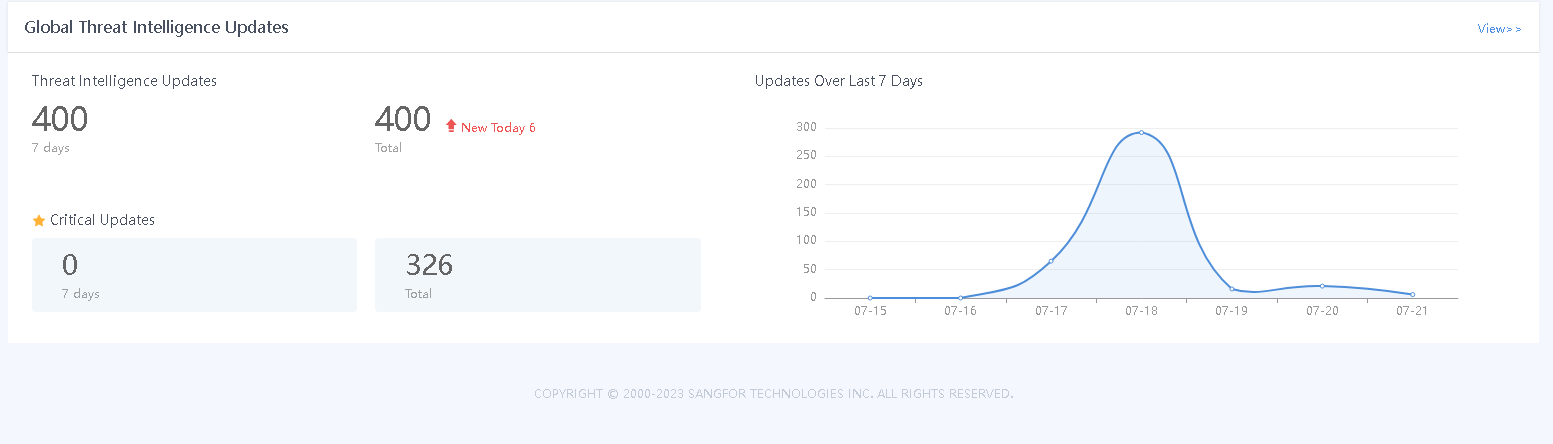
Devices are automatically integrated with Neural-X Subscription once they have access to the Internet, and you obtain the license for Neural-X Subscription. After the integration, you can view information related to threat intelligence on the Neural-X Subscription page, as shown in the following figure.
The Phishing Email Protection feature of Network Secure deeply integrates the powerful language comprehension capabilities of AI large models (GPT) with extensive data from the cloud intelligence library to construct a dynamic security defense system that efficiently coordinates local and cloud services. Phishing Email Protection can parse inbound email content in real time, and accurately identify spoofing, phishing links, and malicious attachments. In addition, this feature can issue real-time alerts for abnormal emails based on the risk assessment result, dynamically block access to malicious URLs, and coordinate with Endpoint Secure to synchronously quarantine high-risk attachments to fully eliminate the threats. Phishing Email Protection can automatically thwart attack chains without affecting user operations, and can effectively prevent enterprise financial losses and data leakage risks, thereby ensuring enterprise asset security.
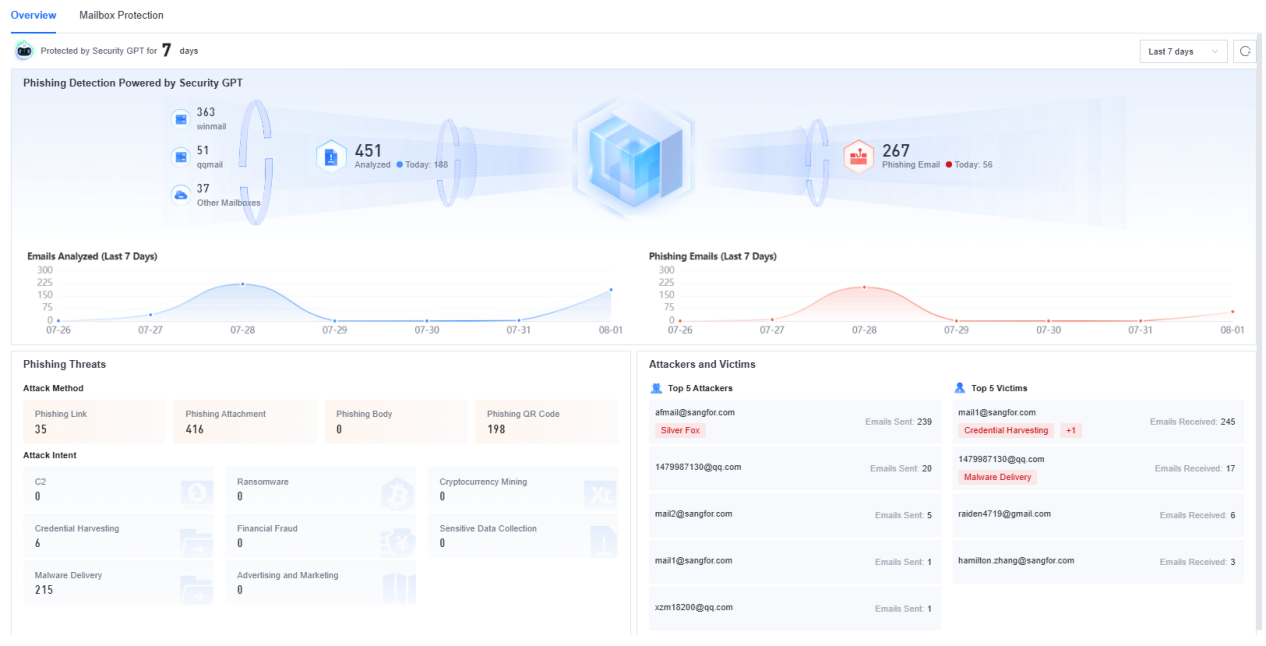
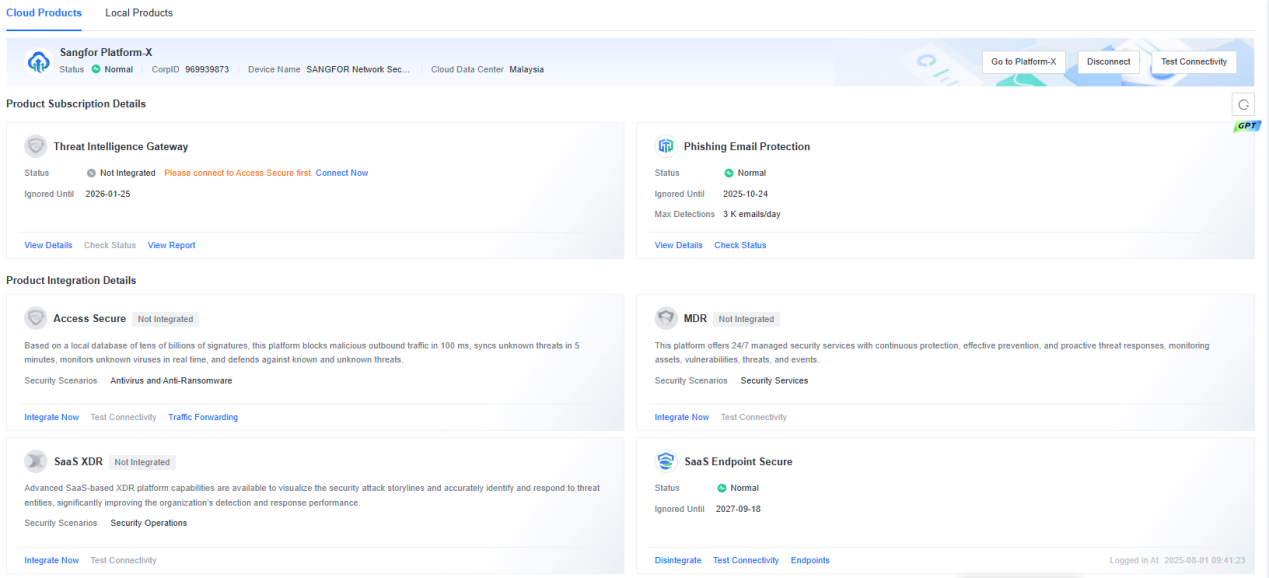
Before you use the Phishing Email Protection feature, make sure that Network Secure is properly connected to Platform-X and that Phishing Email Protection in SOC > Next-Gen Security > Product Integration > Cloud Products is in the Normal state.
In addition, you need to go to SOC > Next-Gen Security > Cloud-Based Protection > Phishing Email Protection > Mailbox Protection to properly configure enterprise mailbox settings, to ensure that Network Secure can receive emails and coordinate with the GPT large model in the cloud to perform security checks.
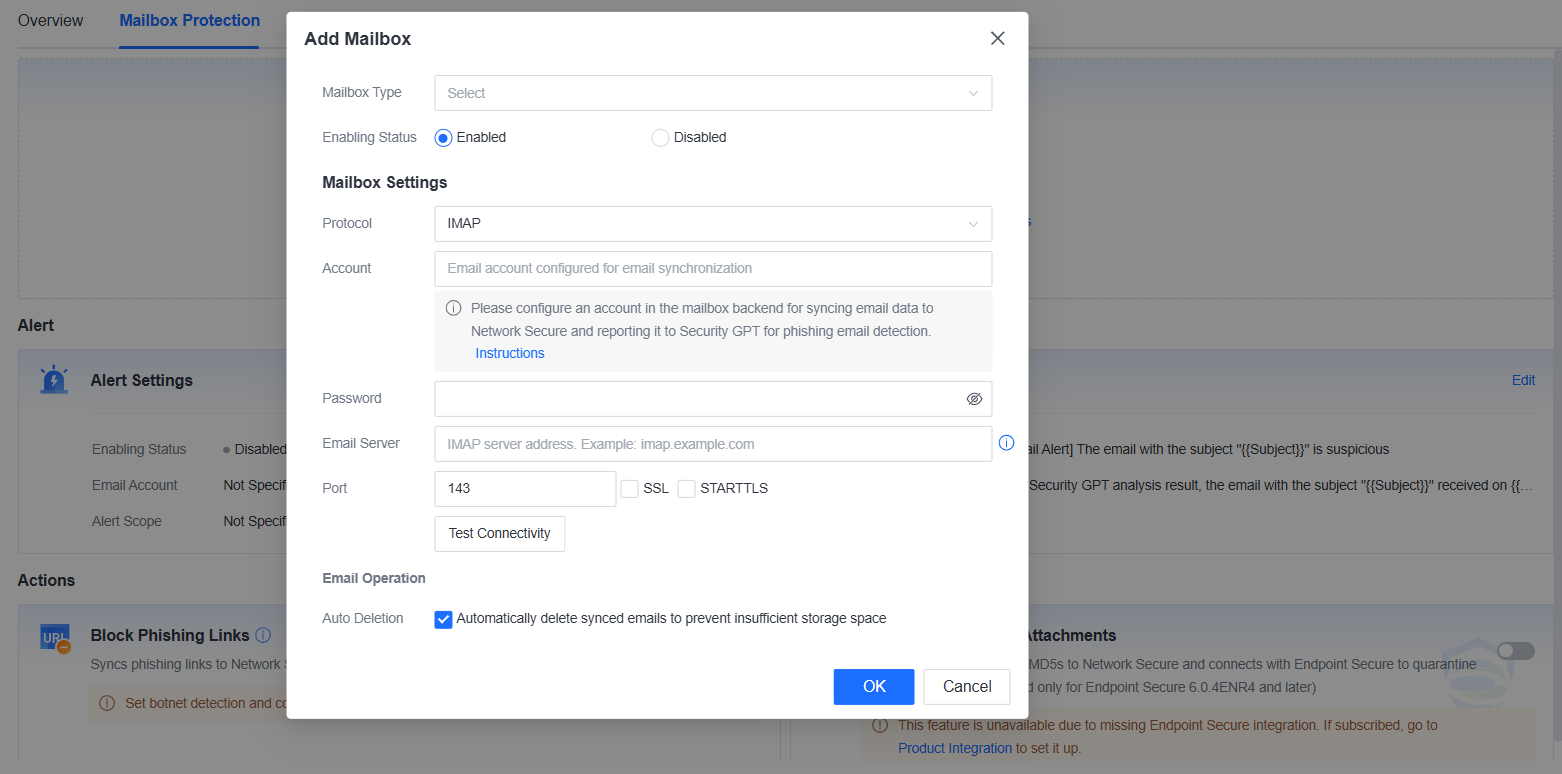
• Mailbox Type: Select the mailbox type used by your enterprise or add a custom mailbox type.
• Protocol: Select IMAP or POP3 as needed.
• Account: Enter the email account that Network Secure uses to receive enterprise emails.
• Password: Enter the password of the email account that Network Secure uses to receive enterprise emails.
• Email Server: Enter the address of the IMAP or POP3 mail server corresponding to the foregoing email account.
• Port: Enter the port used by the mail server.
• SSL: Select this check box if the email account uses SSL for encrypted communication.
• STARTTLS: Select this check box if the email account uses STARTTLS for encrypted communication.
• Test Connectivity: Click Test Connectivity to test the connectivity to the mail server. If the connectivity test is successful, the configurations are correct.
• Auto Deletion: If this check box is selected, the emails synchronized to the corresponding account used by Network Secure will be automatically deleted after Network Secure forwards these emails to the cloud GPT large model for detection.
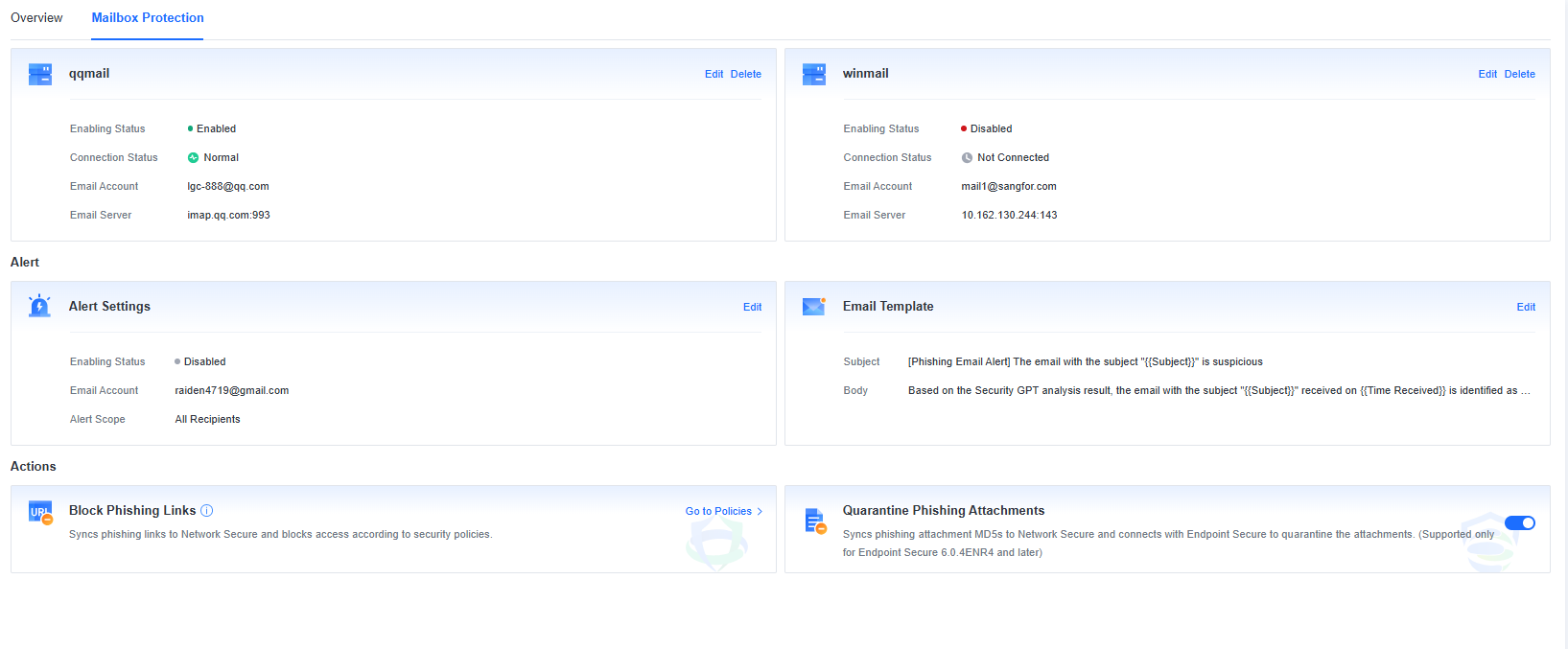
After the mailbox settings are properly configured, click OK. Then, you can view that the connection status of the mailbox is Normal on the Mailbox Protection tab.
Quarantine Phishing Attachments
To ensure that the recipients and administrators can be timely alerted when Network Secure detects a phishing email, you need to further configure alert settings. Specifically, on the Mailbox Protection tab, click Edit next to Alert Settings to configure alert settings as needed, as shown in the following figure.
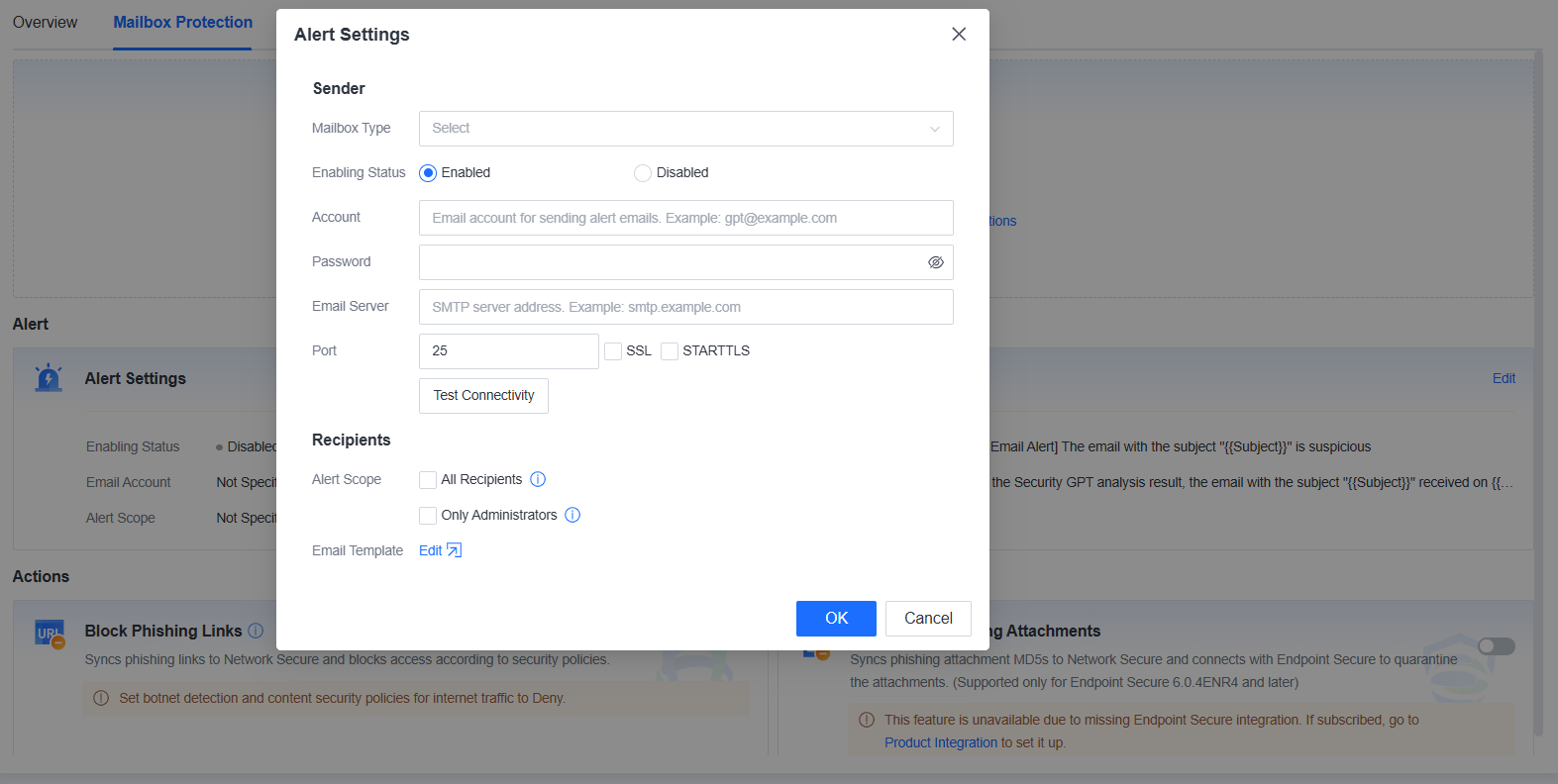
Sender settings:
• Mailbox Type: Select the mailbox type used by your enterprise or add a custom mailbox type.
• Account: Enter the email account that Network Secure uses to send alert emails.
• Password: Enter the password of the email account that Network Secure uses to send alert emails.
• Email Server: Enter the address of the SMTP mail server corresponding to the foregoing email account.
• Port: Enter the port used by the mail server.
• SSL: Select this check box if the email account uses SSL for encrypted communication.
• STARTTLS: Select this check box if the email account uses STARTTLS for encrypted communication.
• Test Connectivity: Click Test Connectivity to test the connectivity to the mail server. If the connectivity test is successful, the configurations are correct.
Recipients settings:
• Alert Scope: Select All Recipients and/or Only Administrators as needed.
• All Recipients: If this check box is selected, Network Secure will send an alert email to all recipients of a phishing email when the phishing email is detected by Network Secure.
• Only Administrators: If this check box is selected, Network Secure will send an alert email to the specified administrator email account when a phishing email is detected by Network Secure.
• Send Test Email: After Only Administrators is selected, you can click Send Test Email to send a test email to the specified administrator email account to verify whether the configuration is correct.
The Phishing Email Protection feature can detect whether an email contains a malicious URL or a malicious file. If the email contains a malicious URL or malicious file, this malicious element will be automatically synchronized to the on-premises security database of Network Secure.
To effectively prevent users from accessing malicious URLs or downloading malicious files, you need to configure botnet detection and content security policies based on the user scope in advance.
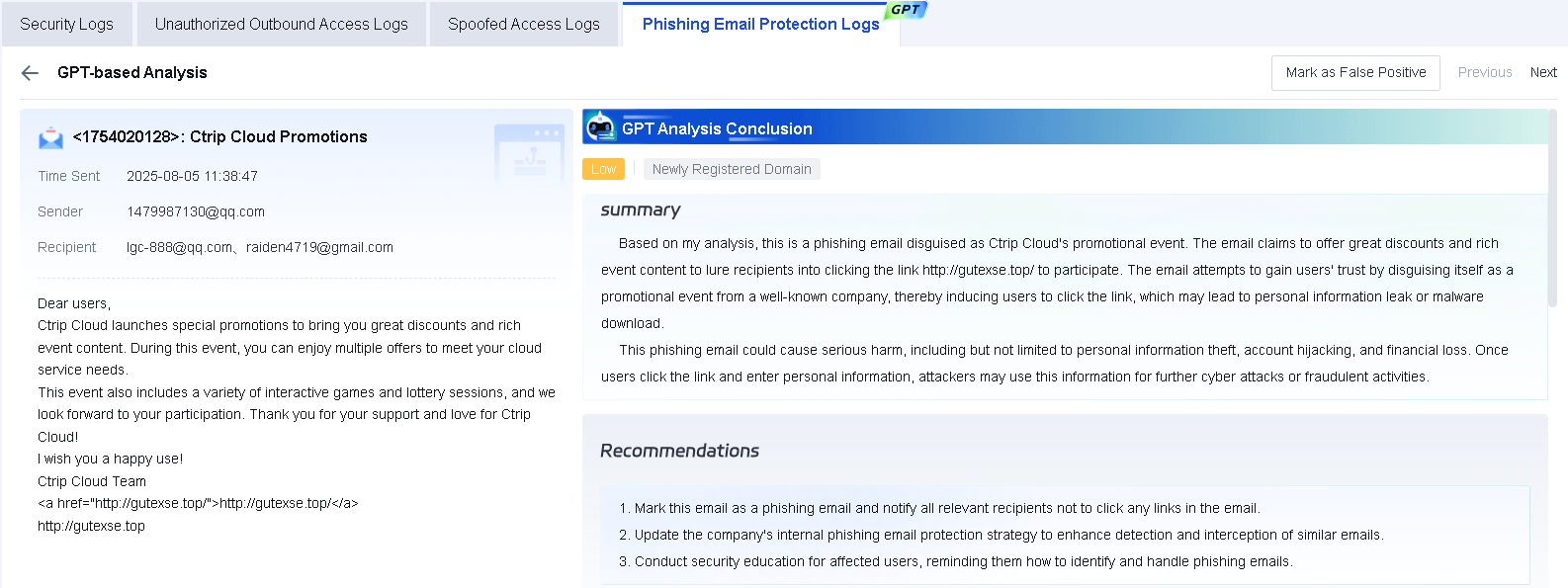
The following figure shows that a phishing link is detected.
The following figure shows that the phishing link is automatically added to the on-premises URL category.
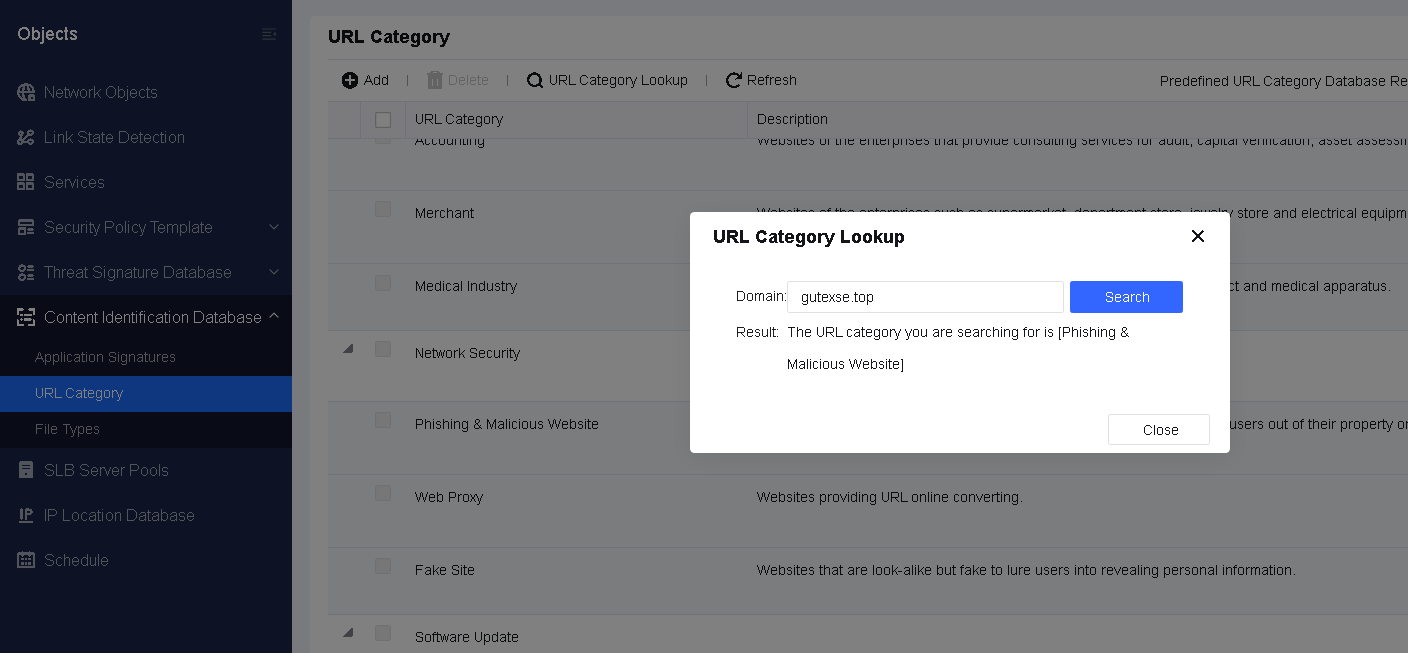
The following figure shows that the access to the phishing link from the PC is blocked by Network Secure.
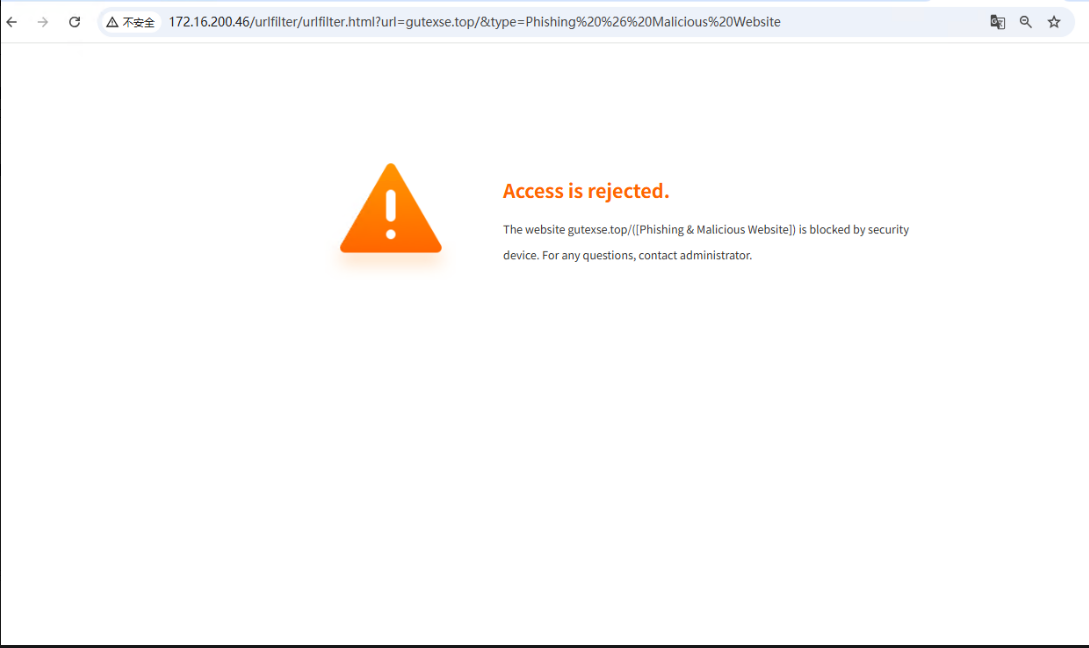
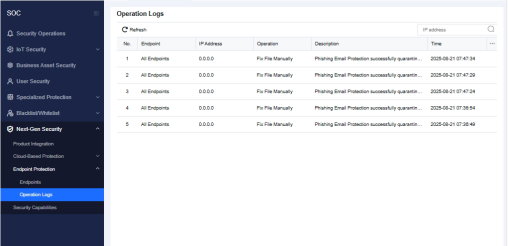
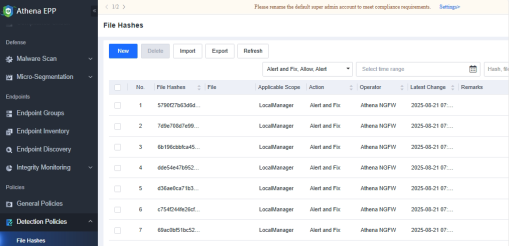
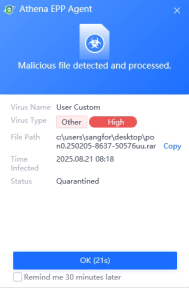
After identifying that an attachment in an email is a malicious file, the Phishing Email Protection feature can synchronize the MD5 hash of the file to the on-premises security database of Network Secure. If Network Secure is integrated with Endpoint Secure (V6.0.4ENR4 or later), Endpoint Secure will automatically quarantine the malicious file downloaded by the user without the need for additional configurations.


 {{ $t('index.defaultHeader.chromeBrowserTip') }}