


{{ secondMenu.name }}






In the active/standby mode, only the active device handles the business traffic. The active device assigns the virtual IP addresses for managing business traffic, while the standby device does not. When the active device fails, a failover is triggered. The new active device assigns the virtual IP addresses while the new standby device removes them to implement automatic failover.
In the active/standby mode, the active device works as the active controller to synchronize its settings to the standby device, and the standby device cannot modify the synchronized settings.
In active/standby mode, only the information of interfaces assigned virtual IP addresses is synchronized with the standby device. Their IP and MAC addresses are not synchronized for interfaces not assigned virtual IP addresses. However, in the active/standby mirror mode, Network Secure uses physical IP addresses instead of virtual ones. The information of all interfaces except for the out-of-band management, control link, and data link interfaces are synchronized to the standby device. The two devices mirror each other and even have identical MAC addresses.
In the active/active Layer 2 mode, the two devices are deployed in the Layer 2 mode or the Layer 2 virtual wire mode. Both devices are active without the concepts of Group 0 and Group 1.
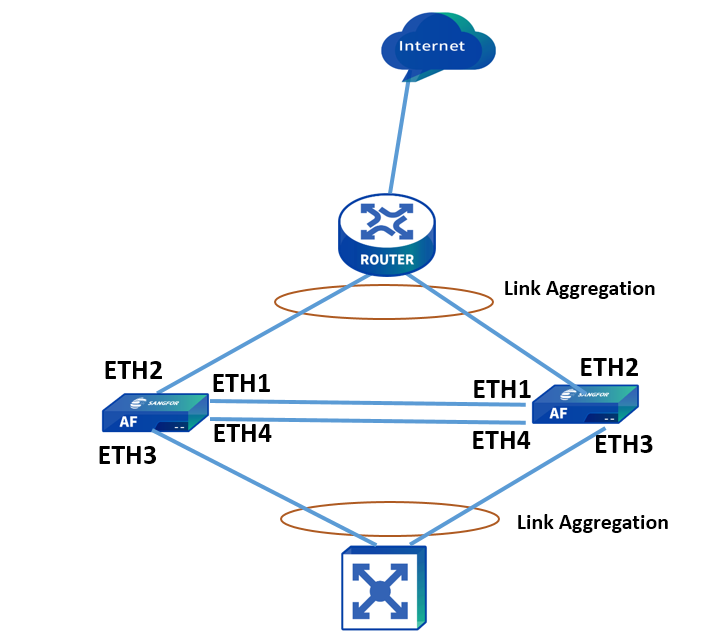
In this mode, if the upstream and downstream devices use aggregate interfaces, and the request and response packets are transmitted using different paths (asymmetric routing), you need to enable link aggregation to ensure normal traffic forwarding. When a packet passes through one of the Network Secure devices after link aggregation is enabled, the Network Secure device determines which Network Secure device should handle the packet by calculating the packet's hash value. If the hash values of a flow's request and response packets are identical, they are handled by the same Network Secure device. For packets that the peer Network Secure device should handle, the local Network Secure device sends them to the peer device through the data link.
In the active/standby deployment, one device is active while the other is a hot standby. The two devices employ the heartbeat interface to detect each other's existence and synchronize settings and sessions. When the failure of the active device triggers a failover, business traffic is automatically directed to the standby device. Mechanisms such as session synchronization ensure the continuity and stability of the business traffic. The active/standby deployment supports the routing mode and the bridge mode (which includes the Layer 2 mode and the virtual wire mode).
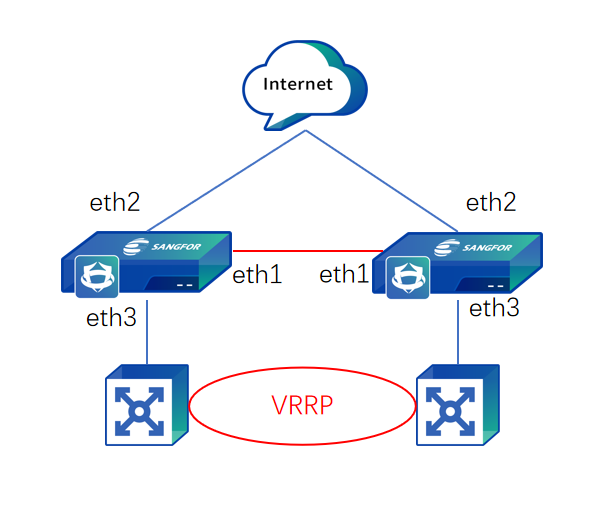
An enterprise plans to deploy two Network Secure devices to its VRRP-based LAN in the active/standby mode. The network topology is shown in the following figure.
Prerequisites
Configuration Procedures
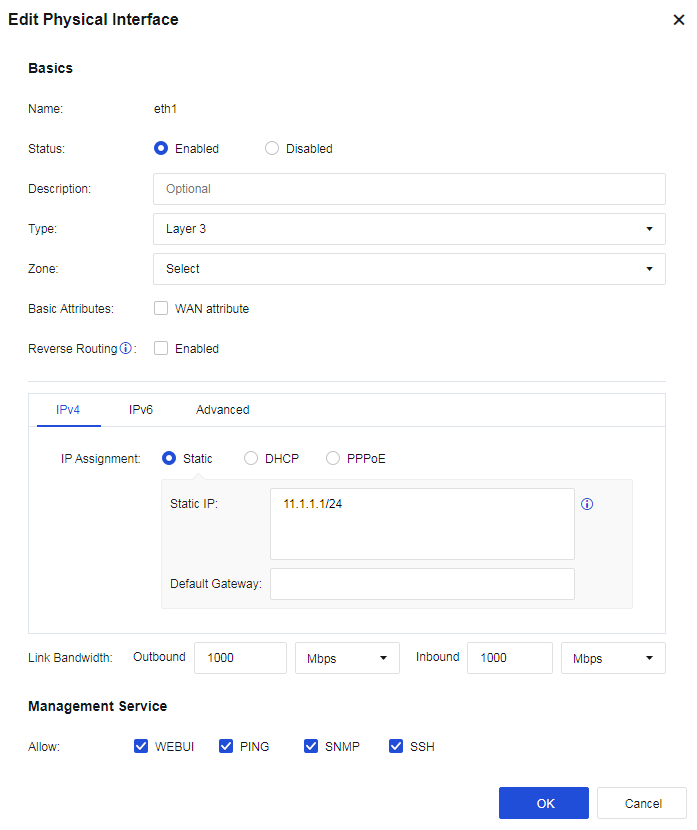
Step 4.Configure the heartbeat interface for the active device. Go to Network > Interfaces > Physical Interfaces to configure an IP address for the eth1 interface. In this case, the IP address is set to 11.1.1.1/24, as shown in the following figure.
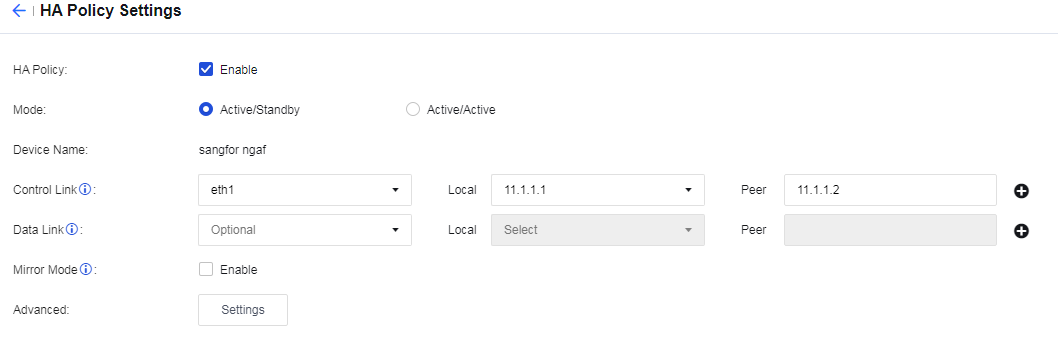
Step 5.Enable the HA policy and select the Active/Standby mode for the active device. Go to System > High Availability and click Settings. On the HA Policy Settings page, check Enable for HA Policy, select Active/Standby as the Mode, select eth1 as the Control Link interface, and set the peer device's IP address to 11.1.1.2 (the data link is optional in the active/standby mode).
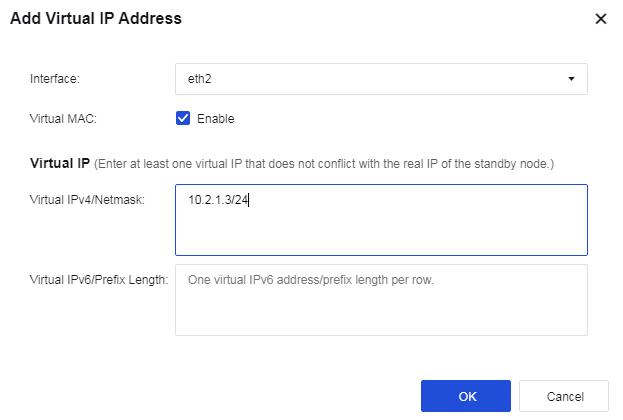
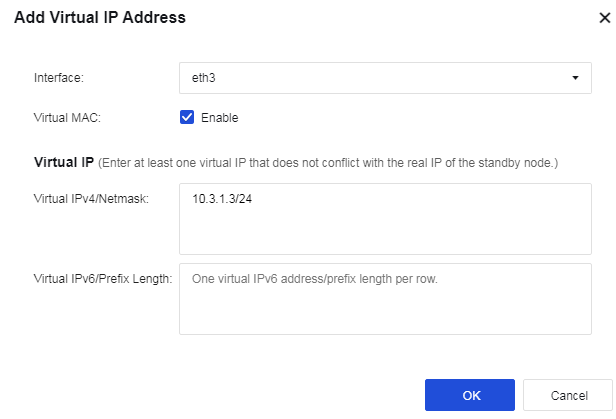
Step 6.Set the priority and virtual IP addresses for the active device. Set Priority to 100. On the Group 0 tab, click Add in the Virtual IP Addresses section. Select eth2 for Interface, and enter 10.2.1.3/24 in Virtual IPv4/Netmask. Then select eth3 for Interface, and enter 10.3.1.3/24 in Virtual IPv4/Netmask, as shown in the following figure.
Step 7.Configure interface monitoring for the active device. In the Monitored Object Management dialog box, select the Interface Monitoring tab and click Add. Select One fails for Failure Trigger, select Physical Interfaces for Interface, and select eth2 and eth3 as the service interfaces to monitor.
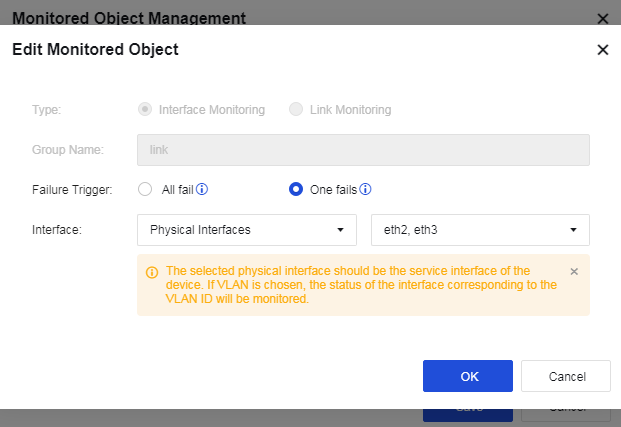
Step 8.Associate the monitored object with the active device. Select the link configured in the preceding step for Monitored Object, as shown in the following figure.

Step 9.Click Save to save the configuration.
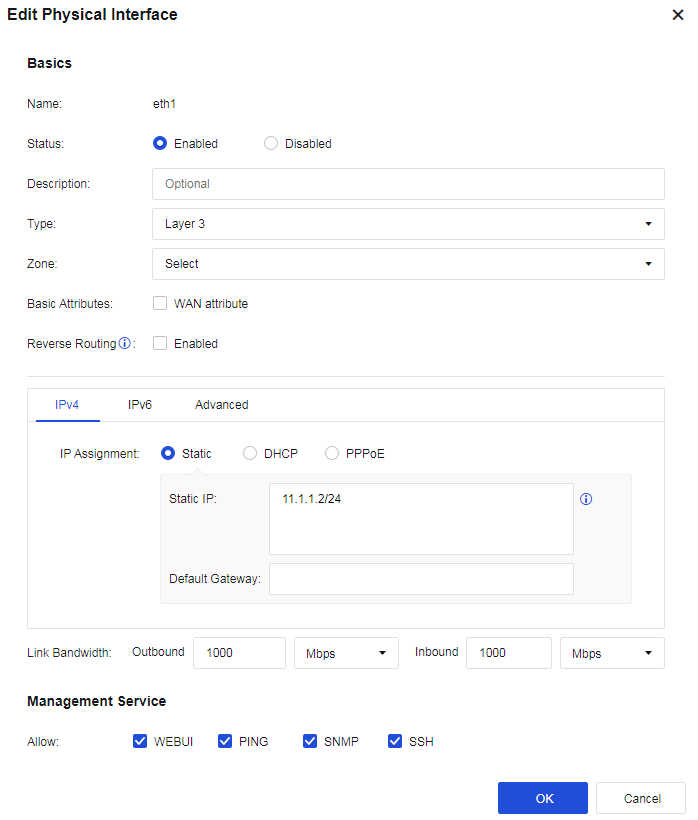
Step 10.Configure the heartbeat interface for the standby device. Go to Network > Interfaces > Physical Interfaces to configure an IP address for the eth1 interface. In this case, the IP address is set to 11.1.1.2/24, as shown in the following figure.
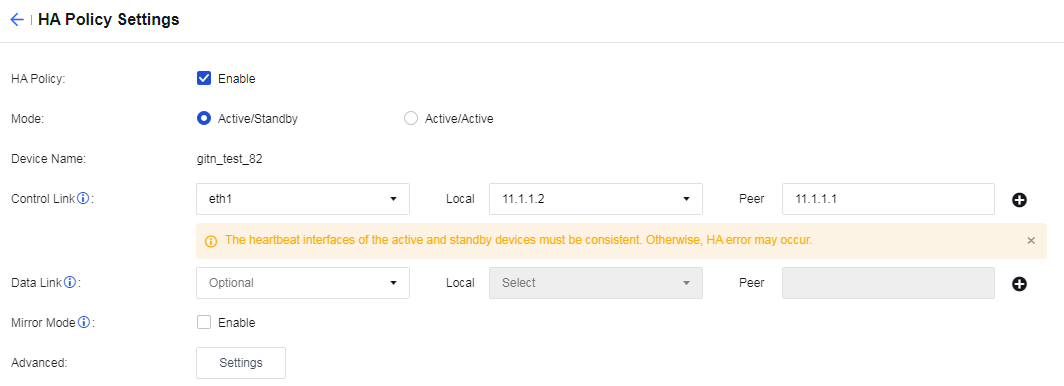
Step 11.Enable the HA policy and select the Active/Standby mode for the standby device. Go to System > High Availability and click Settings. On the HA Policy Settings page, check Enable for HA Policy, select Active/Standby as the Mode, select eth1 as the Control Link interface, and set the peer device's IP address to 11.1.1.1 (the data link is optional in the active/standby mode).
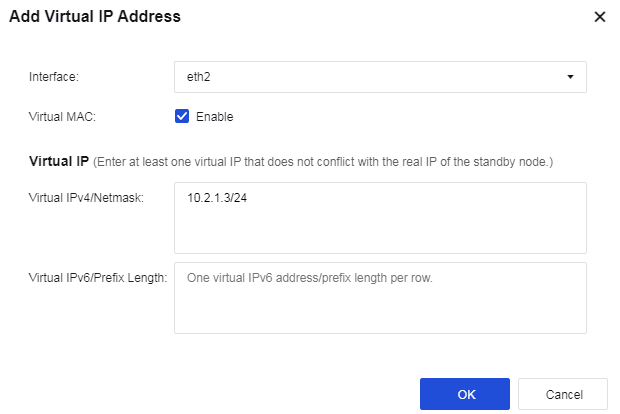
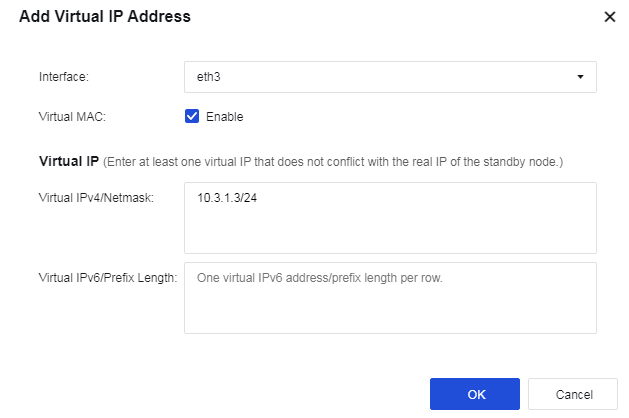
Step 12.Set the priority and virtual IP addresses for the standby device. Set Priority to 99. On the Group 0 tab, click Add in the Virtual IP Addresses section. Select eth2 for Interface, and enter 10.2.1.3/24 in Virtual IPv4/Netmask. Then select eth3 for Interface, and enter 10.3.1.3/24 in Virtual IPv4/Netmask, as shown in the following figure.
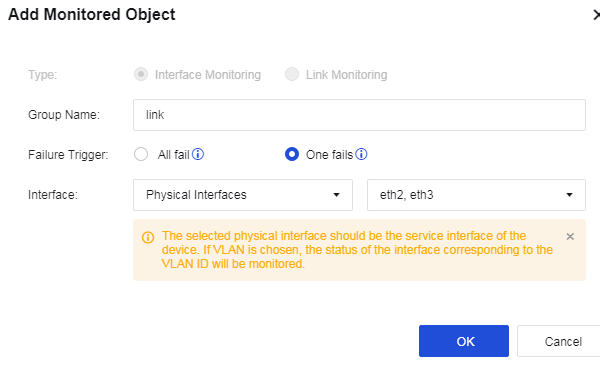
Step 13.Configure interface monitoring for the standby device. In the Monitored Object Management dialog box, select the Interface Monitoring tab and click Add. Select One fails for Failure Trigger, select Physical Interfaces for Interface, and select eth2 and eth3 as the service interfaces to monitor.
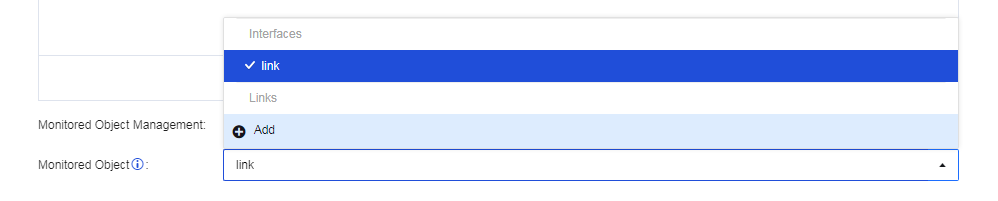
Step 14.Associate the monitored object with the standby device. Select the link configured in the preceding step for Monitored Object, as shown in the following figure.
Step 15.Click Save to save the configuration.
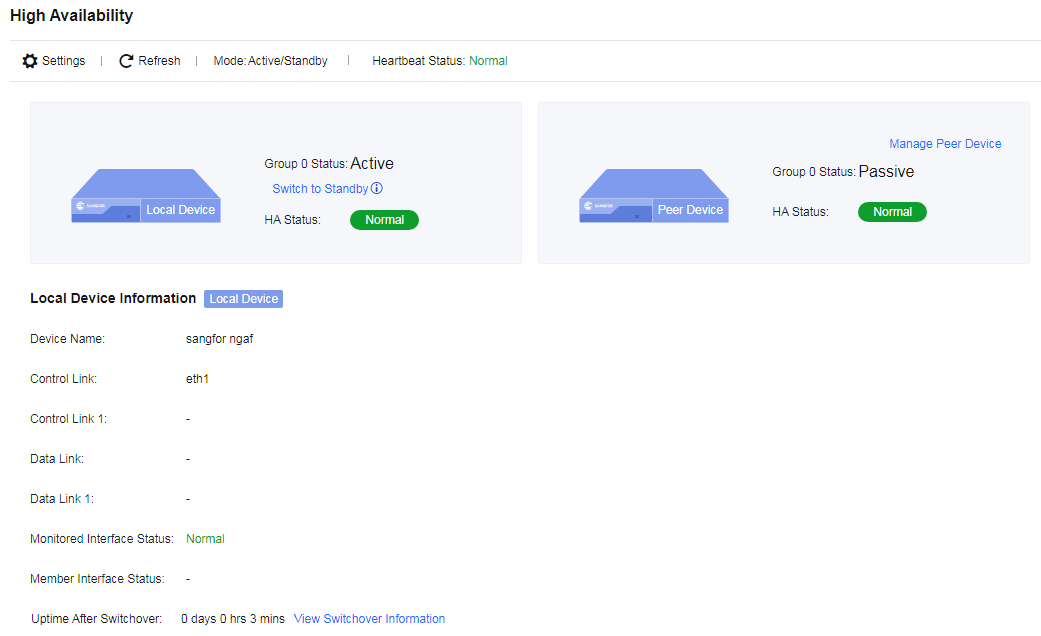
Step 16.After configuring the active and standby devices in the active/standby mode, power on the active Network Secure device and enable its heartbeat interface and service interfaces. Then power on the standby Network Secure device and enable its heartbeat interface and service interfaces. You can go to System > High Availability to view the status of the two HA devices.
In the active/active Layer 2 deployment, the two Network Secure devices are deployed as bridges within the network (the bridge mode includes the Layer 2 mode and the virtual wire mode). Both devices are active for handling traffic forwarded to them, and their settings and sessions are synchronized through the heartbeat interface.
An enterprise plans to deploy two Network Secure devices to its LAN in the virtual wire mode. The LAN implements link aggregation based on routers and core switches, and the two Network Secure devices should be deployed as bridges in the active/active mode. As the request and response packets passing through the two devices may be transmitted using different paths, link aggregation is required. The network topology is shown in the following figure.
Prerequisites
Configuration Procedures
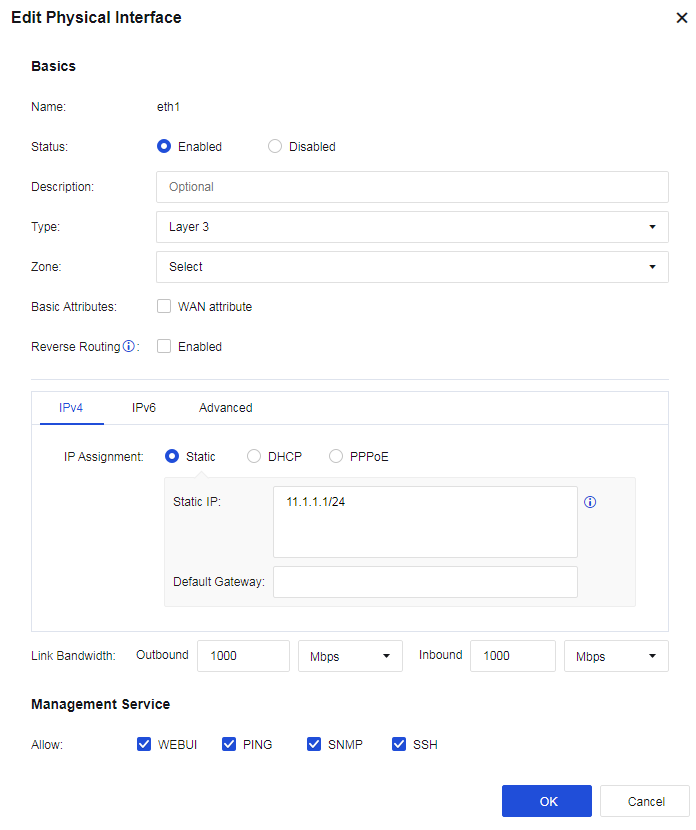
Step 17.Configure the heartbeat interface for the active controller. Go to Network > Interfaces > Physical Interfaces to configure an IP address for the eth1 interface. In this case, the IP address is set to 11.1.1.1/24, as shown in the following figure.
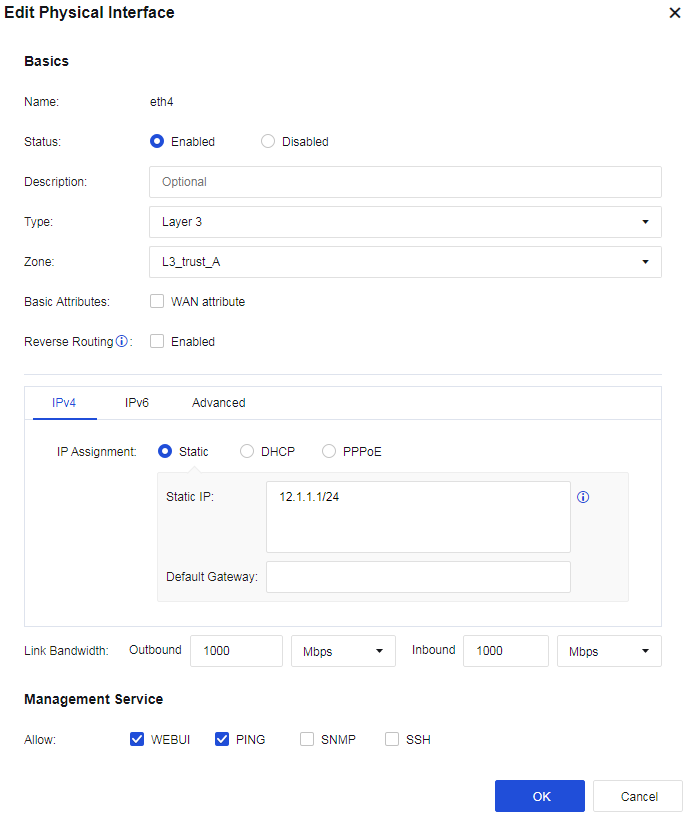
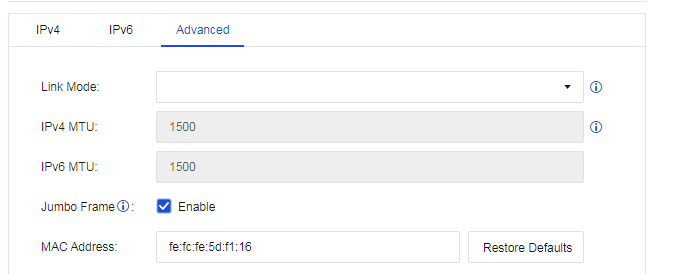
Step 18.Configure the data synchronization interface for the active controller. Go to Network > Interfaces > Physical Interfaces to configure an IP address for the eth4 interface. In this case, the IP address is set to 12.1.1.1/24. Enable Jumbo Frame on the Advanced tab, as shown in the following figure.
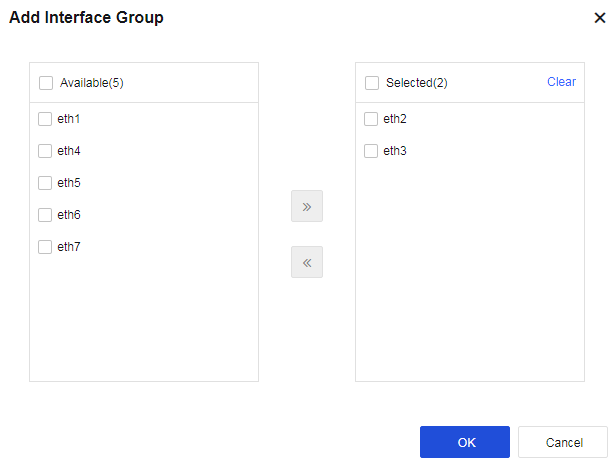
Step 19.Configure link state propagation for the active controller. Go to Network > Interfaces > Link State Propagation, select Enable link state propagation and click Add. Select eth2 and eth3, as shown in the following figure.
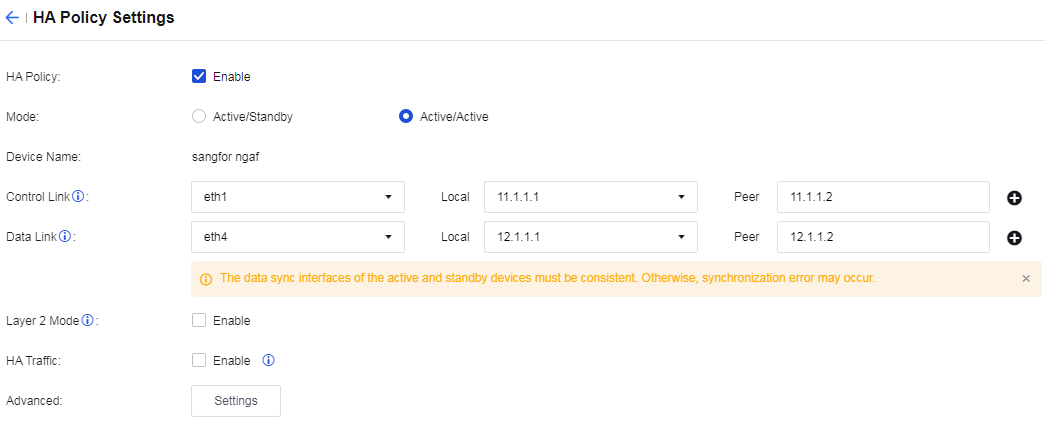
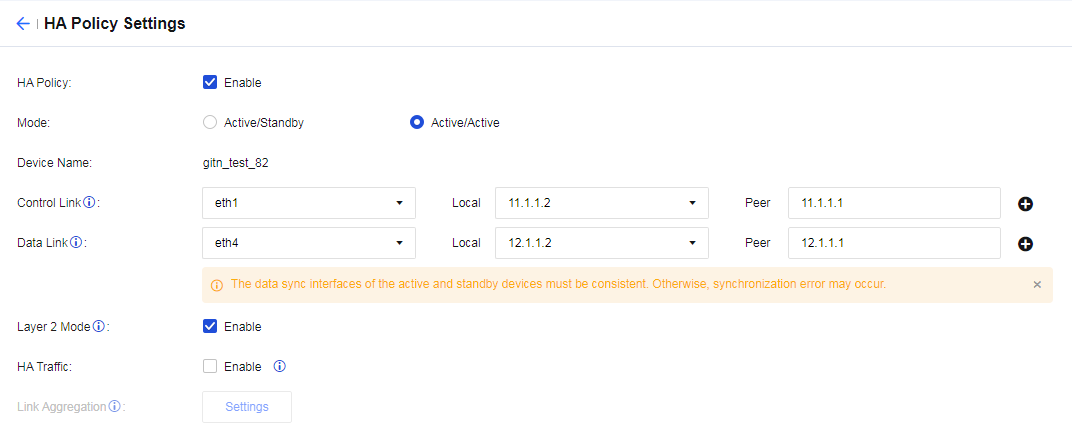
Step 20.Enable the HA policy and select the Active/Active mode for the active controller. Go to System > High Availability and click Settings. On the HA Policy Settings page, check Enable for HA Policy and select Active/Active as the Mode. Select eth1 as the Control Link interface and set the peer device's IP address to 11.1.1.2. Select eth4 as the Data Link interface and set the peer device's IP address to 12.1.1.2. Enable Layer 2 Mode, as shown in the following figure.
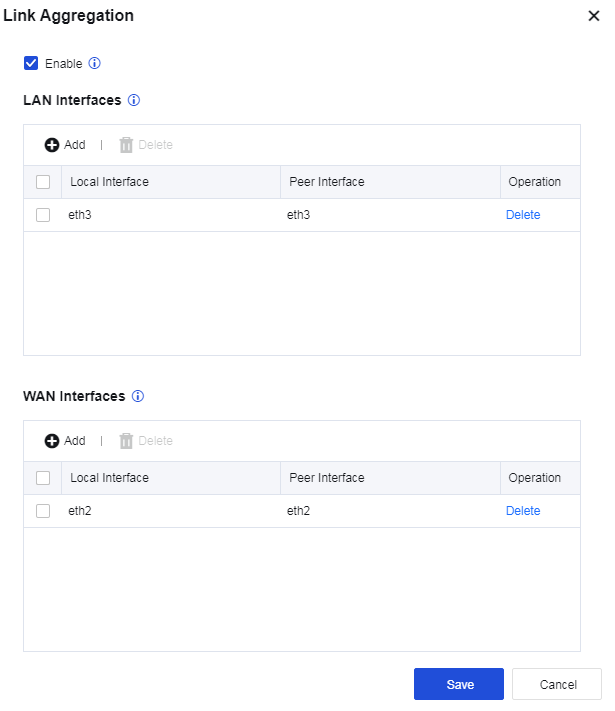
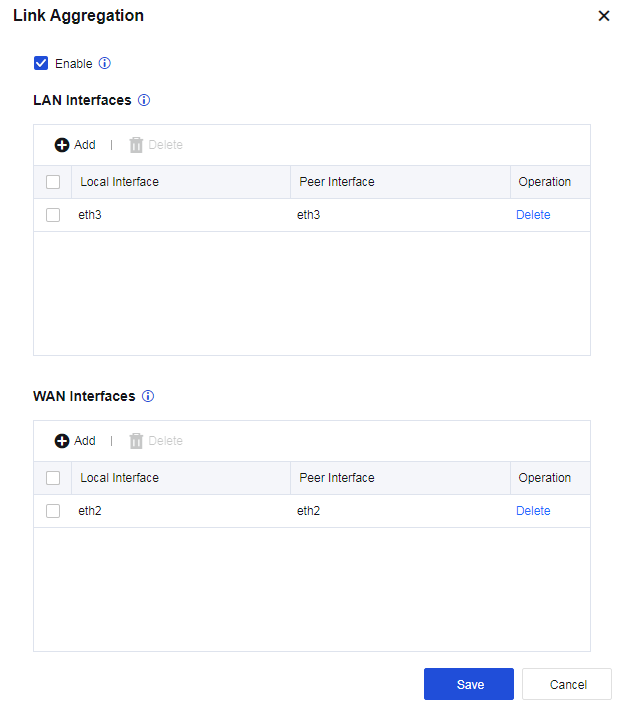
Step 21.Configure link aggregation for the active controller. On the HA Policy Settings page, click Settings next to the Link Aggregation field to enter the Link Aggregation dialog box. Add eth3 in LAN Interfaces and add eth2 in WAN Interfaces, as shown in the following figure. Click Save to proceed and the settings meet the conditions for enabling link aggregation.
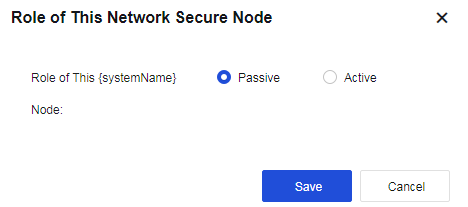
Step 22.Assign the active role to the active controller. Go to System > High Availability > Sync Options and click Settings next to the Current Device Role field. Select Active, as shown in the following figure.
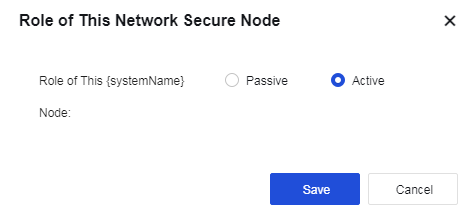
Step 23.Click Save to save the configuration.
Step 24.Configure the heartbeat interface for the passive controller. Go to Network > Interfaces > Physical Interfaces to configure an IP address for the eth1 interface. In this case, the IP address is set to 11.1.1.2/24, as shown in the following figure.
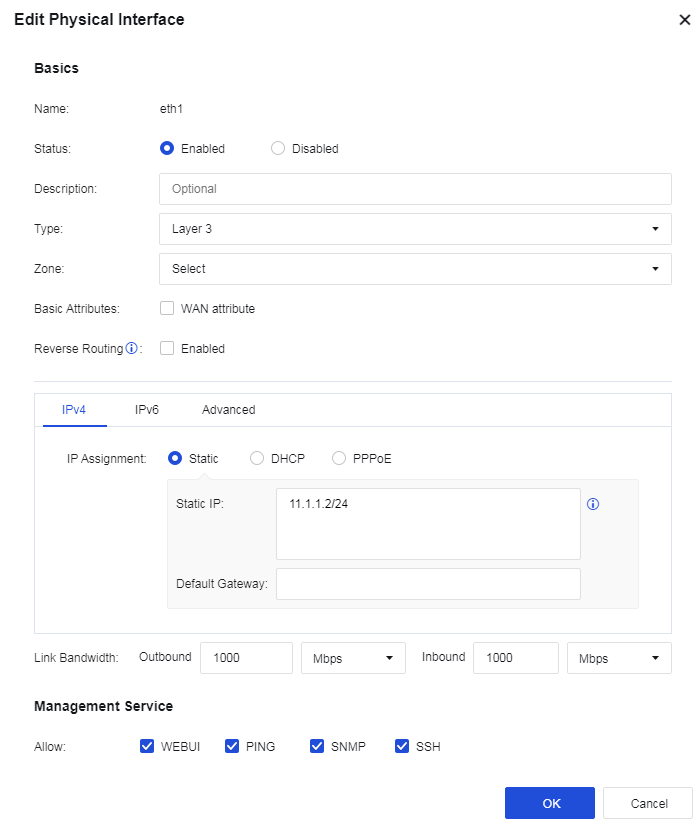
Step 25.Configure the data synchronization interface for the passive controller. Go to Network > Interfaces > Physical Interfaces to configure an IP address for the eth4 interface. In this case, the IP address is set to 12.1.1.1/24. Enable Jumbo Frame on the Advanced tab, as shown in the following figure.
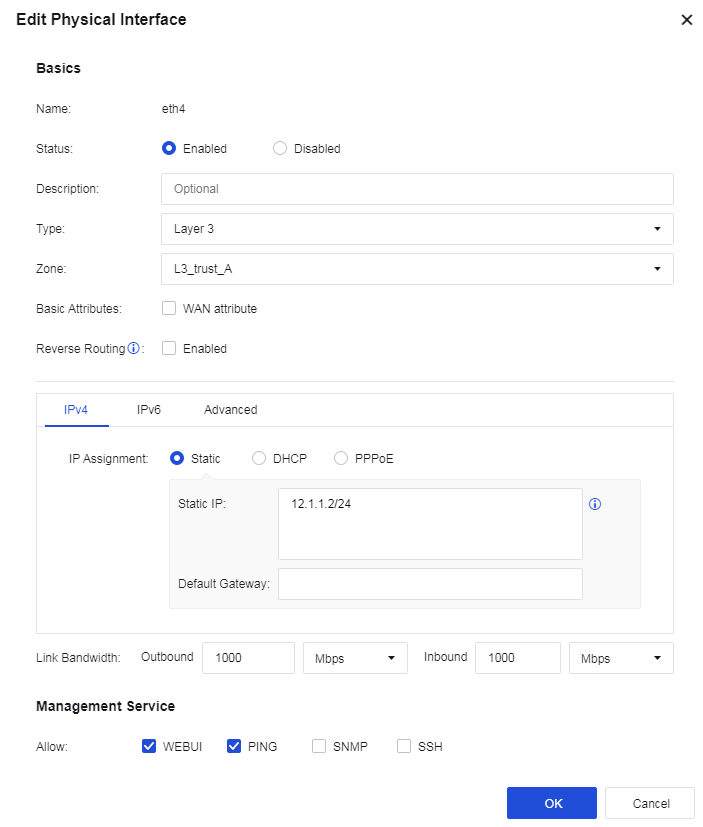
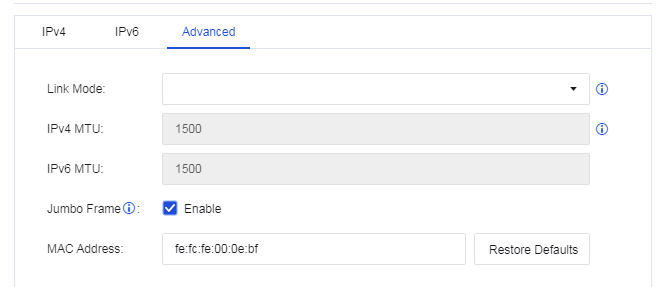
Step 26.Enable the HA policy and select the Active/Active mode for the passive controller. Go to System > High Availability and click Settings. On the HA Policy Settings page, check Enable for HA Policy and select Active/Active as the Mode. Select eth1 as the Control Link interface and set the peer device's IP address to 11.1.1.1. Select eth4 as the Data Link interface and set the peer device's IP address to 12.1.1.1. Enable Layer 2 Mode, as shown in the following figure.
Step 27.Configure link aggregation for the passive controller. On the HA Policy Settings page, click Settings next to the Link Aggregation field to enter the Link Aggregation dialog box. Add eth3 in LAN Interfaces and add eth2 in WAN Interfaces, as shown in the following figure.
Step 28.Assign the passive role to the passive controller. Go to System > High Availability > Sync Options and click Settings next to the Current Device Role field. Select Passive, as shown in the following figure.

1. If you deploy Network Secure devices in the active/active Layer 2 mode in scenarios where the request and response packets are transmitted using different paths, link aggregation is required. If the next-hop IP or MAC addresses that Network Secure 1 and Network Secure 2 learned from the upstream and downstream devices are different (the upstream and downstream devices use different routing interfaces), link aggregation and HA traffic are all required.
2. Use LACP to aggregate links for the upstream and downstream devices. Change the default MAC-based forwarding algorithm to the IP-based forwarding algorithm for the aggregate interface. Otherwise, the forwarding performance of Network Secure may decrease due to possible asymmetric routing issues.
3. Enable Jumbo Frame for the corresponding data synchronization interface when link aggregation is used. One Network Secure device must add the Layer 2 header, Layer 3 header, Layer 4 header, HA header, and Zmode information to a packet before sending it to the other Network Secure device through the control link. In this case, the packet size may exceed the MTU, resulting in packet fragmentation and reassembly, as well as performance degradation. Enabling the Jumbo Frame can avoid such issues.


 {{ $t('index.defaultHeader.chromeBrowserTip') }}