


{{ secondMenu.name }}






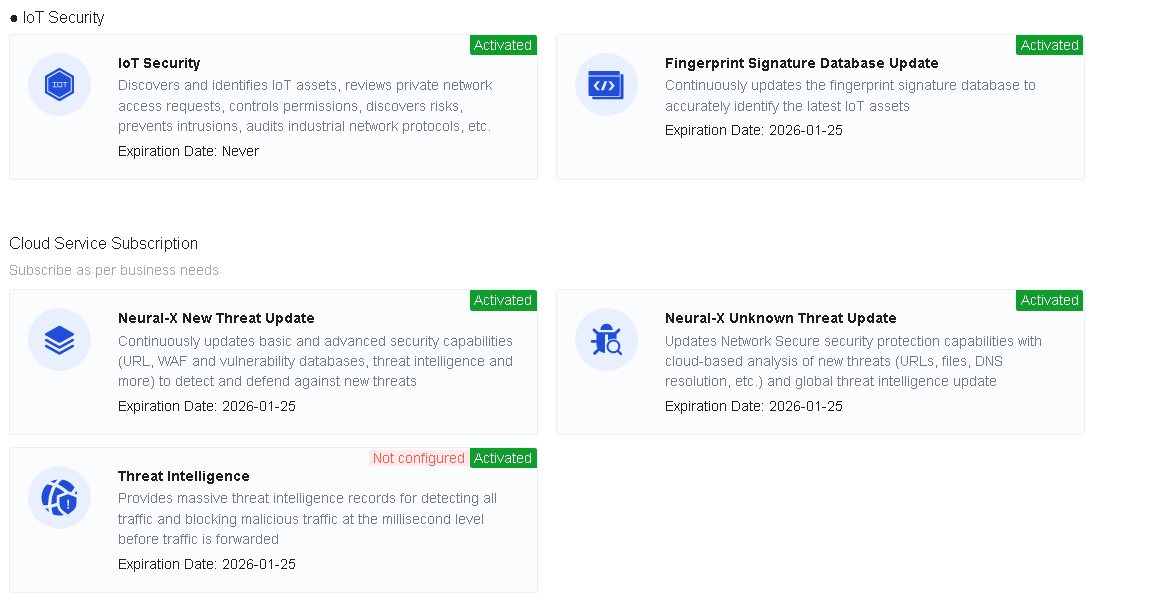
The Licensing page contains the following sections: Basic Settings, Licensing Network, Security Capabilities and Update, Cloud Service Subscription, and Software Upgrade, as shown in the following figure.
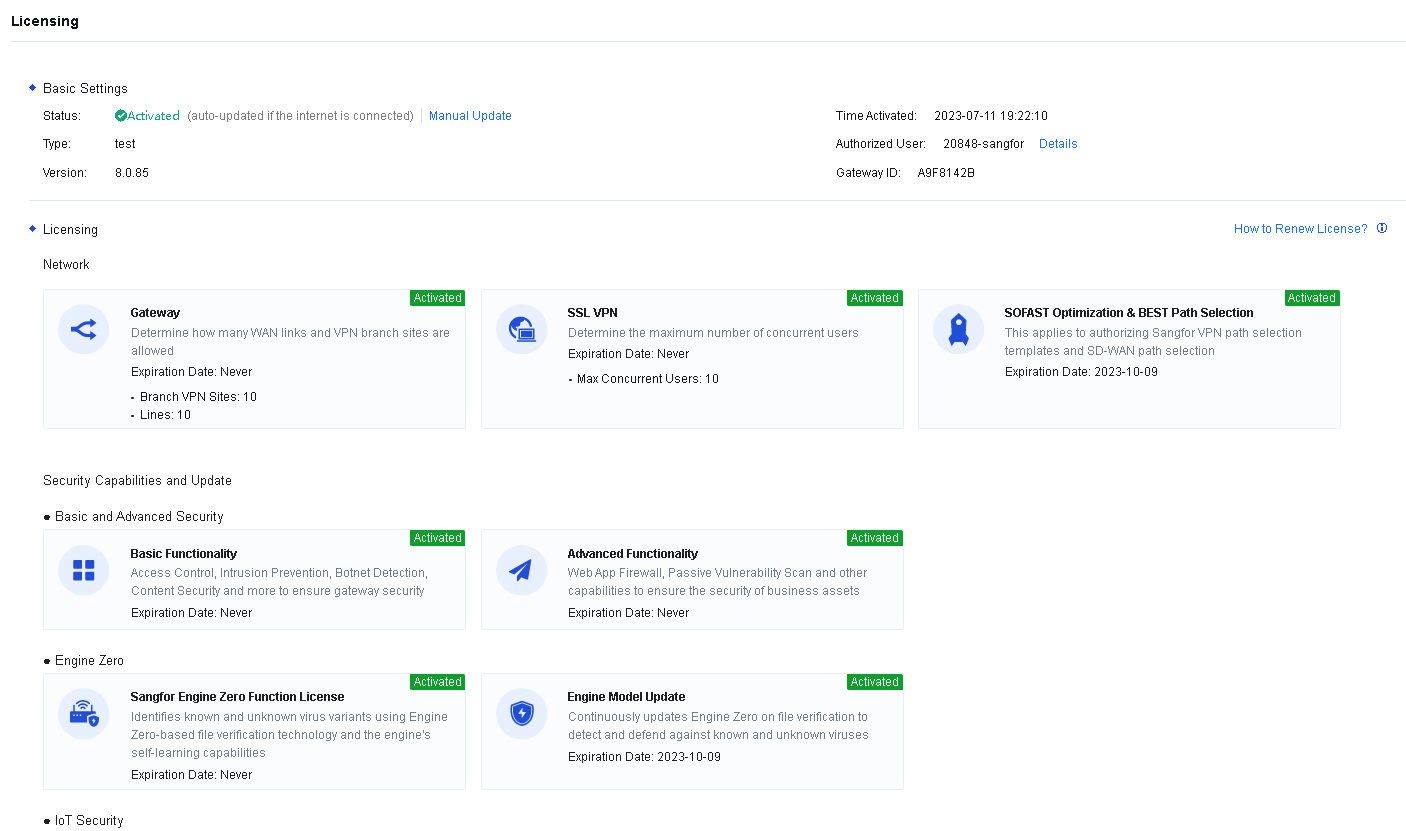
Basic Settings: Specify the Gateway ID, the unique identifier of the Network Secure device software.
Licensing Network: Specify the number of authorized WAN lines, the number of authorized branch VPN sites for accessing standard IPSec VPN lines, the activation of the SSL VPN module, and the number of concurrent users.
Security Capabilities and Update: To enable the device's basic and advanced security functional modules. Basic Functionality includes access control, intrusion prevention, botnet detection, and content security. Advanced Functionality includes the Web app firewall and passive vulnerability scan. Engine Zero includes the activation of the Sangfor Engine Zero function license and the expiration date of the engine model update.
Cloud Service Subscription: This service is correlated with the cloud to update the security capabilities of Network Secure. This helps the Network Secure detect and defend against new and advanced threats. Neural-X New Threat Update is used to update the rules of all functional modules of Network Secure. Neural-X Unknown Threat Update is to detect and intercept unknown threats effectively. The portal protection subscription service is used to correlate Network Secure with Sangfor Security Assessment to display the detection results of Sangfor Security Assessment on Network Secure. Thus, comprehensive protection and visualization are improved. Threat Intelligence
Provides massive threat intelligence records for detecting all traffic and blocking malicious traffic at the millisecond level before traffic is forwarded.
Software Upgrade: This shows the expiration date of Network Secure's current software upgrade. Before this date, Network Secure can be upgraded to maintain its comprehensive functions.
When the authorization or device is automatically upgraded over the Internet, corresponding functions and authorization update rules can be enabled by manually updating the authorization.
Step 1.Go to the Licensing page and click Manual Update to go to the Update Licensing page where you can export the hardware information of the device or directly copy it to the clipboard for generating the authorization files. See the figure below.
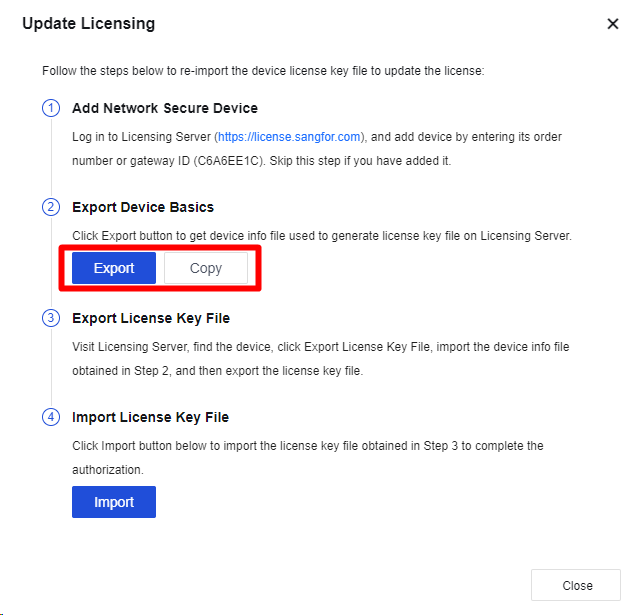
Step 2.Send the device info to the vendor or Sangfor teams.
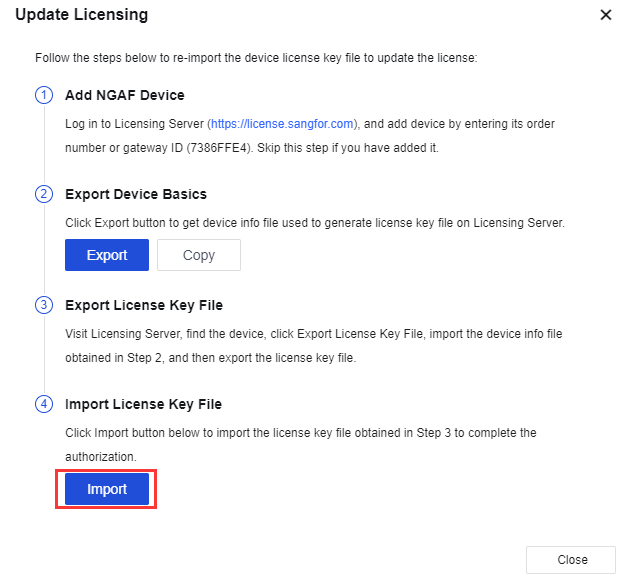
Step 3.Import the license key file obtained from the vendor or Sangfor teams. Then, the license is activated.


 {{ $t('index.defaultHeader.chromeBrowserTip') }}