


{{ secondMenu.name }}






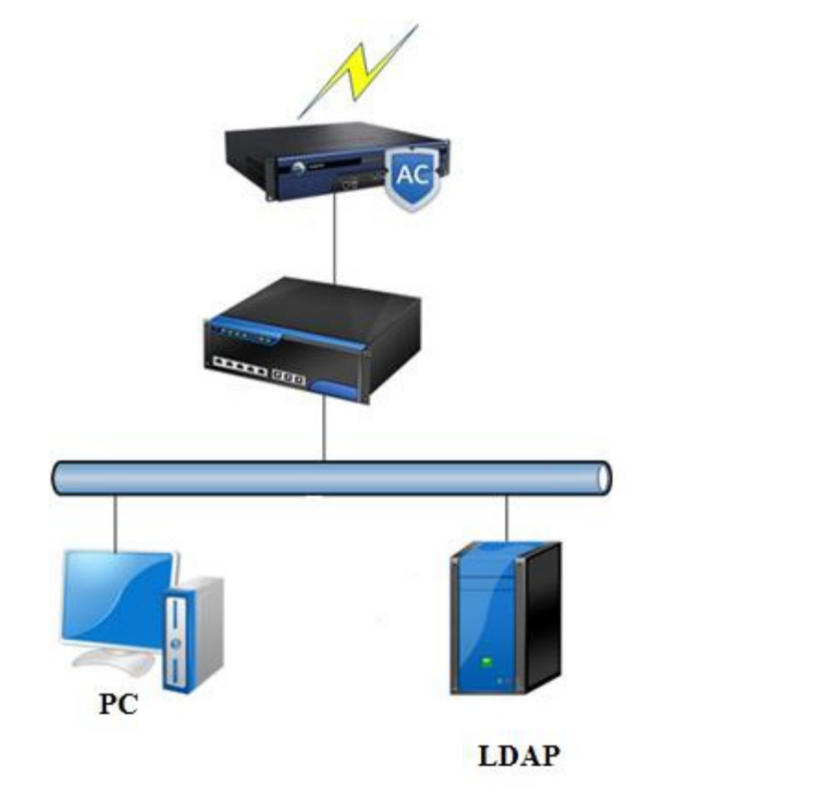
The IAG has an ADSSO program, which can regularly connect to the Ad domain and detect the
domain login success status of a PC on the domain server to implement SSO.
 [345]
[345]
The process is as follows:
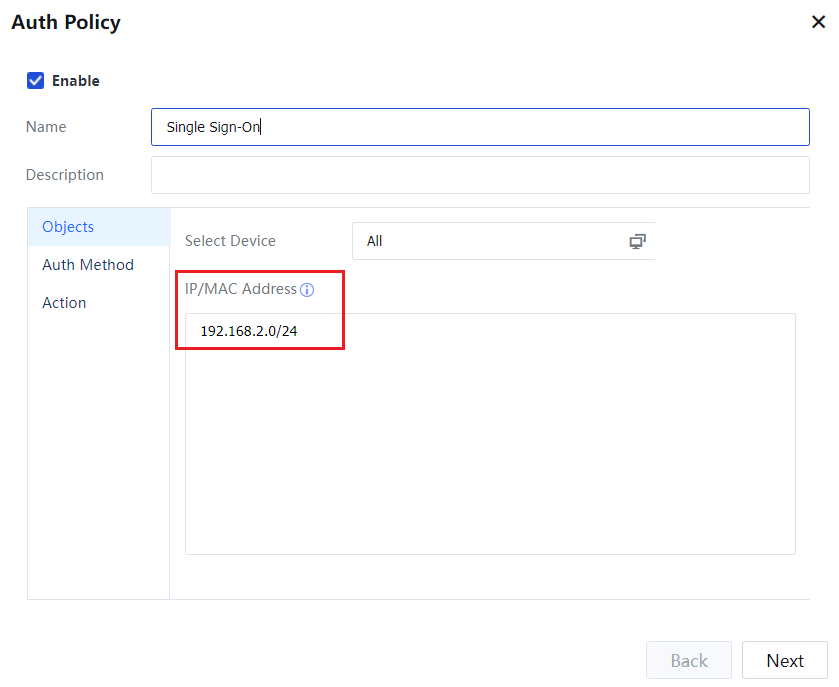
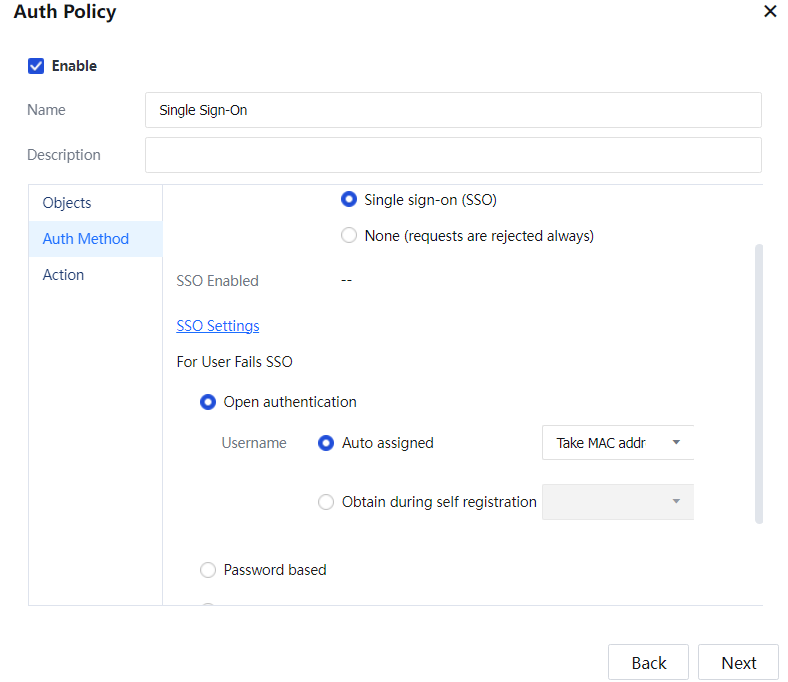
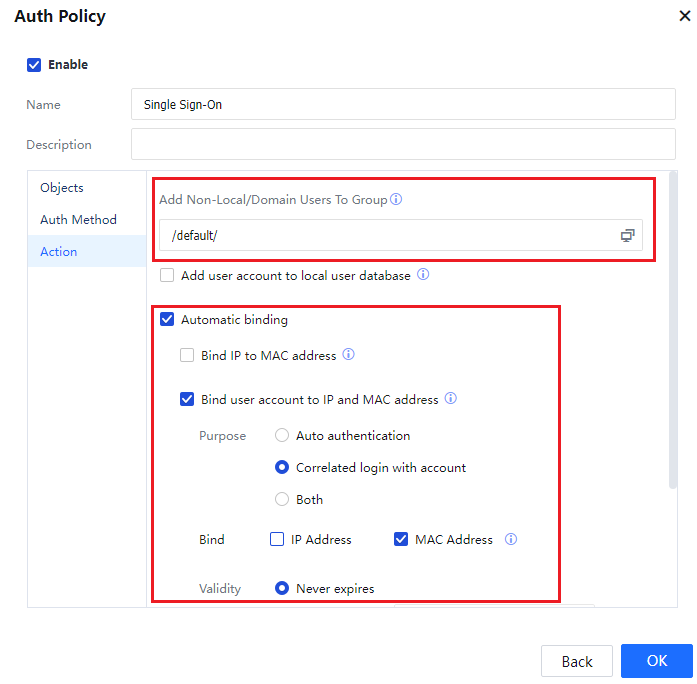
Configuration: The intranet segment 192.168.2.0/24 users must adopt the AD domain SSO authentication mode. After they are authenticated, the users use domain accounts to access the Internet. In addition, users and MAC addresses are bound automatically (through layer 3). When SSO fails, the users can access the Internet without being authenticated. They use MAC addresses as their usernames but are categorized as temporary users. The permissions for the limited group are assigned to the users for Internet access, and they cannot be added to the organization structure.
Step 1.Choose Access Mgt > Authentication > Web Authentication > Auth Server and add the authentication AD domain server.
Step 2.Set the authentication policy. Choose Access Mgt > Authentication > Web Authentication > Authentication Policy. Set the authentication policy according to the IP or MAC addresses of the users who require SSO.
Set the objects:
Set the authentication method:
Set the Action:
Step 3.MAC addresses must be bound because the customer's environment involves layer 3. Therefore, the function for transferring MAC addresses through layer 3 must be configured. Navigate to Access Mgt > Authentication > Correlation Connection > MAC Address Acquisition, enable MAC acquisition across L3 network, and configure the function.
Step 4.Enable SSO on the device and set the IP address of the domain server. Navigate to Access Mgt > Authentication > Web Authentication > Single Sign-On(SSO) and perform configuration.
Select Enable Domain SSO. Select Domain SSO.
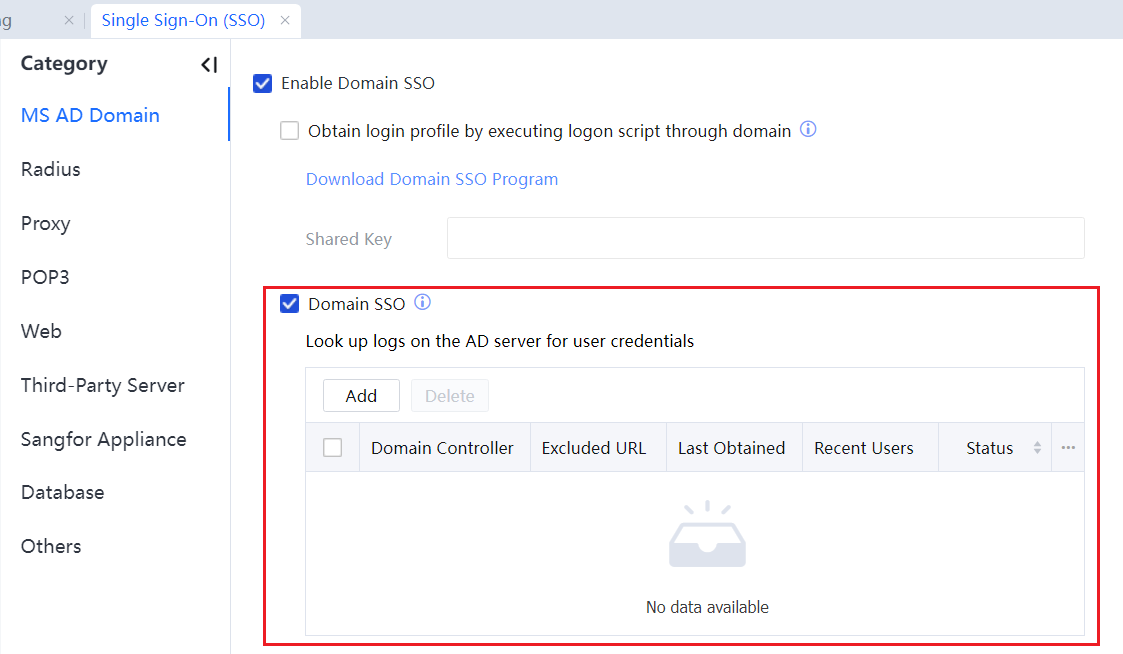
Click Add to add an AD domain server.
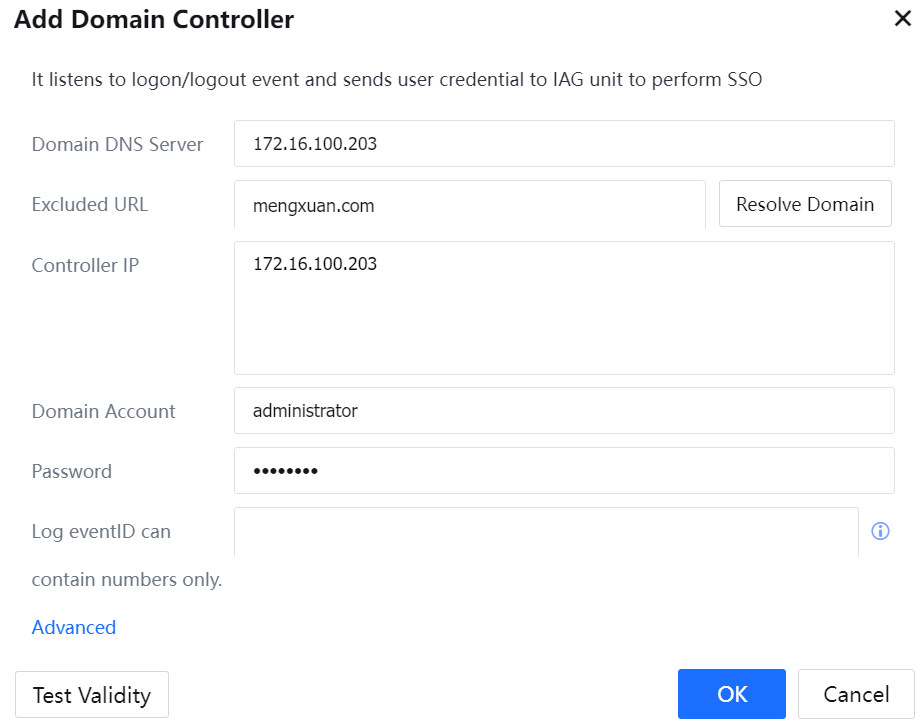
Step 5.Verify that the AD domain server configuration takes effect.
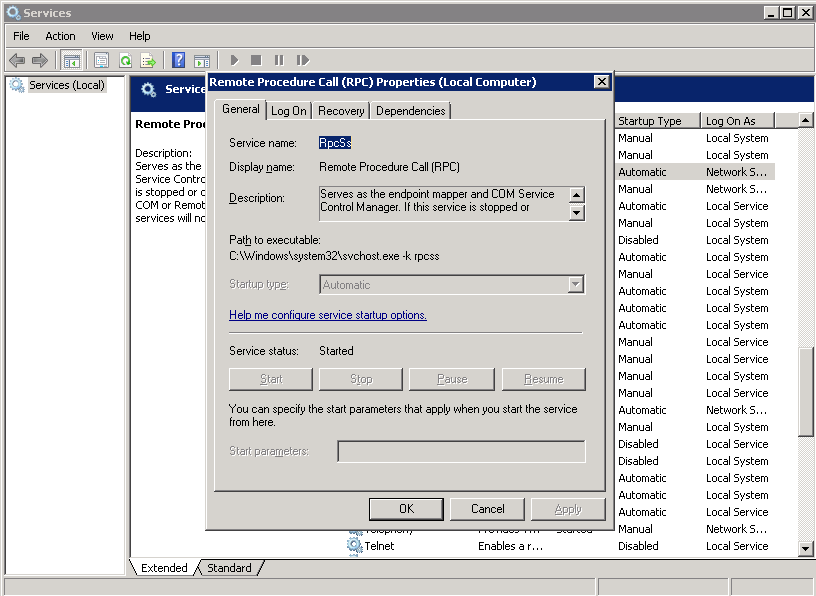
If it is disabled, the SSO client may not be able to log in to the domain server (not due to other factors such as the network and username).
To resolve the problem, run gpedit.msc and choose Computer Configuration > Windows Settings > Security Settings > Local Policy > Security Options > Network Security. Configure Kerberos and select the encryption types DES_CBC_CRC and DES_CBC_MD5.
Enable event log audit of the AD domain. Access the Control Panel and click Administrative Tools.
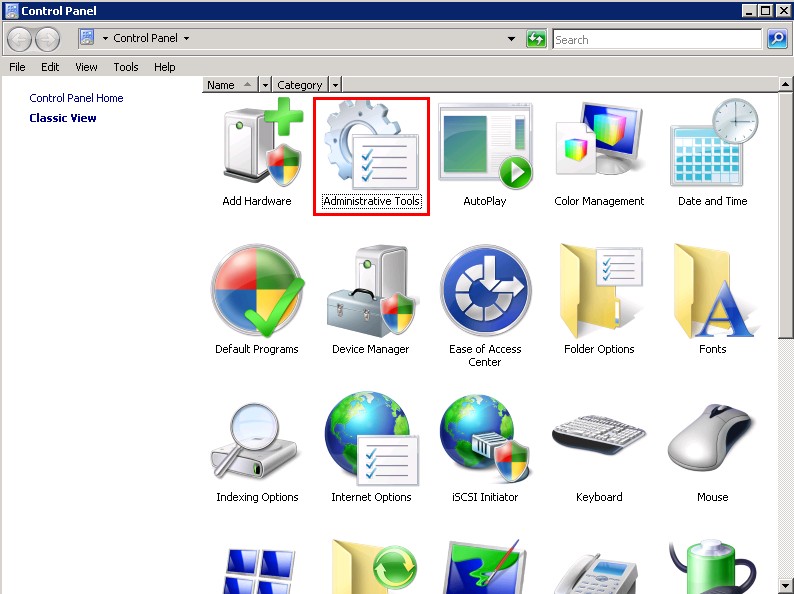
Edit Group Policy Management. 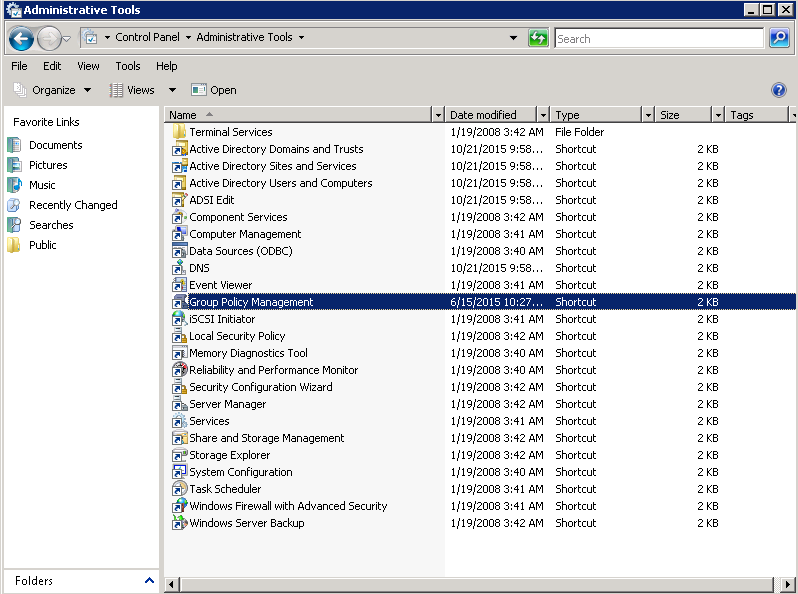
Edit Default Domain Policy. 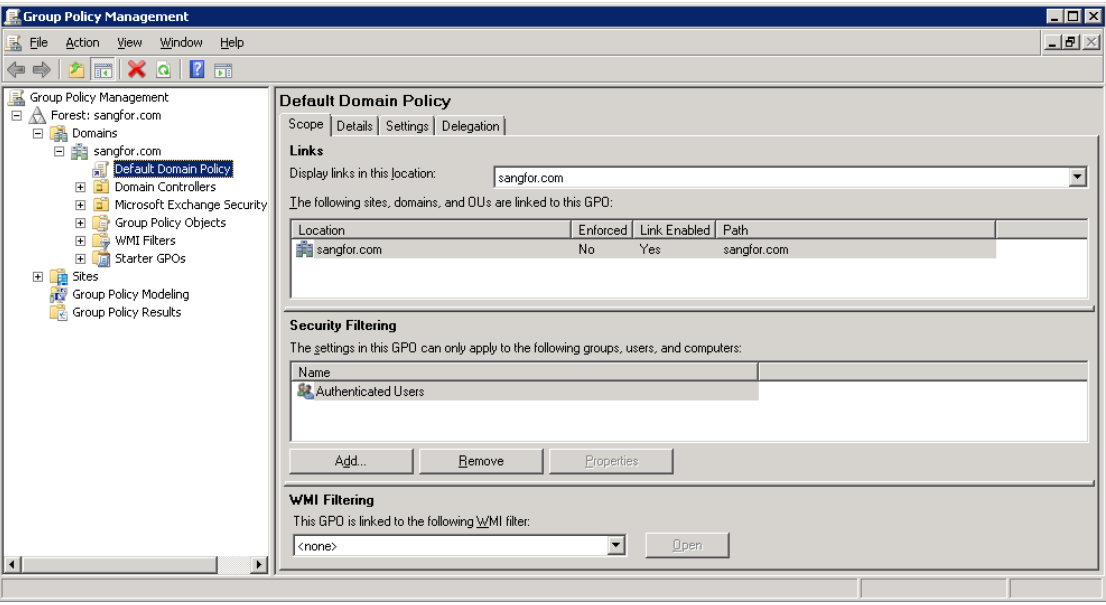
Enable Audit logon events and Audit account logon events. 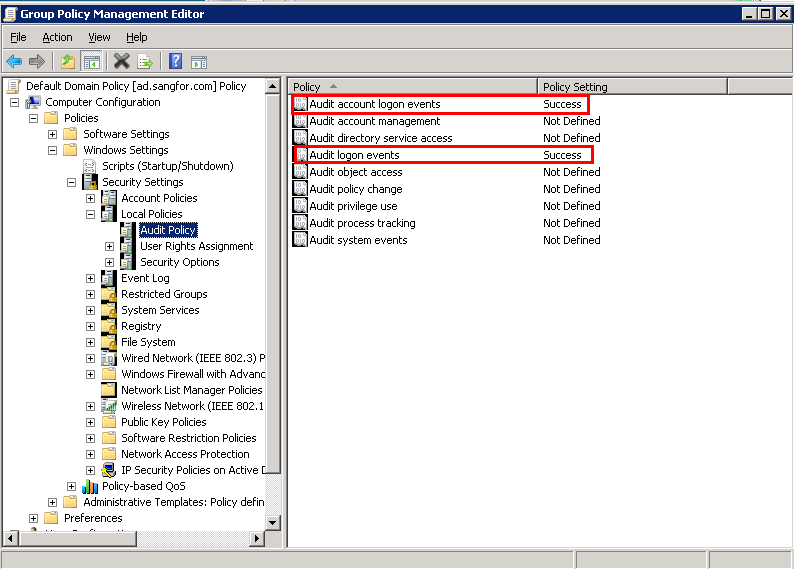
Modify the group policy of the AD domain. If SSO is enabled for only specified groups, modify the related group policies.
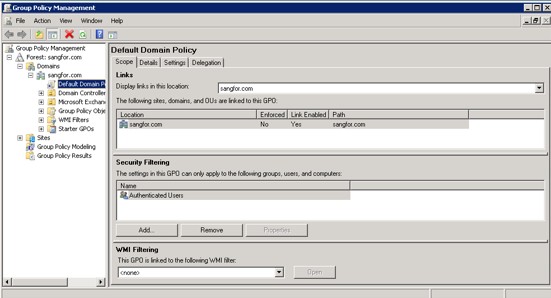
Update the group policy. 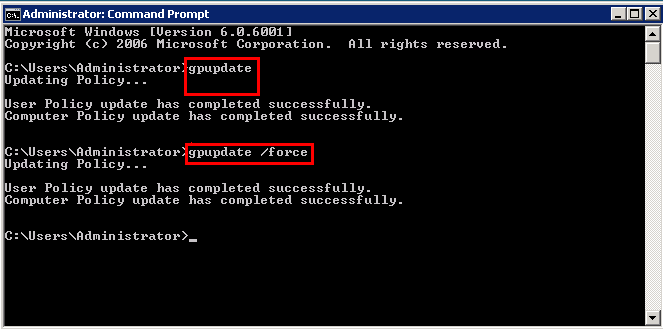


 {{ $t('index.defaultHeader.chromeBrowserTip') }}