


{{ secondMenu.name }}






Domain server login script (logon.exe) and logout script (logoff.exe) are configured. When a user logs in to or logs out of the domain, the login or logout script is executed according to a delivered domain policy to log in or out of the user at the device.
See the following figure.
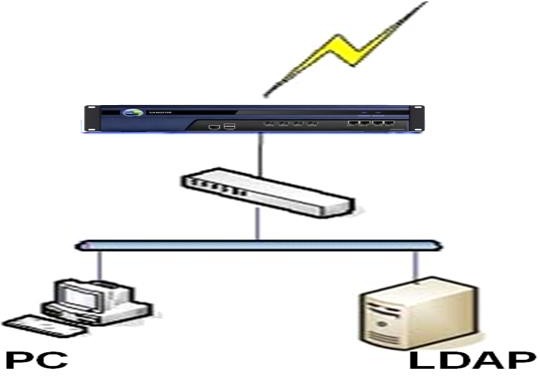
The process is as follows:
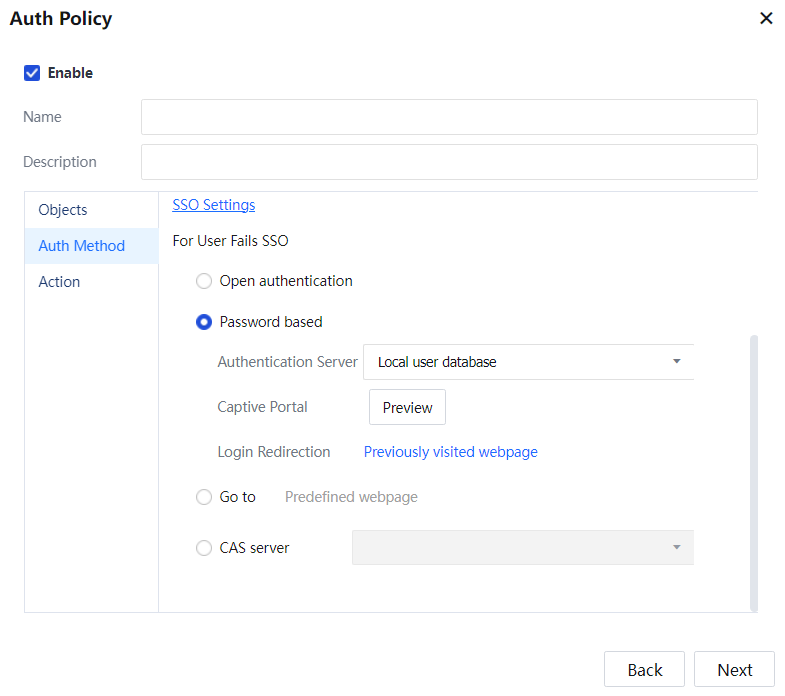
Configuration: The users in the intranet segment 192.168.1.0/24 must adopt the AD domain SSO authentication mode. After they are authenticated, the users use domain accounts to access the Internet. In addition, users and IP addresses are bound automatically. When SSO fails, the authentication page is displayed for users to enter AD domain accounts and passwords for authentication.
Step 1.Navigate to Access Mgt > Authentication > Web Authentication > Auth Server and add the LDAP Server.
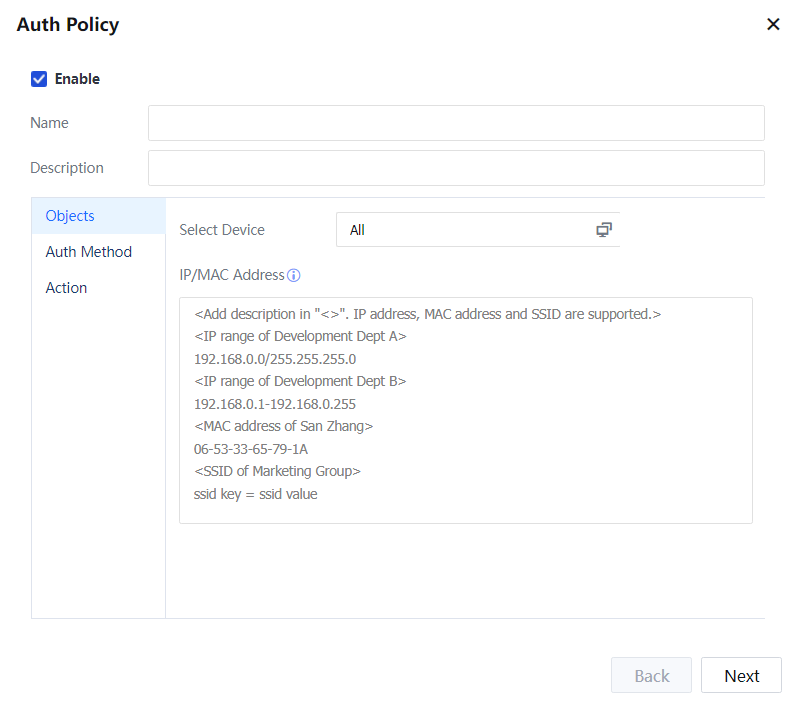
Step 2.Set the authentication policy. Choose Access Mgt > Authentication > Web Authentication > Authentication Policy. Set the authentication policy according to the IP or MAC addresses of the users who require SSO.
Set the objects:
Setting the authentication method:
Set the Action:
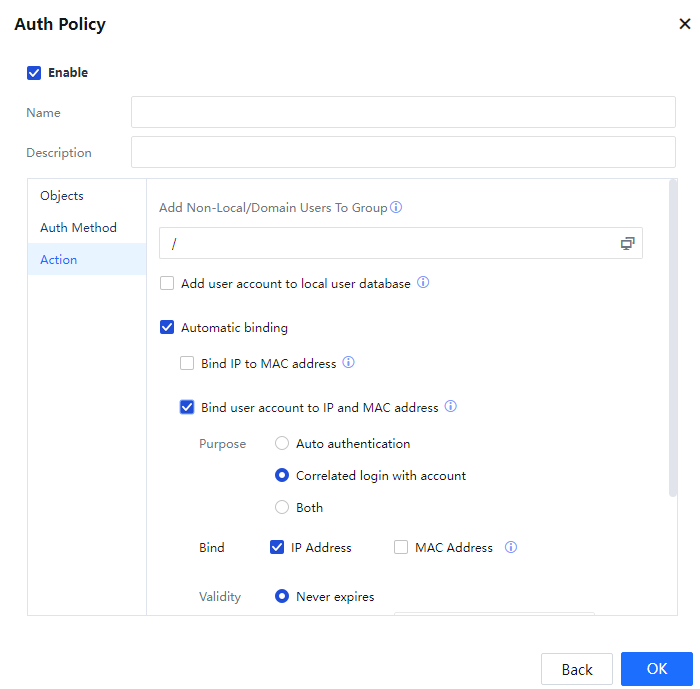
Click OK.[A343]
Enable SSO, select the SSO mode, and set the shared key. Choose Access Mgt > Authentication > Web Authentication > Single Sign-On (SSO) > MS AD Domain, and select Enable Domain SSO.[A344]
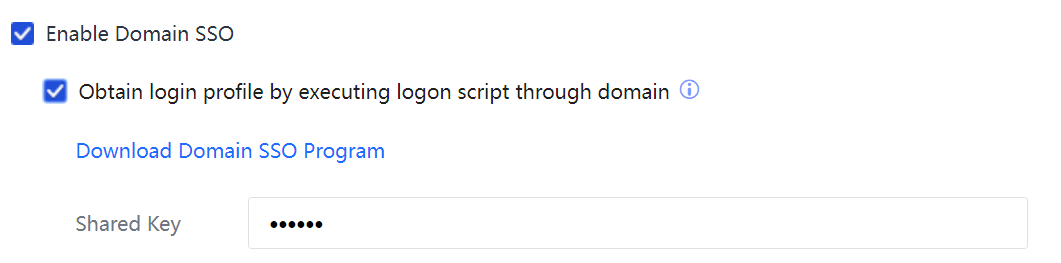
Step 3.Select Auto Deliver Scripts, Execute Specified Login Script, and Obtain Login Information, which indicates the SSO is implemented by delivering the login script. Enter the shared key in Shared Key. See the following figure.
The shared key is used to encrypt the communication between the device and the AD domain server and must be specified exactly the same in the login script. Click Download Domain SSO Program to download the login and logout scripts.
Step 4.Configure the login script on the AD domain server.
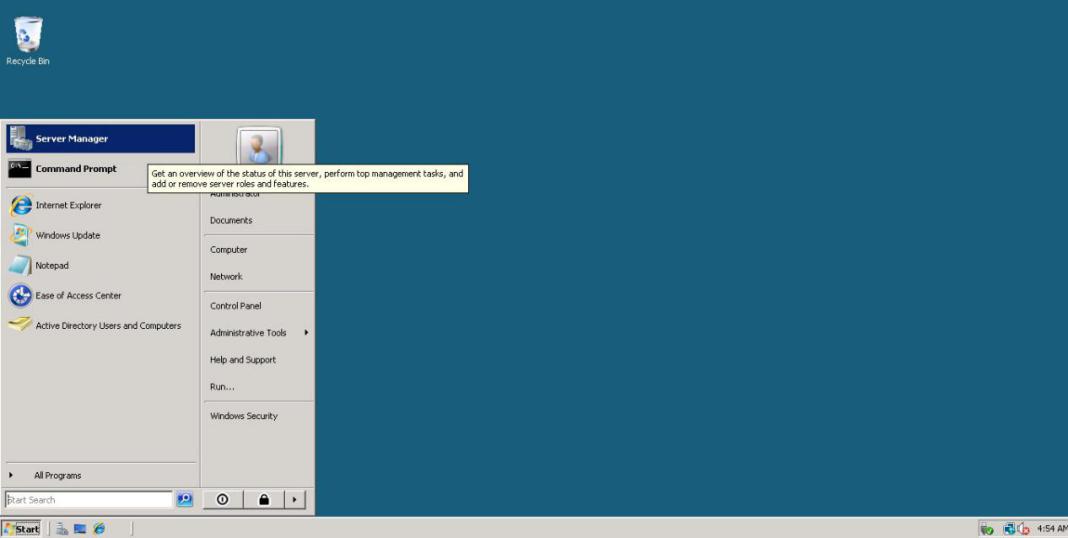
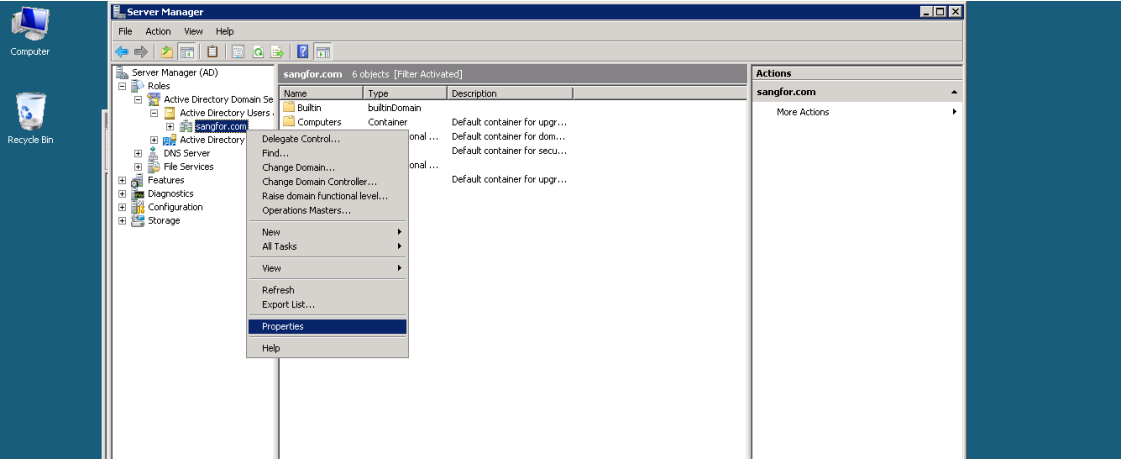
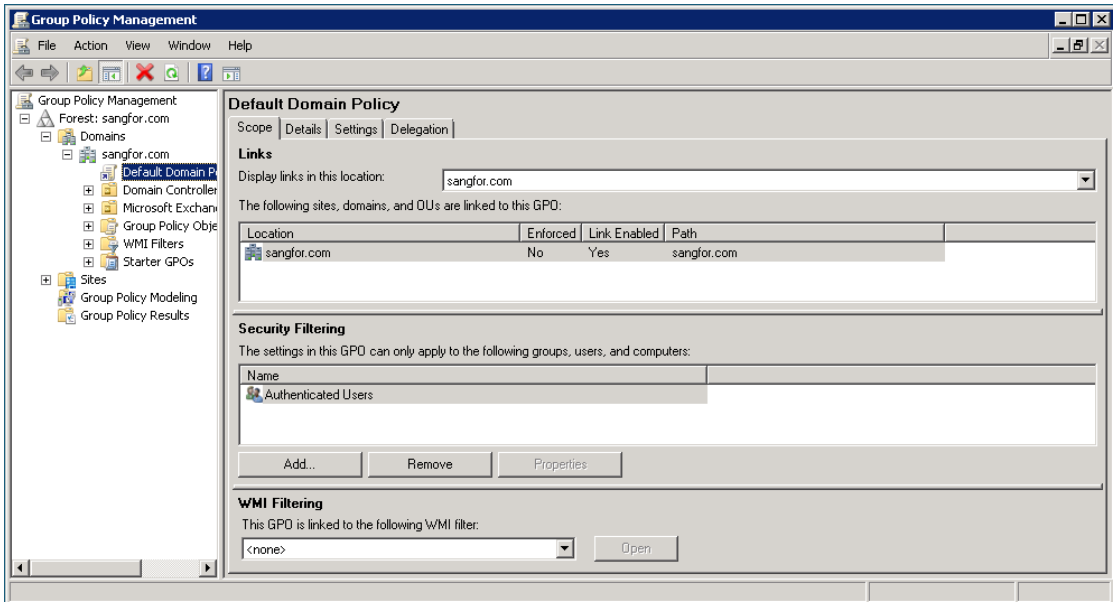
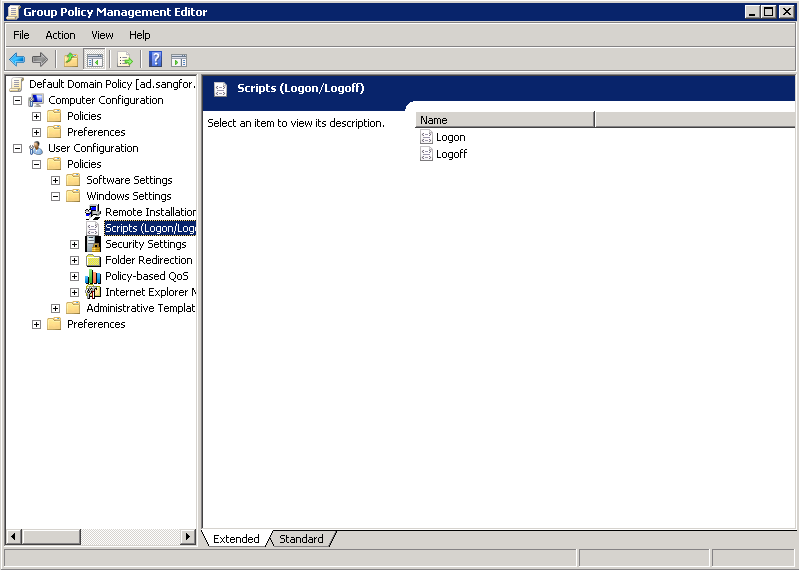
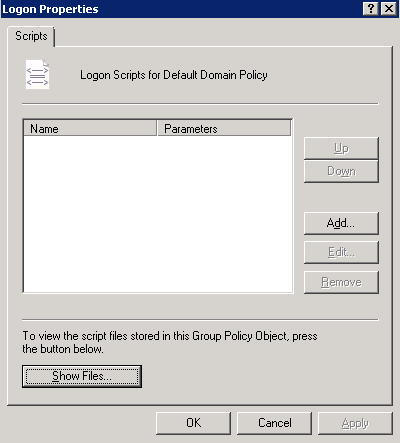
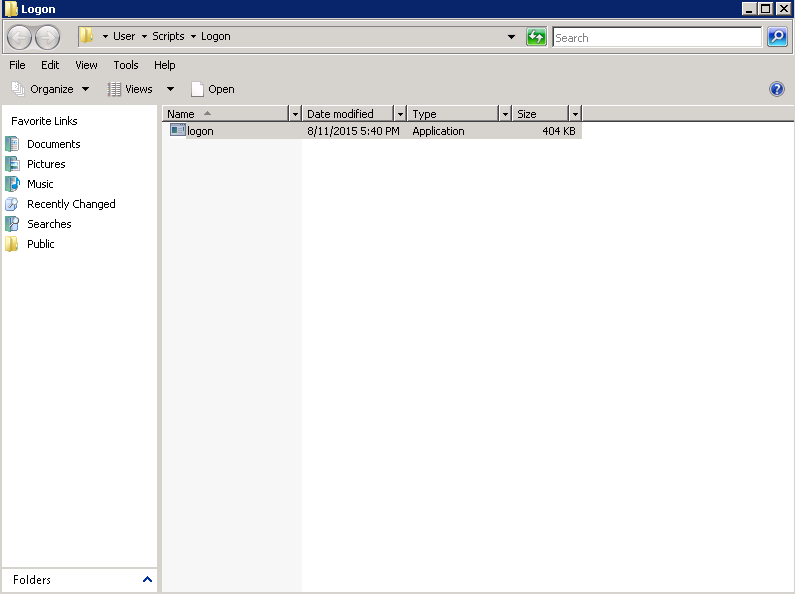
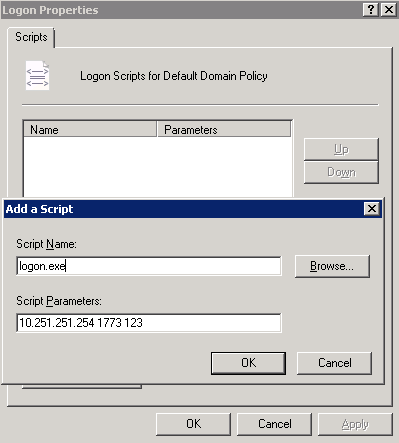
Step 5.Configure the logout script on the LDAP. The logout script helps users who are logged out of the domain server log out of the device.
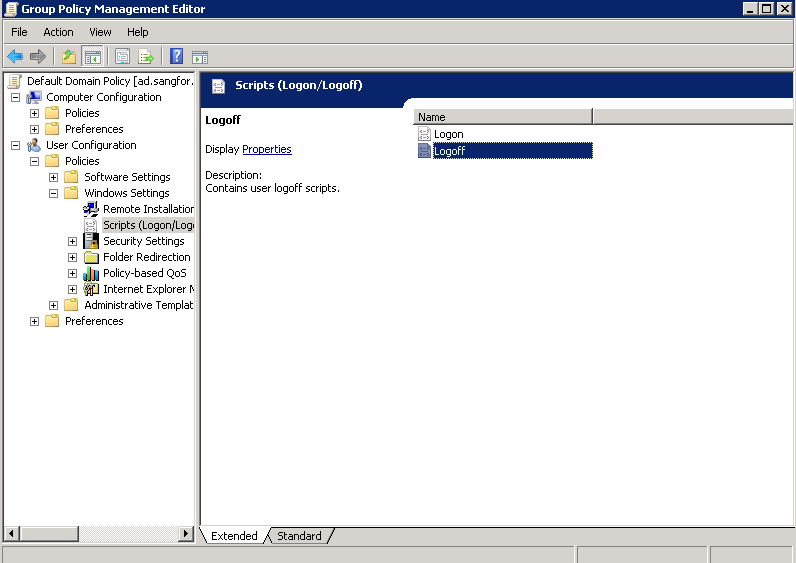
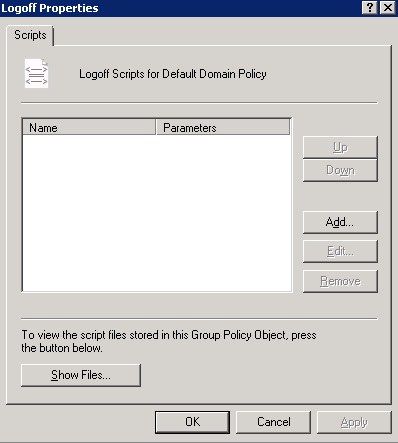
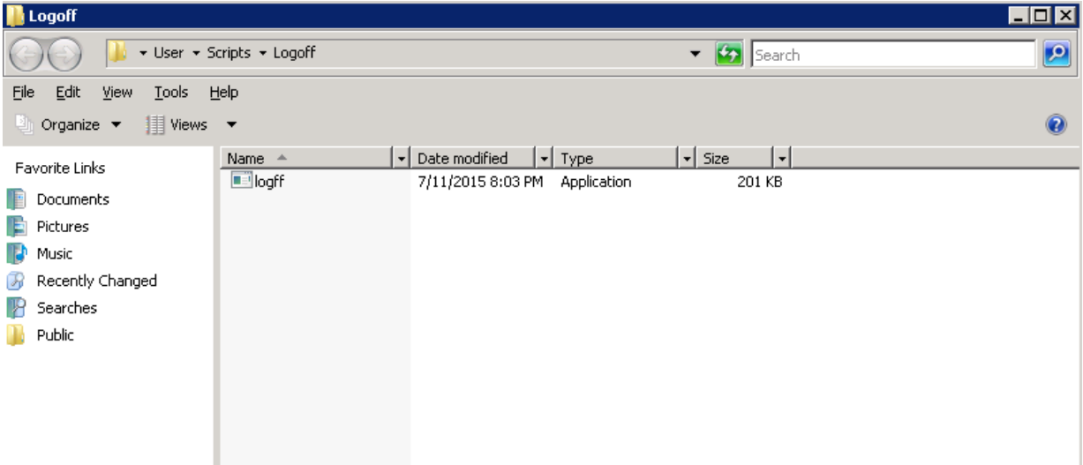
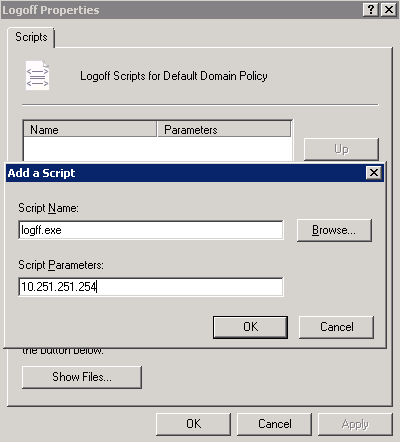
Step 6.Log in to the domain on a computer. If the login is successful, you can access the Internet.

1. The primary DNS of the PC must be set to the IP address of the domain server. Otherwise, the domain IP address cannot be resolved, resulting in domain server login failure.
2. If the DNS or IP address is changed after the first successful login, the user can log in to the computer with the correct password because Windows remembers the previous valid password. However, the user cannot log in to the domain in this case. The SSO fails, and an authentication dialog box requesting the username and password is displayed when the user tries to access the Internet.
3. The domain server, device, and PC must communicate.


 {{ $t('index.defaultHeader.chromeBrowserTip') }}