


{{ secondMenu.name }}






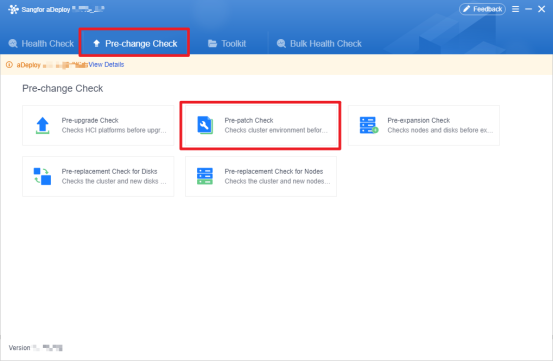
1. Log in to the aDeploy console and choose Pre-change Check > Pre-patch Check.
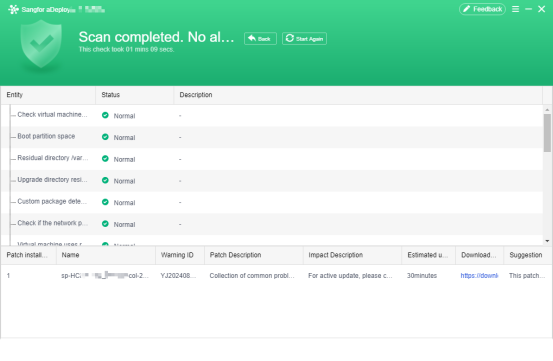
Note: If any entity fails the check, fix the issues and perform a check again. The upgrade can be performed only after all entities pass the check.
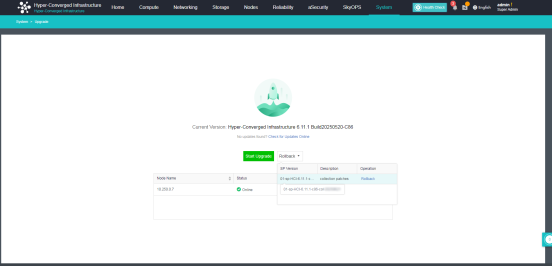
1.If a witness node exists, log in to the witness node to upgrade it separately. The following information will be displayed after the upgrade is complete.
2. Log in to the HCI platform, go to System > Upgrade, and then click Start Upgrade.
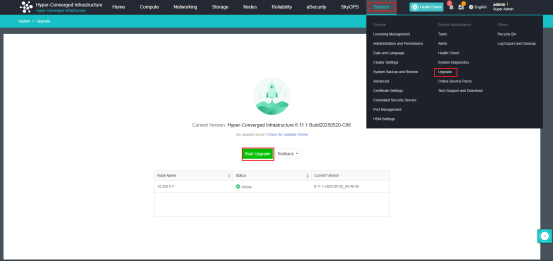
Note: You cannot implement an SP-based upgrade until all tasks are complete.
3. After the upgrade starts, the system automatically checks the environment.
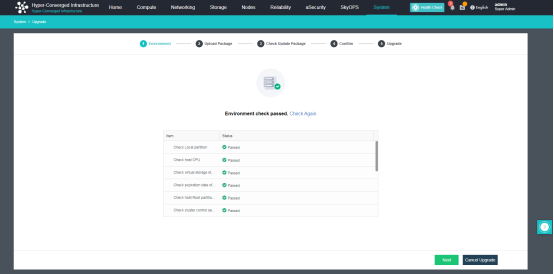
Note: If any entity fails the check, fix the issues based on the error messages and perform a check again. After the check is passed, click Next. If the issues cannot be fixed based on the error messages, please contact a technical support representative.
4. After the environment check is passed, click Next, and then click Upload to upload the correct SP.
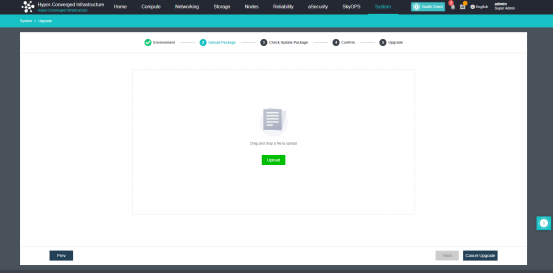
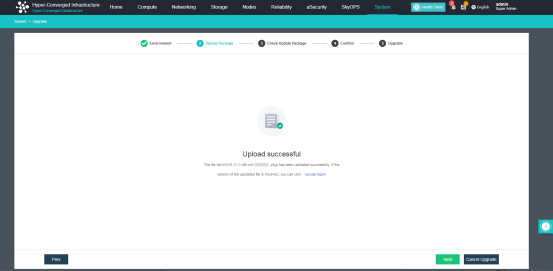
Note: If the version of the uploaded SP is incorrect, click Upload Again to upload a correct SP.
5. After the SP is uploaded, click Next to start the package check.
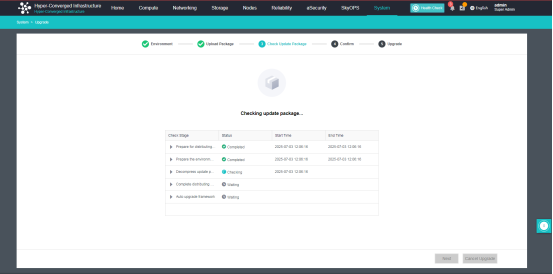
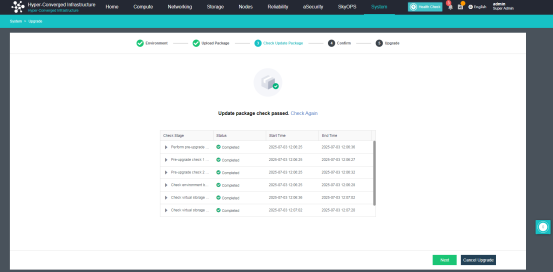
Note: If any entity fails the check, fix the issues based on the error messages and perform the check again. After the check is passed, click Next. If the issues cannot be fixed based on the error messages, please contact a technical support representative.
6. After the SP passes the check, click Next to check the SP and upgrade method. This SP supports only Quick Upgrade.
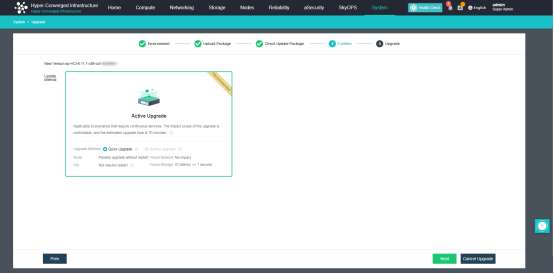
7. Click Next to enter the last stage of the upgrade. You cannot cancel the upgrade at this stage.
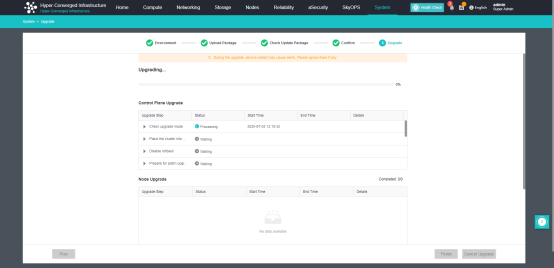
Note: If any entity fails the upgrade, fix the issues based on the error messages and then click Proceed. If the upgrade still fails, please contact a technical support representative.
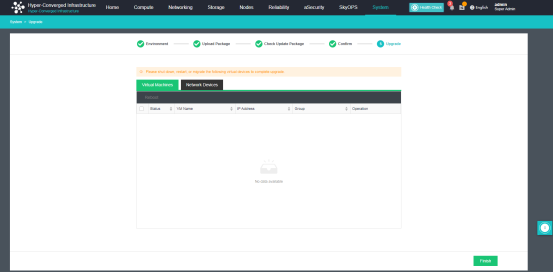
9. After the upgrade is complete, click Finish to exit the upgrade process. If VMs that need to be migrated or restarted are displayed, please follow the instructions to migrate or restart the VMs and then click Finish. If some VMs cannot be migrated or restarted due to business service reasons, you can use aDeploy to skip VM migration or restart. For more information, see 4 Appendix.


 {{ $t('index.defaultHeader.chromeBrowserTip') }}